


Page History
To set the parameters for the captured faces recognition, do the following:
- Go to to the settings panel of the Face Recognition Server settings panel. Go to the Analytics tabobject on the General settings tab (1).
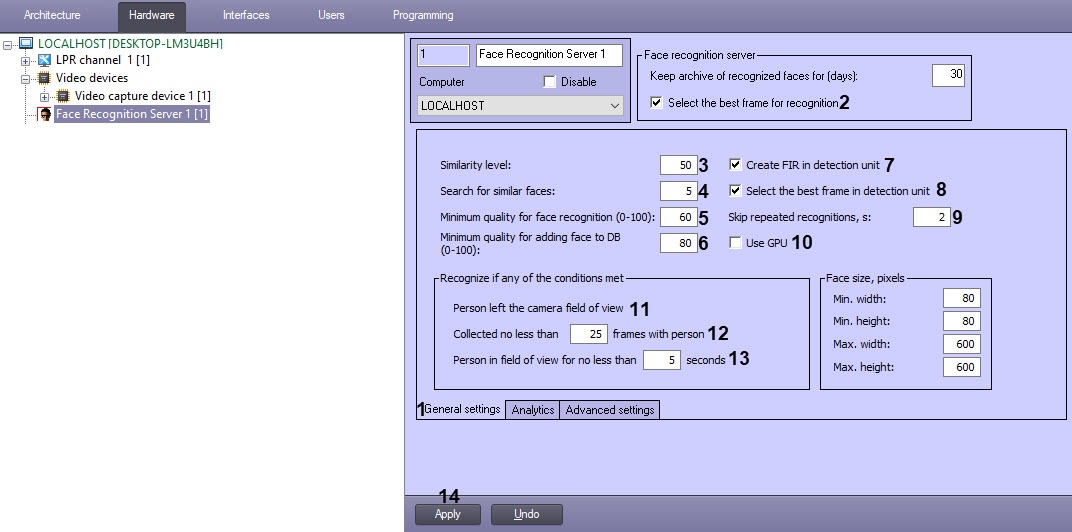
- Set the Select the best frame for recognition checkbox (1) if 2) to select the best frame from all images of one person which came to from the Face recognition server from Face detection it is required to select the best frame and create a vector tool to the Face Recognition Server and create FIR only for it.
- In the Similarity level field (23), enter the similarity level of the captured face and the reference image that will be considered a recognized match, above which the face is considered recognized. The Similarity level parameter value is specified in percent.
In the Search for similar faces field (34), enter the maximum number of matching similar reference images, which identifiers and similarity levels level will be stored in database for one frame of a captured face.
Info title Note It is recommended to specify the 1 value for this field for more precise search of the recognized faces (see Search Filtering the recognized and unrecognized faces).
In the Minimum quality for face recognition (0-100) field (45), enter the minimum quality percent for face of the captured face in percent, at which the recognition will should be performed. The default is 60%.
Note title ImportantAttention! If Tevian recognition - If VA recognition module is
- used, it is recommended to set the Minimum quality for face recognition (0-100) value to
- 60% when updating from Face
- Intellect 7.0 to Face
- Intellect of later version.
- If face concealment recognition is enabled, then in order to correctly detect the presence of a face mask, it may be necessary to set the Minimum quality for face recognition (0-100) value below the default value (see Configuring the permissions and additional settings).
In the Minimum quality for adding face to DB (0-100) field (56), enter in percent the minimum quality percent for of face to be added to the database.
Note title Important! When the HUAWEI recognition module is used, this parameter is not taken into account, and all images on which the YITU service recognizes a face are added to the face database.
- By default, the face detectors for which the configured Face Recognition Server is selected as an external capture, generate and attach biometric face parameters to the image. Such procedure is performed if the Create FIR in detection unit checkbox is set (6). If it is necessary that the face detectors only capture the face, and the biometric face parameters are generated by the Face Recognition Server, it is necessary to deselect the Create FIR in detection unit checkbox.Set the Create FIR in detection unit checkbox (7), so that the face detection tool generates and attaches biometric parameters to the face image. If the checkbox is clear, the detection tool will only capture faces, and the Face Recognition Server will generate and attach the biometric parameters.
- Set the Select the best frame in detection unit checkbox (7) if it is required to select the best frames from all images received by Face detectors, for which the configured Face Recognition Server is selected as an external capture, and send only them to the Face recognition server (8).8), so that only the best frame is sent to the Face Recognition Server. If the checkbox is clear, all frames will be sent to the Face Recognition Server.
IIf it is required to skip repeated recognitions, in the Skip repeated recognitions, sec field s field (89), set the time period in seconds more than 0 during which a captured face won't be recognized repeatedly. For details, see the IgnoreSamePeople registry key description in the Registry keys reference guide.The default value is 2. See also the IgnoreSamePeople registry key.
Info title Note Registry keys reference guide, for details about working with the registry, see Working with Windows OS registry.
Set the Use GPU checkbox (10) to select the discrete graphics card when using the VA and VideoIntellect 1.1 face recognition modules. If the checkbox is clear, the the recognition will be performed on the CPU.
Note title Attention! If the Use GPU checkbox is set for the first time, then at the same moment the caching process will start in a new window to optimize the recognition on the current GPU. Do not interrupt this process. If for some reason the caching process was interrupted, it is necessary to delete the folder with the name "GPU-[video card UUID]" at <Face Intellect installation directory>\ Modules64\Firserver\FaceRecognition\VA_ [SDK version]\. Afterwards, when the Use GPU checkbox is set, the recognition using the GPU will be performed immediately without the caching process.
If you replace the video card, the caching process will restart automatically.
- In the Collected no In the Collected not less than ... frames with person field (1112), enter the minimal minimum number of frames to be collected o one person's for the face to start the face recognitionbe recognized.
In the Person in field of view no less than … seconds field (1213), enter the time in seconds upon reaching which the recognition will be performedstart.
Info title Note The Person left the camera field of view checkbox is set by default and cannot be unchecked (10 condition is always enabled (11).
Info title Note The face recognition is performed starts if at least one of the three conditions (1011-1213) is met.
- To save Click the changes, click Apply button (1314) to save the changes.
Setting parameters for the captured faces recognition is complete.