


Page History
| Section | |||||||||||||||||||||
|---|---|---|---|---|---|---|---|---|---|---|---|---|---|---|---|---|---|---|---|---|---|
|
The AxxonNet domain is a selected group of computers on which the Server configuration of Axxon NextOne is installed. When the Servers servers are united into a group, a distributed system is formed, which allows you to establish the interaction between the Servers.servers.
| Tip |
|---|
This page describes the specifics of working with the AxxonNet domain. General capabilities of domain management are described in Configuration of a domain in Axxon Datacenter. |
Create the AxxonNet domain
To create the AxxonNet domainTo create AxxonNet domain, do the following:
- On the Domains tab, click the
 button in the top right corner.
 - Click the CREATE button
- Create button in the Create AxxonNet domain section.
 Enter
Enter - In the Name field, enter the name of the AxxonNet domain and, if necessary, fill in the additional information fields.
- AxxonNet domain.

- If you want to encrypt the archive volume, turn on the Archive encryption toggle.
Note title Attention! If you enable archive encryption, you can't disable it or change the password in the future.
- Click the Yes Click the YES
- button.
The AxxonNet domain is now created.
Add a device
To activate the AxxonNet domain, you need to create the Resource container (see Creating a Resource container).

After you create the Resource container in the AxxonNet domain, the Web-Client will be available by clicking. The following control elements will be available by clicking on the  button:
must add cameras or recorders. To do this:
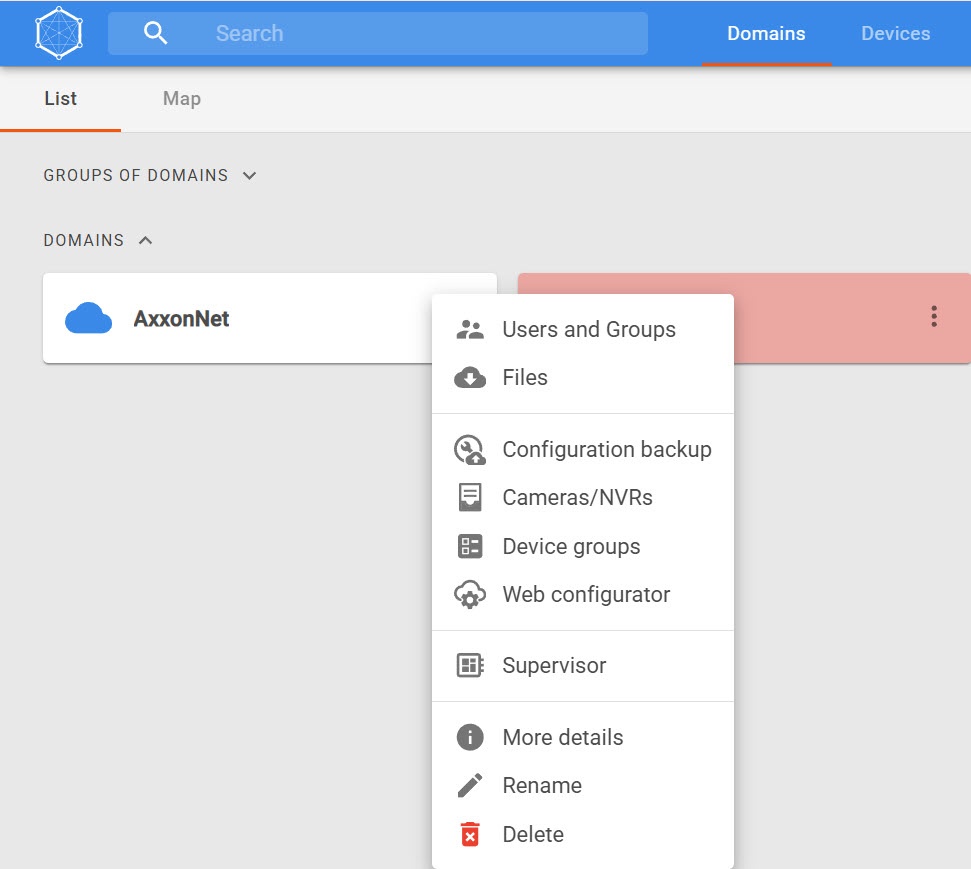
- Click the
 button next to the domain.
 - Select Cameras/NVRs.

- In the upper right corner, click the Add device button.
- In the Name field, enter the name of the device.
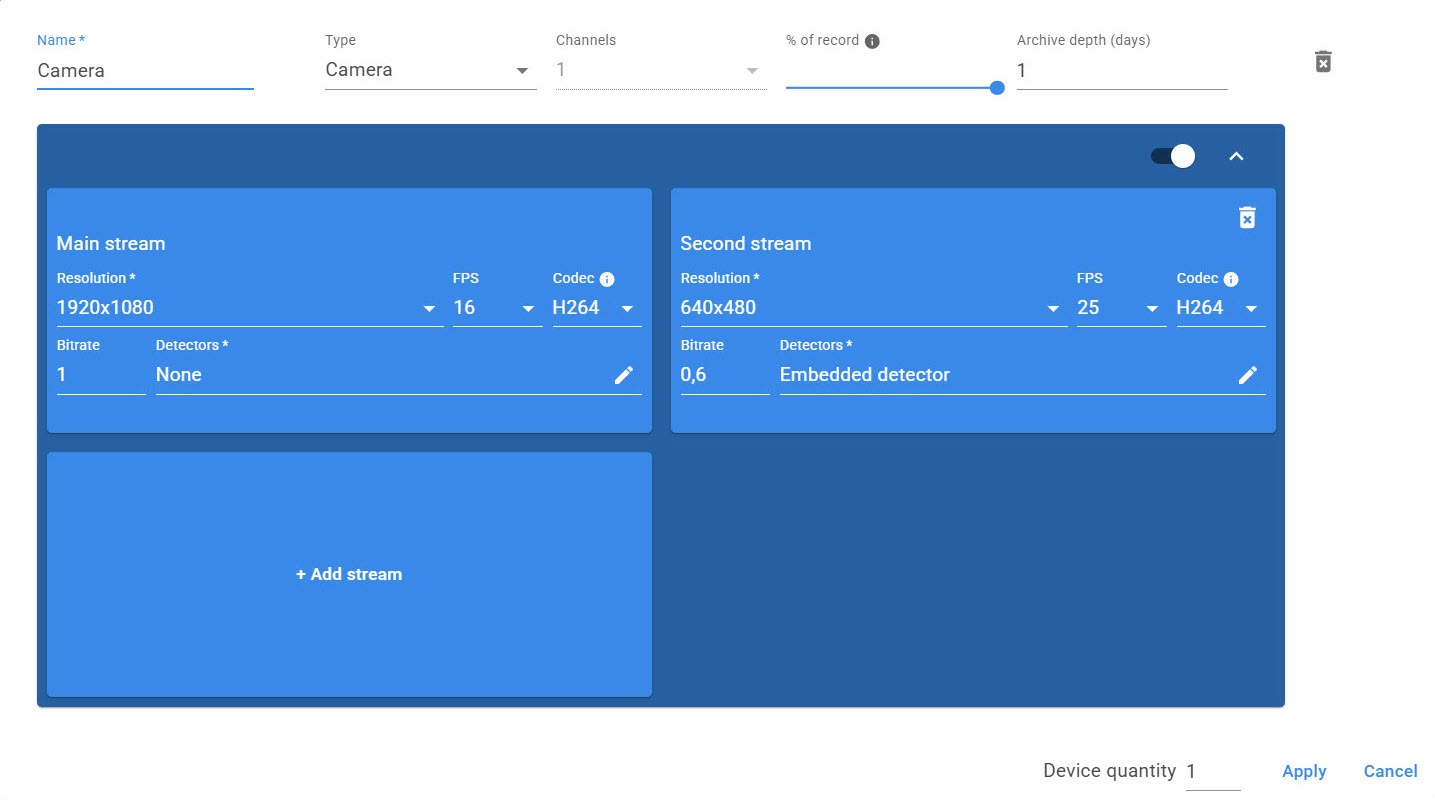
- From the Type drop-down list, select the type of the device:
- Camera
- NVR
- Bridge
- Cammeta
- If you select NVR, Bridge, or Cammeta, from the Channel drop-down list, select the required number of channels.
- Use the % of record slider to set the percentage of the day during which you want to record to the archive. 100% is continuous recording. 50% is 12 hours per day.
- In the Archive depth (days) field, specify the archive depth in days.
- From the
- Resolution drop-down list, select the required resolution of the device.
- FPS drop-down list, select the number of frames per second.
- Codec drop-down list, select the required codec. We recommend selecting the H.264 codec.
- In the Bitrate field, enter the required number of bits used to transmit/process data per unit of time.
- Click the
 button to select detectors. If detectors are not required, select None.
 - At the bottom of the window, in the Device quantity field, enter the number of devices you want to create.
- Click the Apply
 button. The device is displayed in the Devices tab.
 - Click the Apply
 button to save the changes and create the device.
The process of creating a device and a network archive is started. The size of the archive is calculated automatically.
After you add a device, the web client is available in the AxxonNet domain. When you click the button, the following items are available:
Delete a device
| Note | ||
|---|---|---|
| ||
You cannot delete a device if device groups are bound to it (see Create a device group). |
To delete a device:
- Click the button.
- Select Cameras/NVRs.
- Set the checkbox next to the device that you want to delete.

- Click the Delete
 button.
 - To confirm the deletion, click the Yes button.

The selected device is removed from the domain.
Create a device group
You can create a device group only if devices (cameras or recorders) are added to the domain (see Add a device).
To create a device group:
- Click the button next to the domain.
- Select Device groups.
- In the upper right corner, click the button.
- In the Name field, enter the name of the device group.

- In the Description field, enter the group description if necessary.
- In the Website URL field, enter the website address if necessary.
- In the Contact person field, specify a contact person if necessary.
- Click the Apply
 button.
A group of devices is created. The Device groups tab displays all additional information.
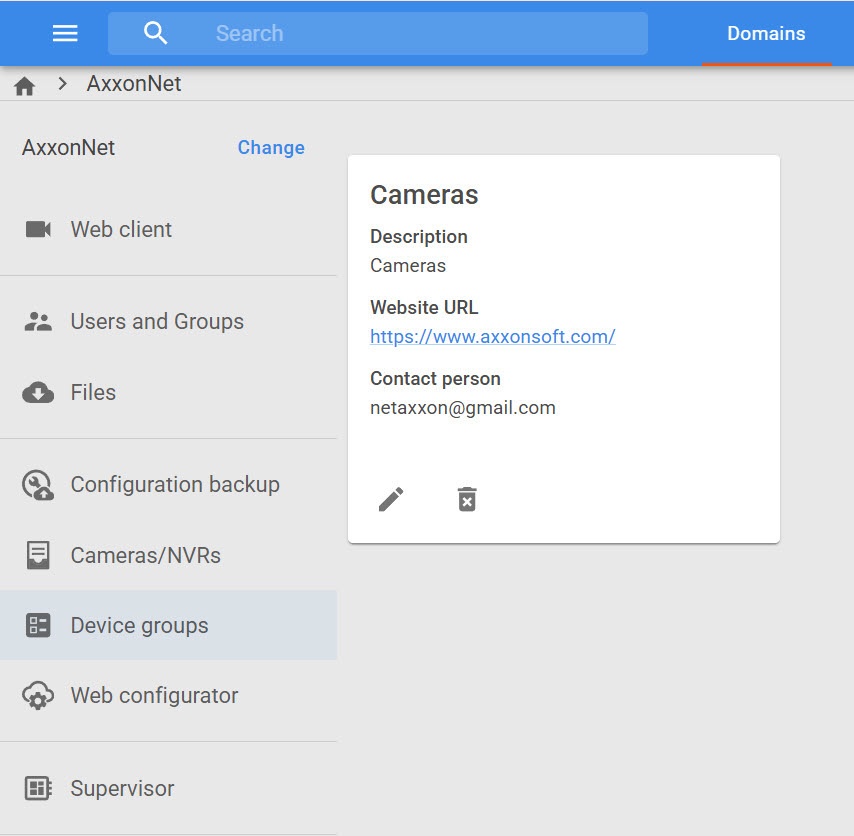
To edit information about a group, click the Edit  button. To delete a group, click the Delete
  button.