| Section |
|---|
| Column |
|---|
|
| Panel |
|---|
| borderColor | #CCCCCC |
|---|
| bgColor | #FFFFFF |
|---|
| titleBGColor | #F0F0F0 |
|---|
| borderStyle | solid |
|---|
| title | On the page: |
|---|
| |
|
|
The Detection of light indication control module is configured using the System settings menu, under the Hardware tab, on the control module registers the light indication enabling and disabling in the camera FOV.
Configuration of the Detection of light indication control control panel, using the Camera settings.
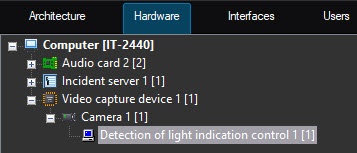 Image Removed
module includes: selection of video detection areas, specifying the detector parameters.
You can configure the Detection of light indication control module on the settings panel of the The Detection of light indication control module is set up as follows:object that is created on the basis of the Camera object on the Hardware tab of the System settings window.
Image Added
Selecting detection areas
- Go to the settings panel of the Detection of light indication control control panelcontrol object.
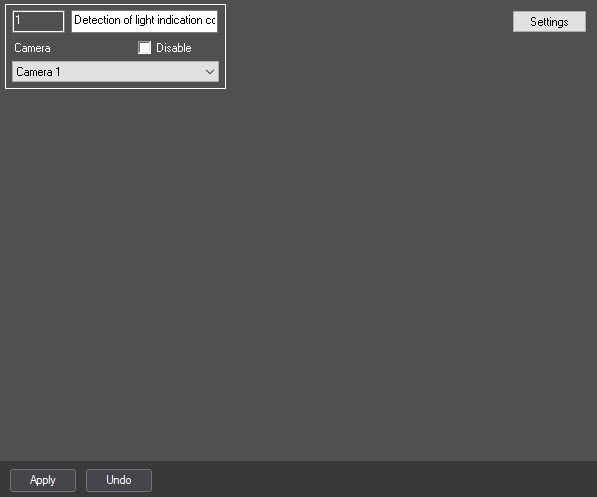
- Click the Settings(1) button. The Detection settings window will appear opens.
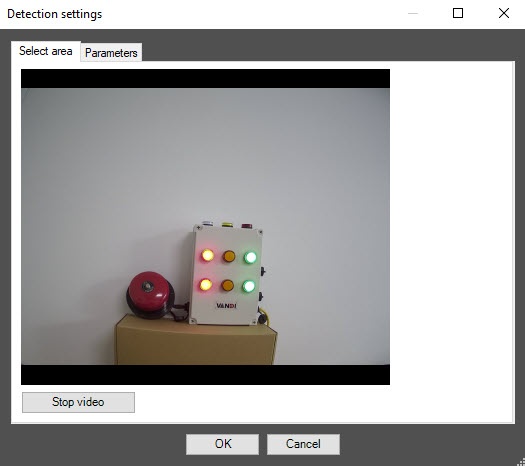
- Specify the location of lights sources in the image which are to be tracked by detection:Click Stop video to In the Detection settings window, click the Stop video button to pause the playback and capture the video image.
- On the captured video image specify areas to be analyzes (1). Click the left mouse button in the frame area and stretch it , specify the location of the light sources that you want to monitor with the detector. For this, on the captured video image, specify detection areas by clicking in the frame and stretching the bounding border to the required size. The minimal allowed size of the analyzed area is 15х15 pixels. The maximum allowed size of the analyzed area is 200х200 pixels.
Areas of interest detection areas are numbered in the order of creation, starting from 1. The number of analyzed area is not limited. Adding the area at the right from the video image the corresponding button is displayed (2).
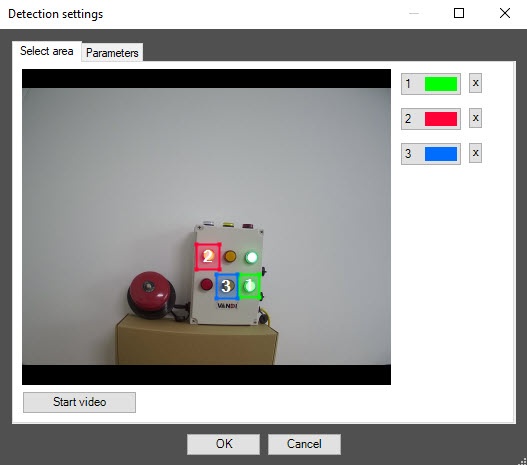 Image Removed
 - Specify the required size, shape and location of sectors in the area of interest moving their borders. Selecting the area take into account that the local change of illuminance and specular surface near lamps in the area of interest can cause the false detection triggering.
To specify the area again click one. When you add an area, the button corresponding to this area is displayed to the right of the video image.
Image Added
| Info |
|---|
|
- The number of detection areas is unlimited.
- You can change the size and position of detection areas by moving their borders with the mouse.
- Note that changes in local illumination and reflective surfaces near lamps that are in the detection area can cause false event generation of the detector.
- To correctly specify the detection area, you must include in it a small part of the area near the light source.
- To change the borders of the detection area, activate it by clicking the button with its number in the list of areas
|
...
- (the button changes its color to blue) and resize the area
|
...
...
...
- To delete an area, click the
 Image Added button to the right of the area number. Image Added button to the right of the area number.
|
Detector parameters
- Go to the Parameters tab in the Detection settings window (1).
 Image Modified
 - Using the up-down buttons enter the value of sensitivity parameter in the Sensitivity field (2). The optimal value is selected experimentally by testing detection on triggering In the Sensitivity field, specify the detector sensitivity to the video image change in the range from 0 to 100. You must select the optimal value experimentally by testing the detector on event generation in the required conditions. The value range is from 0 to 100. The more sensitivity the more possibility of false triggering. The less sensitivity, the more possibility of losing event.
- Click OK button (3) to save changes and return to the control panel of the Detection of light indication control.
- On the Detection of light indication control control panel, click Apply button (2).
- higher the sensitivity, the higher the probability of false event generation. The lower the sensitivity, the greater the probability of missing an event. The default value is 85.
- In the Brightness sensitivity field, specify the detector sensitivity to the light source state change. The default value is 240. You must select the optimal value experimentally by testing the detector on event generation in the required conditions. For a dim light source, we recommend increasing the value of the parameter.
- In the Time between measurements (ms) field, specify in milliseconds the time interval between two measurements of light indication. The default value is 1000.
- Click the OK button to save the detector changes and close the Detection settings window.
- Click the Apply
 Image Added button to save the changes on the settings panel of the Detection of light indication control object.
Configuring the Configuring the Detection of light indication control module is complete.


