
Go to documentation repository


Page History
...
- Go to the Hardware tab of the System settings window (1).
Create the Captioner object on the basis of the Camera object (2).

- Specify the parameters of the captions output window (3):
- Set the coordinates of the upper left corner of the captions output window: the X (the horizontal indent from the left border of the screen) and Y (the vertical indent from the top border of the screen) fields.
- Set the size of the captions output window: the W (the width of the captions output window) and H (the height of the captions output window) fields.
- Specify the font parameters used for caption output:
- Click the
 button (4).
 - In the Font standard Windows dialog window that opens, specify the required font parameters and click OK.
- Double-click the Color field (5).
- In the Color standard Windows dialog window that opens, select the required color and click OK.
- Click the
- Specify the rules of word highlighting (6):
- Right-click the Highlight words field, and in the context menu that appears, select the Add item.

- In the dialog window that appears, enter the required word and click OK. The entered word is added to the Highlight words table.
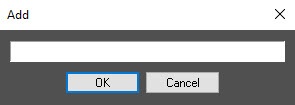
- Specify the color with which the word is highlighted by double left-clicking the Color field next to the entered word. In the Color standard Windows dialog window that opens, select the required color and click OK.
- Set the Full string checkbox if you want to highlight not only the required word but also the entire line that contains this word during the output.
- Set the Match case checkbox if you want to match the case of the word characters.
Repeat steps a-e for all required words.
Info title Note Use the context menu for operations with the words entered in the table (right-click the required word). If you want to clear the Highlight words table, click the Clear button.
- Right-click the Highlight words field, and in the context menu that appears, select the Add item.
If necessary, specify the maximum number of days as the difference between the newest and the oldest entry in the captions database for the given captioner in the Captions archive size__days field (7). Entries that were added earlier than the specified number of days before the most recent entry are automatically deleted "in loop". If you specify the 0 (default) value, the entries are deleted in loop along with the video archive.
Info title Example For example, the captions archive size is 1 day. On Friday, the captions from Captioner 1 are added to the captions database. On Saturday and Sunday the camera is turned off, and captions aren't recorded. On Monday the camera is turned on, and the friday captions from Captioner 1 remain in the captions database until the ordinary record is added to the captions database of Captioner 1. Within the 3 minutes after the new record is made on Monday, the captions from Friday are deleted.
- Click the Apply button (8).
...
Overview
Content Tools