
Go to documentation repository


Page History
...
Bookmarks created by the operator during or after an event allow for a detailed view of what is happening at the protected facility. When you view the archive, bookmarks are displayed on the timeline as special marks (see The Timeline). Users with the appropriate access level settings in the Working with bookmarks parameter can create, edit, and delete bookmarks remove bookmarks (see Roles Role).
| Note | ||
|---|---|---|
| ||
|
...
- Create a bookmark in the archive mode. To do this:
Open the required layout (see Selection and Slideshow of Layouts).
Go to the archive mode (see Switching to the Archive mode).
Click the Timeline panel button.
Select the bookmark interval on the timeline:
- Place the timeline pointer at the beginning of the interval.
- Click the
 button.
 - Scroll the timeline and place the pointer at the end of the interval.
- Click the
 button.
- Click the
 button.
 - In the window that opens, click Add bookmark.
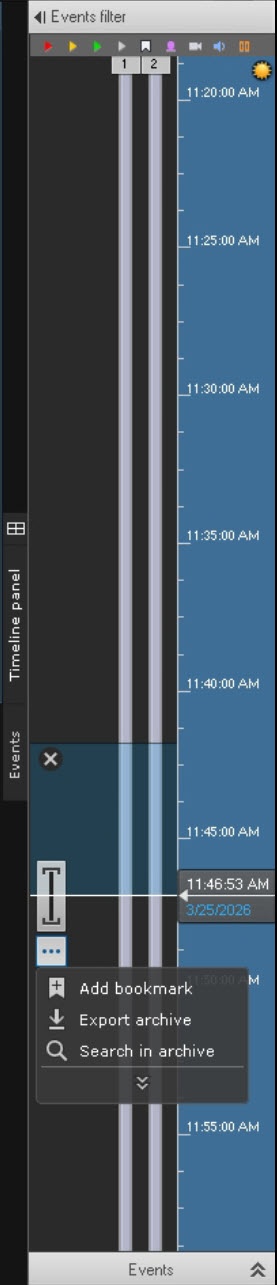
- A window opens in which you must set the bookmark parameters specified in the table:
Parameter Value Description Add bookmark From [date], [month], [year], [hours], [minutes], [seconds] Specify the date and time interval for which you want to create a bookmark. By default, the limit on bookmark length is two hours. If you want to change the time limit, go to the Options tab → the Bookmark parameters item (see Bookmark parameters)
Note title Attention! - If the specified time interval exceeds the set limit, the message text is displayed in red and the Save button becomes inactive.
- When you create a quick bookmark, the date and time are selected from the moment of the freeze frame in the surveillance window.
- When you change the time range in the timeline or in the advanced navigation panel, the date and time values are updated automatically in the opened dialog window.
To - If you don't select the time range when creating a bookmark on the timeline, the interval for the bookmark length is automatically set to five minutes from the current position of the pointer.
To Selected cameras
[Short camera name].[Camera name]
Select a specific camera
Selected cameras
[Short camera name].[Camera name]
Select a specific camera or all cameras of the current layout. You can also add cameras from a different layout, the bookmark will automatically appear on them.
Note title Attention! - When you create a bookmark for the selected camera, you cannot deselect the camera.
- To select all cameras of the current layout, click the All from current layout button.
- If you don't select any cameras, the Save button is inactive.
- When you create or edit a bookmark of one camera in the archive mode and add cameras that are in the live mode, a bookmark is automatically added to them as well.
CategoryFrom the drop-down list, select one or more
Note title Attention! The Category parameter is available if you create one or more categories on the Options tab → Bookmark parameters (see Bookmark parameters). If you don't create any category in the system, the parameter isn't displayed in the bookmark creation/editing window.
From the drop-down list, select one or more bookmark categories. Categories are used to group bookmarks by themes. You can create a category on the Optionstab (see Bookmark parameters). When you select a category, specifying a comment is optional
Comment
Enter a comment if necessary. The visible field contains four lines
Info title Note If the comment contains many characters, the expanded bookmark occupies no more than 80% of the surveillance window space.
Highlight area
 Point area
 If necessary, select an area of interest on the frame. To do this:
- Click the corresponding button (see the Value column).
- Click any place on the frame. The selected element is displayed.
- Move the element to the required area of the frame. To do this, left-click the element and move the cursor without releasing it.
- Specify the size of the element by stretching the anchor points.
With the help of an elliptical and rectangular mask area, you can hide certain parts of the image. This ensures confidentiality and protection of personal data
Info title Note - You cannot set a mask area in real time (see Switching to Live mode).
- For a single bookmark, you can set either an area of interest or a mask area.
- The mask area is displayed only in the main client. In the web client and mobile client, there is no mask area on the video image.
- Only the users, in the role settings of which the Yes value is set for the Show mask video in archive parameter, can hide the masked area when viewing and exporting the archive (see Roles Role).
 Ellips area
 Rectangle area
 Ellips mask area
 Rectangle mask area
Advanced area settings Saved positions Protect archive from deletion

You can set several positions on different frames to display the same bookmark. To do this, go to another frame, move the element on it to the required area, and click the Add button.
To delete a one position, click . As a result, one bookmark is displayed for all added positions
Add bookmark Info title Attention! - If you don't link the object archive to the camera, the Protect archive from deletion parameter is hidden in the bookmark creation window and the following warning is displayed: The "Protect archive from deletion" function is only available for object archive.
If you set the Mandatory archive protection from deletion checkbox on the Options tab →in the Bookmark parameters item, then the Protect archive from deletion parameter and the Indefinitely,For -+days option buttons will be unavailable for editing in the bookmark creation window (see Bookmark parameters).When you use the Axxon One Free and the Axxon One Start licenses (see Axxon One license types), the bookmark functionality is limited. The Protect archive from deletionparameter and the Indefinitely, For -+daysoption buttons are unavailable.By default, the archive isn't protected from deletion (the checkbox is clear). If you need to have mandatory archive protection from deletion, set the checkbox. During archive FIFO overwriting, the protected bookmark isn’t deleted (see Configuring recording to an archive)

Indefinitely 
Select Indefinitely or For +- days. By default, the bookmark storage period is 30 days. If necessary, you can change it. The value must be in the range [1, 1095]
Note title Attention! The option buttons are available for selection only if the Protect archive from deletion checkbox is set.
Note To delete all positions, click the Delete all
 button.
For +- days Confidential bookmark
By default, the bookmark doesn't have confidential protection (the checkbox is clear). If you want to make the bookmark confidential, set the checkbox - Click the Save
 button.
- You can create a quick bookmark at any time. To do this:
Note title Attention! The time interval of the quick bookmark depends on whether you click the Add bookmark
 button before clicking the Save button.
- Open the required layout (see Selection and Slideshow of Layouts).
- Click the button in the camera surveillance window.
- A window opens in which you must set the bookmark parameters specified in the table:
Parameter Value Description Selected cameras
[Short camera name].[Camera name]
Select a specific camera or all cameras of the current layout. You can also add cameras from a different layout, the bookmark will automatically appear on them.
Note title Attention! - When you create a bookmark for the selected camera, you cannot deselect the camera.
- To select all cameras of the current layout, click the All from current layout button.All from current layout button.
- If you don't select any cameras, the Save button is inactive.
Category
CategoryNote title Attention! The Category parameter is available if you create one or more categories on the Options tab → Bookmark parameters (see Bookmark parameters). If you don't
select any cameras, the Save button is inactive.thecreate any category in the system, the parameter isn't displayed in the bookmark creation/editing window.
From the drop-down list, select one or more bookmark categories. Categories are used to group bookmarks by themes. You can create a category on
the Optionstab (see Bookmark parameters). When you select a category, specifying a comment is optional
Comment
Enter a comment if necessary. The visible field contains four lines Highlight area
Point area If necessary, select an area of interest on the frame. To do this:
- Click the corresponding button (see the Value column).
- Click any place on the frame. The selected element is displayed.
- Move the element to the required area of the frame. To do this, left-click the element and move the cursor without releasing it.
- Specify the size of the element by stretching the anchor points
Ellips area Rectangle areaConfidential bookmark
By default, the bookmark doesn't have confidential protection (the checkbox is clear). If you want to make the bookmark confidential, set the checkbox - Click the Save button.
...
A list of all created bookmarks opens:
| Parameter | Value | Description | |||
|---|---|---|---|---|---|
| Bookmarks | |||||
| The last |
| To display the latest created bookmarks for a certain period, select the option button | |||
| |||||
| - | With this button, you can decrease the numerical value | ||||
| 30 | The default value is 30. Set the time interval in the range [1, 30] | ||||
| + | With this button, you can increase the numerical value | ||||
| minute(s) | Select the required value from the drop-down list | ||||
| hour(s) | |||||
| day(s) | |||||
| week(s) | |||||
| month(s) | |||||
| Specific date |
| To display created bookmarks for a specific date, select the option button | |||
| |||||
| From |
| By default, the field is inactive (the checkbox is clear). To specify the required date for the bookmarks search, set the checkbox. You can search for bookmarks from the specific time interval to the actual viewing time | |||
| |||||
| - | With this button, you can decrease the date numerical value | ||||
| [date], [month], [year], [hours], [minutes], [seconds] | Select date and time | ||||
| + | With this button, you can increase the date numerical value | ||||
| To |
| By default, the field is inactive (the checkbox is clear). To specify the required date for the bookmarks search, set the checkbox. You can search for bookmarks to the specific date | |||
| |||||
| - | With this button, you can decrease the date numerical value | ||||
| [date], [month], [year], [hours], [minutes], [seconds] | Select date and time | ||||
| + | With this button, you can increase the date numerical value | ||||
| Selected cameras | Select one or several cameras for which the created bookmarks must be displayed | ||||
| Start | [date], [month], [year], [hours], [minutes], [seconds] | Date and time of the bookmark start | |||
| End | [date], [month], [year], [hours], [minutes], [seconds] | Date and time of the bookmark end | |||
| Comment | User comment | ||||
| Category | [name] | Name of the bookmark category | |||
| User | root | Name of the user who created the bookmark | |||
| Created | [date], [month], [year], [hours], [minutes], [seconds] | Date and time of the bookmark creation | Protection status | Protection expires | Displays the remaining period of the bookmark protection and the status of the bookmark without protectioncreation |
| Exported | Displays the status of the bookmark export, indicating whether a bookmark is exported or not. It also displays the date and time of the lastest completed export | ||||
| Actions | Edit | You can edit a bookmark (see Edit bookmarks) | |||
| Remove | You can remove a bookmark (see Remove bookmarks) | ||||
| Export | You can export a bookmark (see Bookmark export) | ||||
...
- Start,
- End,
- Comment,
- Category,
- User,
- Created, Protection expires
- ,
- Exported.
You can change the width of columns in the bookmarks list. To do this, do the following:
...
| Info | ||
|---|---|---|
| ||
Temporary layout opens even if the archive fragment with the bookmark is already deletedremoved. The time is set to the beginning of the archive, and the camera surveillance windows display the message message No archive record. |
To exit the bookmark window, click the  button in the upper right corner.
...
Edit bookmarks
| Note | ||
|---|---|---|
| ||
If you create a bookmark for several cameras, the changes that you make while editing it are applied to all cameras except for the selected area and privacy mask. When you use the Axxon One Free and the Axxon One Start licenses (see Axxon One license types), the bookmark functionality is limited. The Protect archive from deletionparameter is unavailable for editing. |
You can edit a created bookmark using:
- Bookmark list. To do this:
- Open the layout (see Selection and Slideshow of Layouts).
- On the top panel of the layout next to the Video/Archive buttons, click the
 button.
 - In the window that opens, click the
 button.
 - A bookmark editing window opens in which you can change the necessary parameters:
Time period.
Required cameras.
Category.
Comment.
- Archive protection from deletion.
Bookmark confidentiality.
- Click the Save button.
- Surveillance windows in the archive mode. To do this:
Open the layout (see Selection and Slideshow of Layouts).
Go to the archive mode of the camera that already has a created bookmark.
- Click the
 button.
 - In the window that opens, click Edit.
- A bookmark editing window opens in which you can change the necessary parameters:
Time period.
Required cameras.
Category.
Comment.
Selected area.
Archive protection from deletionSelected area.
Bookmark confidentiality.
- Click the Save button.
| Info | ||
|---|---|---|
| ||
The User and Created fields display the bookmark creator and creation date. You cannot edit these fields. You can also see a note indicating the remaining protection period for each bookmark. |
Bookmark editing is complete.
...
The bookmark export is complete.
Remove bookmarks
You can delete remove the created bookmarks.
| Note | ||
|---|---|---|
| ||
When you delete remove a bookmark, it is completely deleted removed from the archive and the bookmark list, as well as from all the cameras to which it was added. The archive data for the period corresponding to the bookmark is saved. |
You can delete remove the created bookmarks using:
- Bookmark list. To do this:
- Open the layout (see Selection and Slideshow of Layouts).
- On the top panel of the layout next to the Video/Archive buttons, click the button.
- In the window that opens, click the
 button.
 - Click the Delete button.
- Surveillance windows in the archive mode. To do this:
- Open the layout (see Selection and Slideshow of Layouts).
- Go to the archive mode of the camera that already has a created bookmark.
- Click the button.
- In the window that opens, click Delete.
- Click the Delete button.

Bookmark deletion is completeremoving is complete.
Removing bookmarks from the system log
To remove bookmarks, use the settings of domain options of the System log cleanup period parameter (see Data storage).
Overview
Content Tools