
Go to documentation repository
...
Setting To set up the audio notification when registering the alarm events is done in , do the following way:
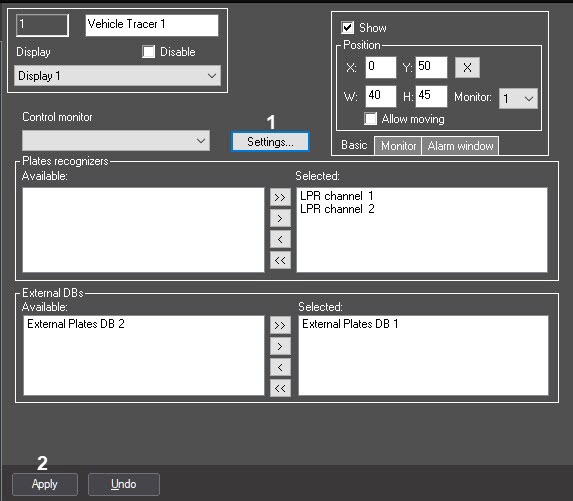 Click Click the Settings button (1).
Select the required alarm event or external database from the area (2) field and and click the  button to the right of itthe required event. In the opened standard Open dialog window dialog window, select the select the required sound audio file in WAV format and then click the Open button. As a result, the full path to the sound audio file will be displayed in the field corresponding to the selected alarm event or external database.
| Info | ||
|---|---|---|
| ||
The audio notification file can only be in WAV format. Other formats aren't supported. The number and the names of the external databases displayed on the the Audio notification tab correspond to those external databases that were pre-selected for analyzing the identified plates (see Selecting the External Plates Database). |
Click the OK button to save the changes and and return to the settings panel of the Vehicle Tracer object (3).
| title | Note |
|---|
Click the Cancel button to close the Settings dialog window without any changes.
...

