
Go to documentation repository
The You can configure the Stopped vehicle detection program module is configured on the settings panel of the Stopped vehicle detection object , that is created on the basis of the Camera object on the Hardware tab of the System settings dialog window.

The To configure the Stopped vehicle detection module is configured as follows program module, do the following:

Set the surveillance zones on the On the Select area tab (1). Several zones can be added , set the surveillance zones. You can set several surveillance zones (2). Detection tool triggering Detector generates a separate event in each surveillance zone produces a separate event.
| Info | ||
|---|---|---|
| ||
| For each surveillance zone, both Both the vehicle stop and vehicle leavingthe stopped vehicle that leaves the boundaries of the zone are detected in each surveillance zone. |

To add a surveillance set the surveillance zone, do the following:
Click the Stop video button (3) to capture the frame of the video image.
To add a zone, click
any mouse button onthe left and right mouse buttons on the frame of the video image.
Specify the approximate size of the vehicle in each surveillance zone by changing the size of the internal areas area in the bottom left corner of the zone (5). This field This area (5) is called the detection area.
| Info | ||
|---|---|---|
| ||
Each surveillance zone over its entire area is proportionally covered by detection areas of the specified size. It is necessary to You must set the approximate dimensions of the vehicle so that each surveillance zone includes no more than 256 detection areas.
|
Select the direction of
the vehiclesvehicle movement relative to the camera for
eachthe surveillance zone (7).
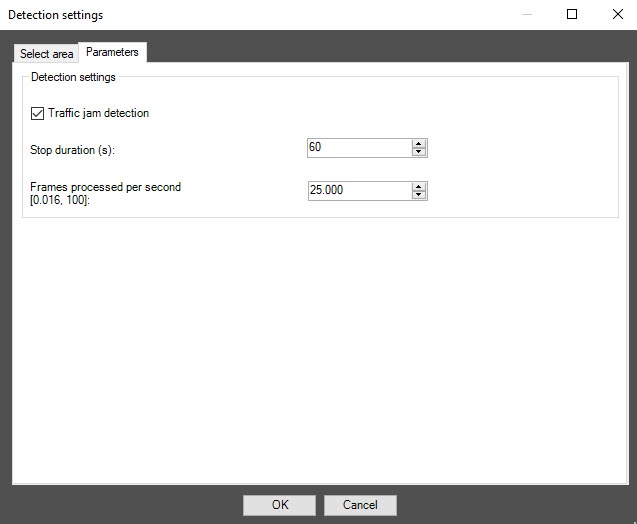
In the Number of Frames processed frames per second ([0.016-, 100)] field (4), specify enter the number of frames the detection tool will process that the detector processes per second. The higher the value, the more accurate accurately the detection tool detector operates. , but the higher the load on the CPU is higher as well. The default value is 25 frames.
| Info | ||
|---|---|---|
| ||
All You can find all events received from the the Stopped vehicle detection object can be observed in the Event logviewer interface window (. For more details, seeOperating the Stopped vehicle detection module). |
Configuring the Stopped vehicle detection program module is completedcomplete.

