
Go to documentation repository


Page History
| Section | |||||||||||||||||||||
|---|---|---|---|---|---|---|---|---|---|---|---|---|---|---|---|---|---|---|---|---|---|
|
Specifying filter parameters for event search
To specify filter parameters for event search, do the following:
- By default, events are searched for the current day. If necessary, enter the period during which the events were registered:
- In the From field,
To view and/or export system log events, first you need to perform a search for them.
To search for system log events, you need to set one or more filters:
- Time period during which the events were recorded.
- Event type:
- Information,
- Alarm,
- Error,
- Debug info,
Audit − user actions log.
- A key phrase contained in the system event descriptions.
| Info | ||
|---|---|---|
| ||
| The time period is a mandatory filter, while the event type and key phrase are optional. |
Search filters can be set as follows:
- In the From (1) and To (2)fields you can
- enter the date and time of the beginning
and end - of the period
during which the events you are searching for were recorded.- in the format DD.MM.YYYY HH:MM:SS.
- In the To field, enter the date and time of the end of the period in the format DD.MM.YYYY
The date format is DD-MM-YYYY and the time format is - HH:MM:SS.
XXX.Info title Note
Selecting event types for search (3).
Select the Axxon domain where you need to search for events (4).
If user actions search was selected (the Audit type), choose a particular system user (5). If no user is selected, the search function will return actions of all system users.
Enter the text that matches the events you want to find in the Search text field (6). To find license plate numbers, enter the full or partial number. Use ? (any one character) and * (any number of any characters). For example, a search query ?20* shows all vehicles with a license plate containing 2 and 0 in the second and third position respectively. The total number of characters in number plates can be arbitrary.You can select the required dates in the drop-down calendar.
- In the Event type section, set the checkboxes next to the event types you are looking for:
- Debug info.
- Info.
- Alarm.
- Error.
Audit (user actions in the system).
- From the Available domains drop-down list, select the required domains that you want to search:
- All domains.
- Default.
- If you select Audit in the Event type section, from the Users drop-down list, select a specific user. Otherwise, actions of all system users are found.
- In the Search field, enter the initial text of the event that you want to find.
Note title Attention! - You cannot use ? and * characters.
- You can use OR and AND logical operators when searching
| title | Note |
|---|
...
- in the system log:
- to search with the OR logical operator, separate the words with
- in the system log:
...
- a | character.
- to search with the AND logical operator,
...
The event search filters have been set.
- separate the words with a space.
- To search by an IP address, you must enter an IP address in quotes and in full format. For example: "192.168.1.12" or "172.19.16.1:50532".
Specifying filter parameters for event search is complete.
Searching for events and viewing search results
To start the search for events of the system log, click the Search button.
As a result, a table with the search results is displayed.
| Info | ||
|---|---|---|
| ||
Events in the table are sorted by date, starting from the last one. |
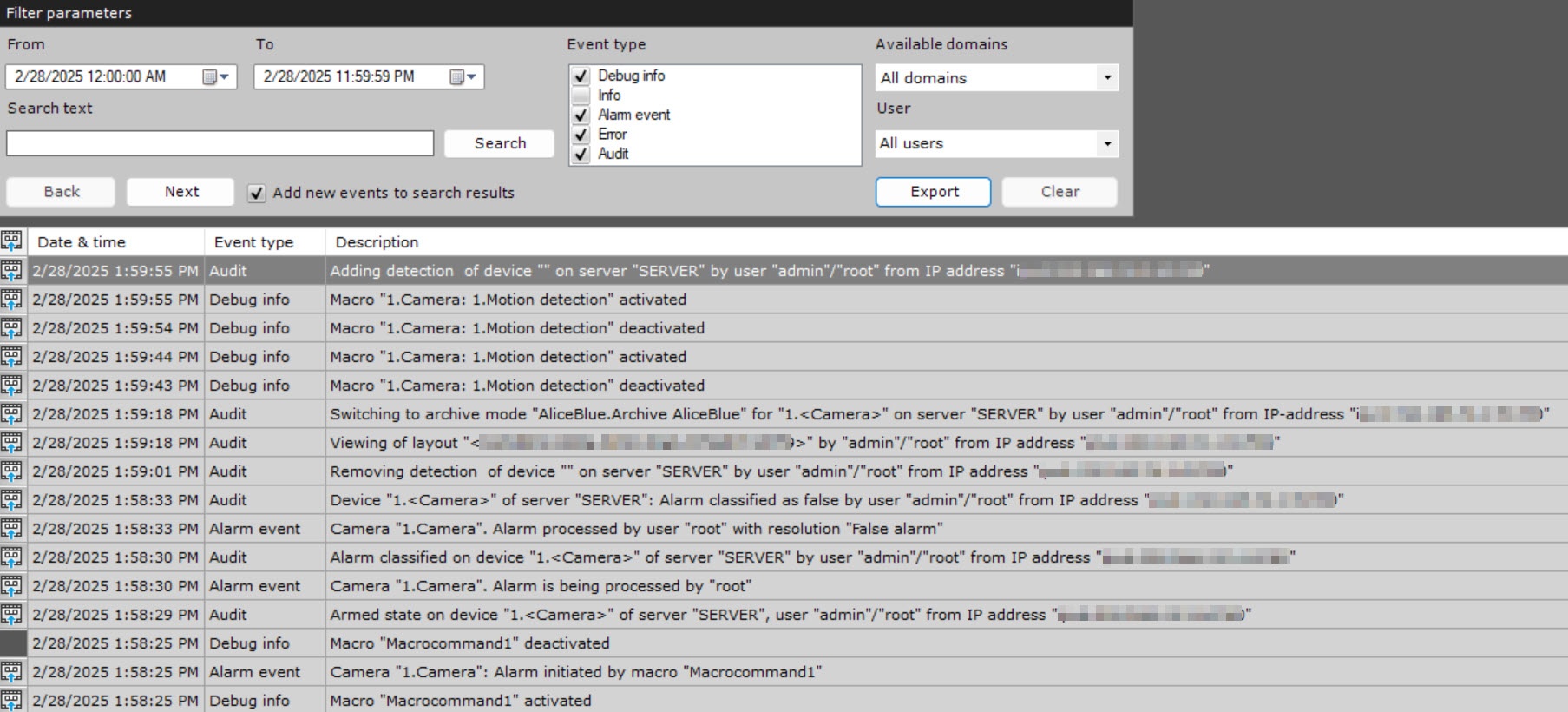
| Table column | Description |
|---|---|
| This icon means that there is a recording of an event in the archive (see Go to the archive video of a specific event) |
| Date & time | Date and time when an event was registered in the system in the format DD.MM.YYYY HH:MM:SS |
| Event type | Event type (Debug info,Info,Alarm,Error, Audit) |
| Description | Description of an event |

The search results table can have more than one page. To navigate through a table that has more than one page, use the following buttons:
- Back—to go back to the previous page of the table.
- Next—to go to the next page of the table.
| Info |
|---|
Immediately after you install Axxon One, the system log can show the Table end violation error. In this case, such an event is related to the product installation and doesn't mean unauthorized access to the database. |
To clear the event search filters and the results table, click the Clear buttonNext you must start the event search (see the section titled Event search procedure).
Overview
Content Tools