To configure the Person-
...
based privacy masking detector, do the following:
- Go to the
...
- Detectors tab.
- Below the required camera,
...
- click Create… → Category: Poses → Person-
...
- based privacy masking.
By default, the
...
detector is enabled and set to mask a person's head.
If necessary, you can change the
...
detector parameters. The list of parameters is given in the table:
| Parameter | Value | Description |
|---|
| Object features |
| Record mask to archive | Yes | By default, the recording of the mask to the archive is |
disabled record mask to the archive (see Displaying information from a detection tool (mask)), select the Yes value| disable, select the No value |
| No |
| Video stream | Main stream | If the camera supports multistreaming, select the stream for which detection is needed. Selecting a low-quality video stream allows reducing the load on the |
Server| server |
| Second stream |
| Other |
| Enable | Yes | The |
detection tool | detector is enabled by default. To disable |
the detection tool| , select the No value |
| No |
| Name | Person- |
Based Privacy Masking| based privacy masking | Enter the |
detection tool | detector name or leave the default name |
| Decoder mode | Auto | Select a processing resource for decoding video streams. When you select a GPU, a stand-alone graphics card takes priority (when decoding with NVIDIA NVDEC chips). If there is no appropriate GPU, the decoding will use the Intel Quick Sync Video technology. Otherwise, CPU resources |
will be | are used for decoding |
| CPU |
| GPU |
| HuaweiNPU |
| Number of frames processed per second | 1 | Specify the number of frames that the |
detection tool | detector will process per second. The value must be in the range |
Based Privacy Masking| based privacy masking | Name of the |
detection tool | detector type (non-editable field) |
| Advanced settings |
| Number of measurements in a row to trigger detection | 3 | Specify the minimum number of frames on which the |
detection tool | detector must detect objects to generate an event. The value must be in the range [1, 20] |
| Segmenting network file |
Select
| Specify a neural network file. The standard neural networks for different processor types are located in the C:\Program Files\Common Files\AxxonSoft\DetectorPack\NeuroSDK directory. |
You You don't need to select the standard neural networks in this field, the system will automatically select the required one. If you use a custom neural network, specify the path to the file. |
infoNote | To ensure the correct operation of the neural network | - You cannot specify the network file in Windows OS. You must place the neural network file locally, that is, on the same server where you install Axxon One.
- For correct neural network operation on Linux OS, place the corresponding file
|
|
must be located - locally in the /opt/AxxonSoft/DetectorPack/NeuroSDK directory or in the network folder with the corresponding access rights.
- If you use a standard neural network (training wasn't performed in operating conditions), we guarantee the overall accuracy of 80-95% and the percentage of false positives of 5-20% (see Data collection requirements for neural network training).
|
|
| Basic settings |
Neural network neural network detection toolsdetectors). | Note |
|---|
| - It may take several minutes to launch the algorithm
|
|
on NVIDIA GPU - on NVIDIA GPU after you apply the settings. You can use caching to speed up future launches (
|
|
see other - another processing resource than the CPU, this device
|
|
will carry the - carries most of the computing load. However, the CPU
|
|
will be detection tool with 3- 3.11, Intel HDDL and Intel NCS aren’t supported.
- Starting with Detector Pack 3.14, Intel Multi-GPU and Intel GPU 0-3 are supported.
|
|
| Nvidia GPU 0 |
| Nvidia GPU 1 |
| Nvidia GPU 2 |
| Nvidia GPU 3 |
| Intel |
HDDL | GPU |
| Intel NCS (not supported) |
| Intel Multi-GPU |
| Intel GPU 0 |
| Intel |
NCS | GPU 1 |
| Intel GPU 2 |
| Intel GPU 3 |
| Intel HDDL (not supported) |
Mask
|
| Body | Yes | By default, the |
detection tool | detector masks only a person's head. To mask other parts of the body, select the Yes value for the corresponding parameters |
| No |
| Feet | Yes |
| No |
| Forearms | Yes |
| No |
| Hands | Yes |
| No |
| Head | Yes |
| No |
| Hips | Yes |
| No |
| Shins | Yes |
| No |
| Shoulders | Yes |
| No |
By default, the entire frame is a detection area.
To save the parameters of the detection tooldetector, click the the Apply  Image Modified button. To cancel the changes, click the Cancel
  Image Modified button.
Configuring the Person-Based Privacy Masking based privacy masking is complete.
Selected body parts of all persons will be are hidden in the frame. For a user group with limited permissions to view masked video (see Creating and configuring roles Roles), the mask is displayed on the video image of the selected camera in the Detection Tools and Detectors and Hardware sections, on the layouts, in the archive, and when exporting. For the admin user group, the mask is displayed only on the video image of the selected camera in the Detection Tools Detectors and Hardware sections, and when exporting, if the View masked video checkbox is clear (see Standard video recordings export).
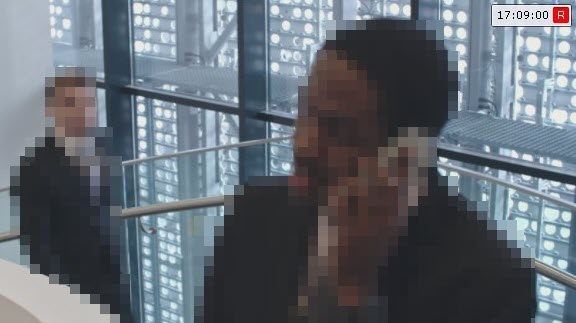 Image Modified


