Page History
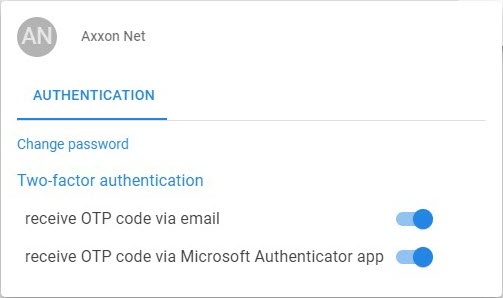
Two-factor authentication is an additional level of Axxon Datacenter security , which that ensures that only the user who owns the account can access it, even if the password becomes known to third parties. When attempting to log in to the Axxon Datacenter system after entering the login and password, you will be are prompted to enter a one-time password (OTP, six-digit code) , which that is displayed in the Microsoft Authenticator app or will be sent to your email, depending on the type of two-factor authentication selected.
To enable two-factor authentication in the account, do the following:
- Register and log sign in to AxxonNet https://axxonnet.com/ Axxon Datacenter (see Registration, authorization, password recovery and change).
On the Domains tab in the upper right corner, click the
 button.
- Click the
 button.
In the window that opens, click the
 button.
- In the window that opens, turn on the
 toggle Click the
  switch in the required type of two-factor authentication: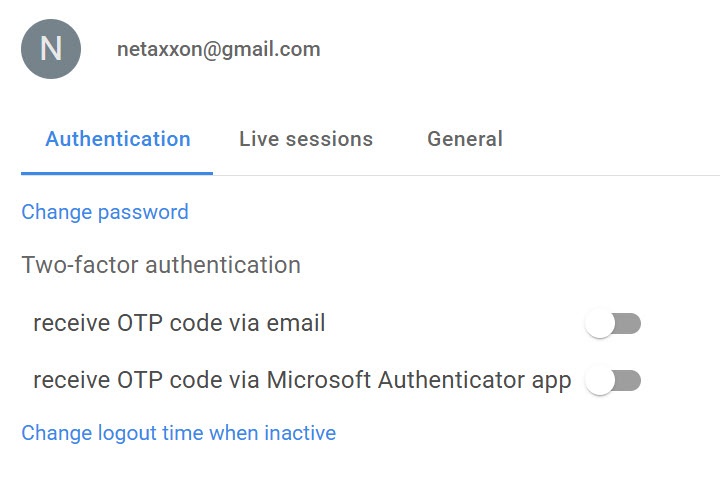
- receive OTP code via email:
- A confirmation code will be is sent to the registered email. Enter the confirmation code and click the APPLY button Apply button.
Note title Attention! - You must enter the confirmation code within 60 seconds and then click the APPLY button Apply button. Click the RESEND button Resend button to resend the confirmation code.
- If you entered enter an invalid confirmation code, the Invalid One Time Password! (Attempts left: 2) message will be is displayed. After three unsuccessful attempts to enter the confirmation code, the IP address of the identifying device will be is blocked for 10 minutes. In this case, you must log in to AxxonNet to Axxon Datacenter using another device , or after 10 minutes on the device that displayed the warning: You have reached the limit of attempts. Please try again later in 10 minutes.
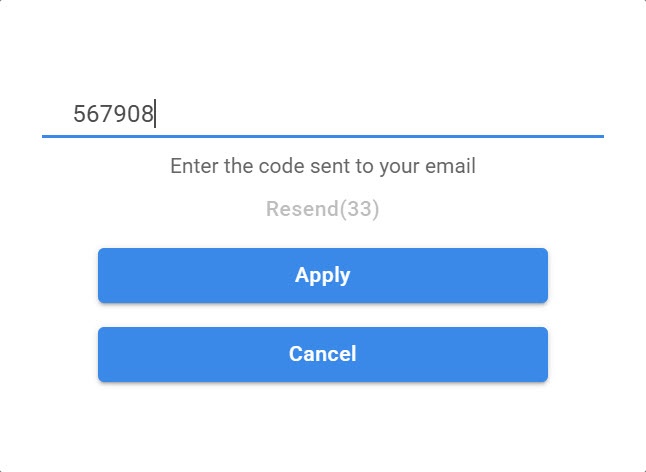
- You must enter the confirmation code within 60 seconds and then click the APPLY button Apply button. Click the RESEND button Resend button to resend the confirmation code.
- A confirmation code will be is sent to the registered email. Enter the confirmation code and click the APPLY button Apply button.
- receive OTP code via Microsoft Authentificator Authenticator app:
Note title Attention! You must download and install the Microsoft Authentificator mobile Authenticator app beforehand (see Download and install the Microsoft Authenticator app).
- In the Microsoft Authentificator mobile Authenticator app:
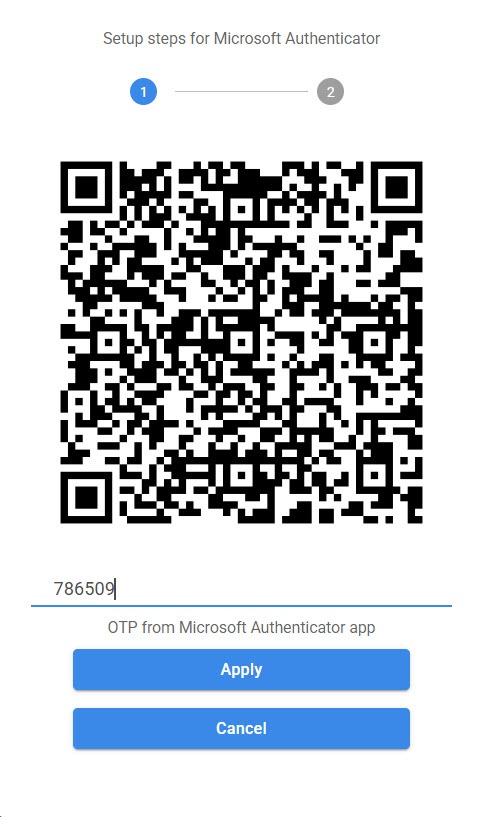
- On the Verified IDs tab, click the Scan QR code button. After scanning the QR code, the user account will be is added to the Microsoft Authenticator app.
- On the Authentificator tab Authenticator tab, click the added user account and copy the one-time password.
- Enter the one-time password in the Confirmation code field and click the APPLY button Apply button.
- In the Microsoft Authentificator mobile Authenticator app:
- receive OTP code via email:
Two-factor authentication is enabled in the account. To disable two-factor authentication in the account, follow the same procedure as when enabling two-factor authentication.