
Go to documentation repository


Page History
...
- Go to the Hardware tab of the System settings window.
- Create the Button object on the basis of the Camera object.

- Configure the position and display of the button in the surveillance window:
- The position of the top left corner of the button is set by the X and Y fields (1). X is the horizontal indent from the left border as a percentage, and Y is the vertical indent from the top border as a percentage. For example, if you set 50 and 50, then the left top corner of the button will be in the middle of thesurveillance window.
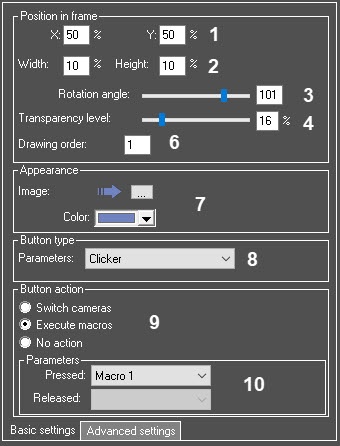
- In the Width and Height fields (2), set the size of the button as a percentage of the size of the surveillance window.
- Set the Rotation angle (3) of the button in degrees from -180 to 180. By default, it is assumed that the button isn't rotated, the angle is zero.
Set the Transparency level of the button as a percentage (4). The feature of this setting: the real transparency is displayed in the preview area (5) only when transparency is being edited with the slider. The rest of the time, the button is completely opaque during configuration.

Info title Note You can configure the size and position of the button not only by entering values but also manually. To do this, in the preview area, after clicking the button, you can:
- drag Drag the button with the mouse;.
- stretch Stretch or shrink the button and rotate it, using the green anchor points on its perimeter.
You can fine-tune the button size and rotation angle manually: when Shift is pressed and when you drag the green circle with the mouse, the button changes only its size. When Ctrl is pressed, the button changes only its angle. When you press Shift+Ctrl are pressed, the button doesn't change.
Set the Drawing order of the configured button in the corresponding field if several Button objects are created for one Camera object (6). The setting determines the order in which the buttons are drawn in the surveillance window.
- The position of the top left corner of the button is set by the X and Y fields (1). X is the horizontal indent from the left border as a percentage, and Y is the vertical indent from the top border as a percentage. For example, if you set 50 and 50, then the left top corner of the button will be in the middle of thesurveillance window.
- Select the appearance of the button (7):
- Click the Image button.
- Select the shape of the button in the Select image for button window.

- From the Color drop-down list, select the color of the button (for the Clicker button type only).
- Select button type (8):
- Clicker.
- Radio button.
- Select the Button action (9)—what happens when the operator clicks the button in the video surveillance monitor:
- Switch between the video images of the cameras. The cameras that are controlled by the button must be added to the Monitor window (see Selecting and configuring video cameras), otherwise, you won’t be able to switch between the video images when you click the button.
- Execute macros. You must create macros beforehand (see Creating and using macros).
- No action.
- Select the button parameters (10):
- The Pressed drop-down list—possible values are determined by the action that you selected in the previous step: it can be both available macros and the list of cameras between which you can switch.
- The Released drop-down list (active only if you select the Radio button button type)—available macros.
- On the Advanced settings tab, if necessary, set the Button label in the corresponding field (11). To display a default label for the button depending on the selected action, click the Default button (12). In this case, the label will contain the name of the camera, macro, or current object.

Info title Note In the interface of the video surveillance monitor, the label is displayed only as a tooltip when you hover the cursor over the button.
- Click the Apply button.
...
You can configure the mode of displaying the button in the video surveillance monitor using the parameter of the AllowHideActionButtons key of the HKEY_LOCAL_MACHINE\SOFTWARE\WOW6432Node\AxxonSoft\PSIM\Video registry. To always display a button, set AllowHideActionButtons=0 (see Registry keys reference guide. For the information on working with the registry, see Working with Windows OS registry).
...
Overview
Content Tools