
Go to documentation repository
The LPR channel enables license plate recognition upon request using the Camera of recognition upon request object. This object allows you to configure the camera so that it captures and sends a video image to the recognition module after a specific trigger activates. It can be, for example, a macro, a script, or some event.
| Info | ||
|---|---|---|
| ||
For now this functionality is implemented for CARMENfor AR-Auto, VITVT, RoadARRR, ARHAR-Railway recognition modules only. |
| Info | ||
|---|---|---|
| ||
When using the Camera of recognition upon request object along with the VIT the VT recognition module, it is recommended to disable we recommend disabling VodiCTL_VPW_DYNAMIC_ENABLE in the SDK tweaking, i.e. set the False value , that is, setting the False value of this parameter, in order to prevent repeated recognition (see The VIT see The settings panel of the VT module object settings panel). |
Configure the recognition upon request as follows:
Go to the Camera of recognition upon request settings panel created on the basis of the LPR channel object.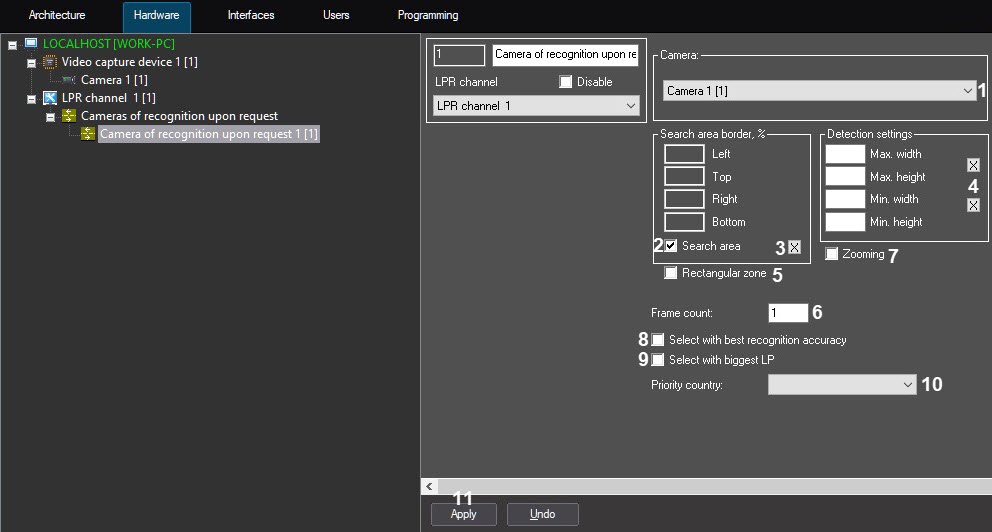
From the Camera drop-down list (1), select the camera that will work upon request.
| Info | ||
|---|---|---|
| ||
|
Set the Search area (2) checkbox in order to enable setting the search area border of the license plate in the frame.
In the Left, Top, Right,
and Bottom fields, set manually or using the  button (3), by clicking
which, the interactive interface
for setting search area borders of the
vehicle license plate appears—a video image from the corresponding camera. You can set an arbitrary search area using the segments. To select a rectangular search area, set the Rectangular zone checkbox (5).
| Info | ||
|---|---|---|
| ||
The values in the Left, Top, |
Right, and Bottom |
fields are specified as percentages of the surveillance window. |
Set the maximum and minimum size of license plates in Detection settings:
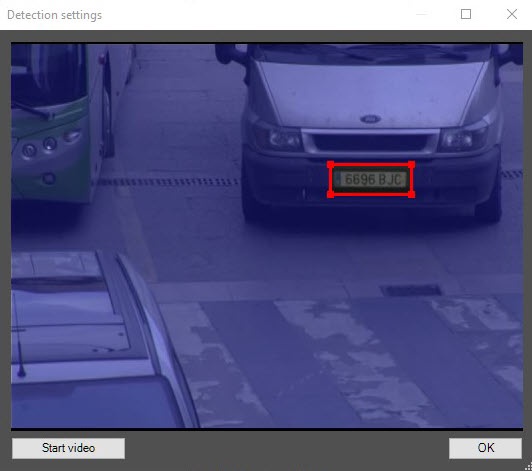
Set the Max.width and Max.height parameters manually or using the  button (4), by clicking this button which, the interactive interface of for setting the zone parameters appearsappears—a video image from the corresponding camera.

For the Frame count (56) parameter, set the number of frames that will be are analyzed when recognizing the license plate.
| Info | ||
|---|---|---|
| ||
It is recommended to set We recommend setting the number of frames to no more than 1. |
Set the Zooming (67) checkbox in order to speed up the license plate recognition for megapixel cameras without any quality loss. The request, which will trigger the camera, can be configured in two ways:
| Info | ||
|---|---|---|
| ||
This checkbox is relevant only when the width oh the of the Search area is is more than 150 pixels. The recognition speed increases:
|
The You can configure the request, which will trigger the camera, can be configured in two ways:
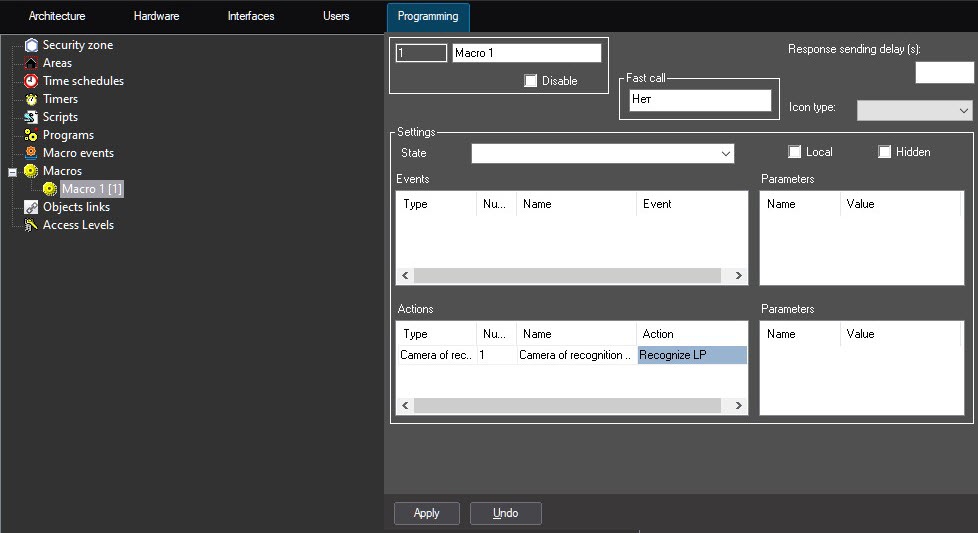
Using a macro. To To do this, switch go to the Programming tab in tab in Axxon PSIM and and select the Macros item item in the programming tools tree. A window for creating a macro will open, enabling you to create an event of any complexity that will trigger the recognition upon request. An example of the simplest macro for recognition upon request is shown in the figure below. For For details on working with macros, see Creating macros.
Using a script or the IIDK interface. To do this, go to the Programming tab in Axxon PSIM and select the Scripts item in the programming tools tree. A window for creating a script will open, enabling you to create an event of any complexity that will trigger the recognition upon request. For details on working with scripts, see Creating a script. An example of a simple script for working with a camera for recognition upon request is shown below.
| Code Block | ||
|---|---|---|
| ||
QUERY_CAMERA|ID|RECOGNIZE |
where ID is the ID of the camera in the the Axxon PSIM objects tree.
For details on the IIDK interface, see Axxon PSIM Integration Developer Kit (IIDK).
License Setting the license plate recognition upon request is now configuredcomplete.

