| Section |
|---|
| Column |
|---|
|
| Panel |
|---|
| borderColor | #CCCCCC |
|---|
| bgColor | #FFFFFF |
|---|
| titleBGColor | #F0F0F0 |
|---|
| borderStyle | solid |
|---|
| title | On the page: |
|---|
| |
|
|
You can configure the The Sweethearting at checkout detection module is configured program module on the settings panel of the the Sweethearting at checkout detection object created on the basis of the Camera object on the Hardware tab of the System settings dialog box window.
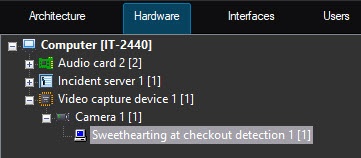
Basic settings of the detector
To configure the The Sweethearting at checkout detection module is configured as follows program module, do the following:
- Go to the settings panel of the Sweethearting at checkout detection module object.Click the Settings button (1).
 Image Removed
The Detection settings window will open
Image Added - By default, the standard (default) neural networks of hand and goods recognition in the frame are initialized according to the device selected at step 3. You must not select manually the standard neural networks for the different processor types since it is performed automatically. If you want to use custom neural networks, click the
 Image Added button to the right of the Tracking model (Hand recognition in the frame) and Tracking model (Goods recognition in the frame) fields, and in the standard Windows Explorer window that opens, specify the file of the corresponding neural network.
 - From the Device drop-down list, select the device on which the neural network will operate: CPU, one of the NVIDIA GPUs, or one of the Intel GPUs. Auto (default)—the device is selected automatically: The NVIDIA GPU gets the highest priority, followed by the Intel GPU, then the CPU.
Selecting area of interest
- Click the Settings button. The Detection settings window opens.
 Image Added
 - On the Select area tab, click the Stop video button to pause the playback and capture the frame of the video image..
 Image RemovedSpecify the area of interest of the detection:
 - Go to the Select area tab (1).
Click the Stop video button (2) to capture the video image.
Image Removed- Click the Area of interest button (3).Specify to specify the area of interest. The button is highlighted in blue color.
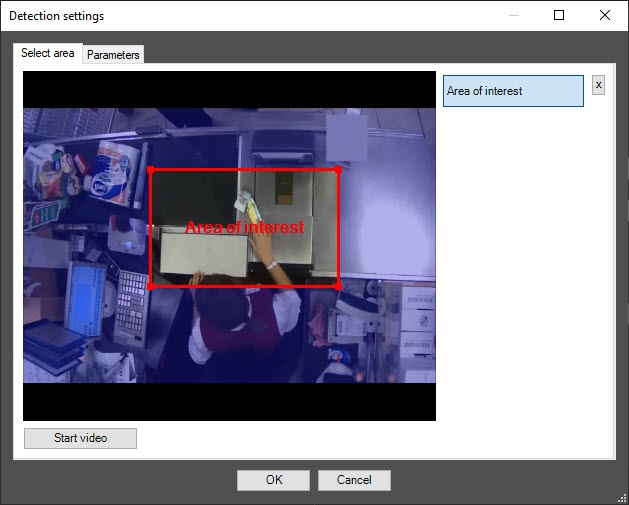 Image Added
 - On the captured video frame, sequentially set the anchor points of the area using the mouse in which objects are detected, and the remaining part of the frame is darkened. This area must meet the requirements described in the the captured video image to be analyzed (4). The selected area must comply with Camera requirements for the Sweethearting at checkout detection modulesection. If you don't specify the area of interest, the entire frame is analyzed.
Only - You can add only one area
|
can be specified- . If you try to add the second area
|
is specified then will be remove a selected - delete an area, click the
|
 Image Removed button next to
 -
 Image Added button to the right of the Area of interest button. Image Added button to the right of the Area of interest button.
|
Configuring the detector parameters
- Go to the Parameters tab (5) and do the following:
 Image Removedof the Detection settings window.
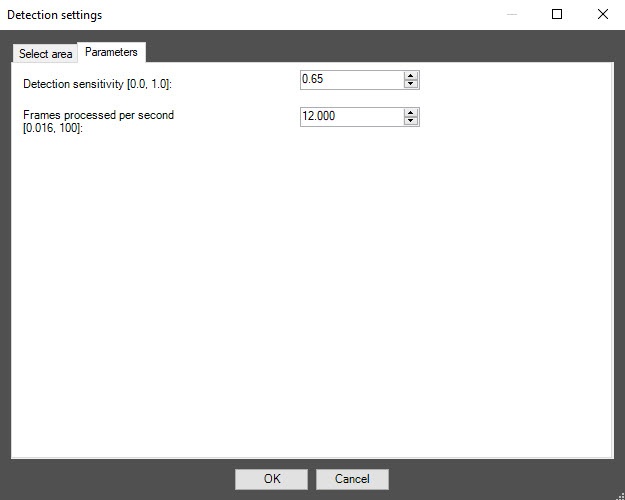 Image Added
 In the Detection sensitivity [0.0, 1.0] field
(6), specify the detection sensitivity in the range from 0.0 to 1.0. The default value is 0.65.
| Info |
|---|
|
The detection sensitivity value is selected experimentally. The lower the sensitivity, the greater the probability of false positives. The higher the sensitivity, the less chance of false alarms, however, some useful tracks |
may - In the Frames processed per second (second [0.016-, 100)] field (7), set specify the number of frames per second that will be processed by the detection tool. Default the detector processes in the range from 0.016 to 100. The default value is 12.
Click the OK button to save the changes and return to the settings panel of the Sweethearting at checkout detection object.
| Info |
|---|
|
To return to the settings panel of the Sweethearting at checkout detection object without saving the changes, click |
the If you use a unique neural network, select a neural network file with the hand recognition in the frame (2) and goods recognition in the frame (3) tracking model. It is not necessary to select standard neural networks in this field, the system will automatically select the required one. Standard neural networks are located in the C:\Program Files (x86)\Axxon PSIM\Modules64\caffewrapper\Networks directory:
| dpe_224_2cl_hands_v6_50k.ann | Neural network file with the hand recognition in the frame tracking model |
| dpe_224_2cl_product_v6_122_5k.ann | Neural network file with the goods recognition in the frame tracking model |
- From the Device drop-down list (4), select the device on which the neural network will operate. Auto—the device is selected automatically: NVIDIA GPU gets the highest priority, followed by Intel GPU, then CPU.
- Click the Apply button (5).
- Click the Apply button to save the changes.
Configuring the Sweethearting at checkout detection module is completeThe Sweethearting at checkout detection module is now configured.


