
Go to documentation repository


Page History
| Section | |||||||||||||||||||||
|---|---|---|---|---|---|---|---|---|---|---|---|---|---|---|---|---|---|---|---|---|---|
|
Viewing metrics
General information
The web interface of the self-diagnostics service is available for monitoring the system statuses and analyzing its performance.
Access to the self-diagnostics service
To go to the monitoring interfaceTo view the system status data, do the following:
- Go to
- Open the web interface of the self-diagnostics service:
- browser.
- In the address line, enter: http://127.0.0.1:20040/ .
- .
- Click the Enter button.
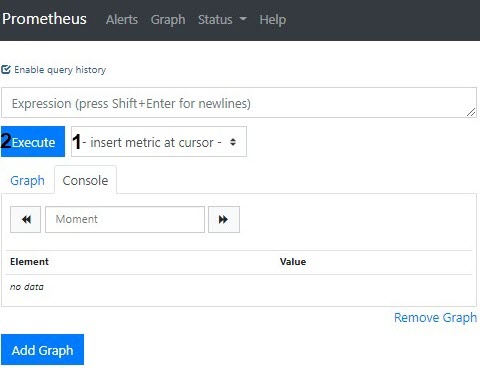
Interface and queries execution
The service interface allows viewing metrics as a table or graphs. To run a query, do the following:
Select the
required metric
in from the drop-down list
(1
) or enter the query manually in the Expression field. You can:
- Use several metrics at a time. The system has the following available metrics:
Metric
Description
ALERTS_FOR_STATE
Troubleshooting by the self-diagnostics service- Use several metrics at a time. The system has the following available metrics:
Found and fixed malfunctions. Contains the alertname parameter with the problem type.
Code Block language go title Example ALERTS_FOR_STATE{alertname="ipint_is_not_activated",ep_name="hosts/Server1/DeviceIpint.99",instance="127.0.0.1:20108",job="ngp_exporter",ngp_alert="true"}
Possible values Decryption of the alertname
parameter values (see General information about the self-diagnostics service) for the ALERTS_FOR_STATE metric:
- low_os_memory—out of RAM
;- .
- ipint_is_not_activated—camera is connected, but
does not send data;- there is no data from it.
- no_samples_in_detector—no events from
a detection tool;- the detector.
- restart_services_when_archive_source_not_activated—the archive
is not working;- recording isn't working.
- restart_services_when_no_samples_in_archive—recording to archive with 0
FPS;- fps.
- restart_services_when_no_ping_from_detector_to_archive—no recording to the archive
of an - at the event from
a detection tool;- the detector.
- logs_disk_space_is_low / db_disk_space_is_low—out of system disk space.
ngp_archive_channel_fps
The frame rate of all
video cameras when recording to the archive
ngp_archive_volume_size
The current total size of the archive (in bytes)
ngp_cpu_total_usage
The
percentage of CPU load
on a Serverof the server
ngp_fps
The frame rate of all
Server server cameras,
all detection tools detectors and
their decoders
Using multiple metrics.
Using expressions to find problems. For example, a query like ngp_fps <17 will return all metrics, where FPS is less than 17. For a complete list of logical and arithmetic operators, see the official Prometheus documentation.
ngp_people_count
The last captured number of people in the frame by the Crowd estimation VA detector
ngp_errors
Number of errors in the detectors' operation:
ngp_skipped_pp
Number of missed frames by the Crowd estimation VA detector due to the lack of resources for processing
- Apply logic and arithmetic operators for anomaly searching. The full list of logic and arithmetic operators is specified in the official Prometheus documentation.
Code Block language go title Example. All metrics where fps is less than 17 ngp_fps < 17 - Faltering by metrics parameters using curly brackets.
Code Block language go title Example. Fps
Filtering by any of the parameters. For example, this query will return FPS values only for the specified source
:codengp_fps{ep_name=~"hosts/TEST/DeviceIpint.2/SourceEndpoint.video:0:0"}
Click on - If necessary, set the time range for the data.
Click the Execute button
(2).
The request allows for:
...
Viewing results:
- The Console tab displays
...
- the current metrics values in the table format.

When you
...
- specify the date and time in
...
- the calendar, the data is updated.

...
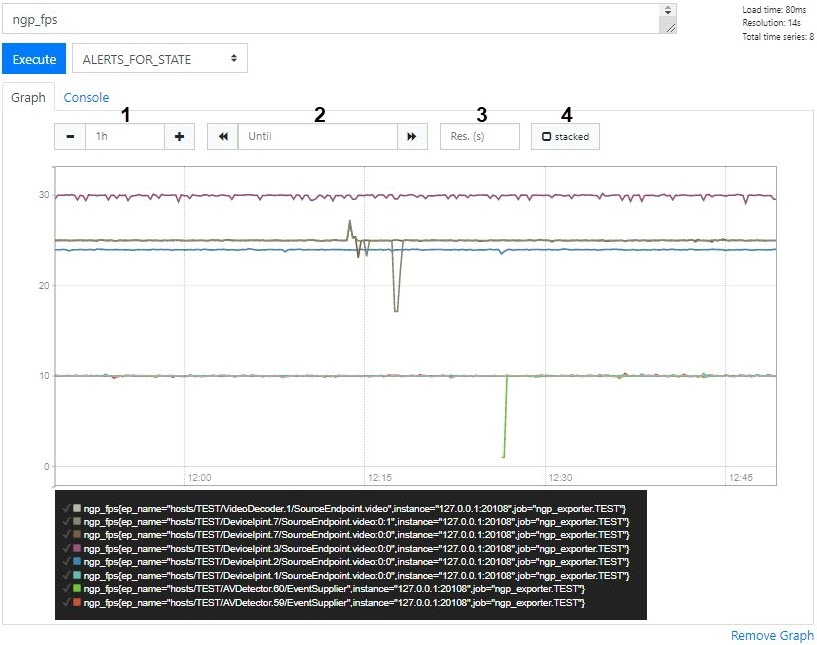
- On the Graph tab
...
- you can create the graph of selected metrics at the specified period.
- The 1 field—sets the graph time interval.
- The 2 field—specifies the end graph point.
- The 3 field—sets the interval between data points.
- The 4 checkbox—enables the display mode with accumulation (filling the areas under the graph).
Examples of useful queries for Windows OS
- The CPU loading graph similar to
- (analog of the Windows
- System monitor):
Code Block language go sum by (process_id) (100 / scalar(wmi_cs_logical_processors) * (irate(wmi_process_cpu_time_total{process="AppHost"}[10m]))) or ngp_cpu_total_usageThe graph of - RAM usage by the
- the AppHost processes and a total memory space:
Code Block language go sum by (process_id) (avg_over_time(wmi_process_working_set{process="AppHost"}[5m])) / 1024 or avg_over_time(wmi_os_virtual_memory_bytes[5m]) / 1024 - The percentage of RAM usage:
Code Block 100.0 - 100 * avg_over_time(wmi_os_virtual_memory_free_bytes[5m]) / avg_over_time(wmi_os_virtual_memory_bytes[5m])
Examples of useful queries for Linux OS
- The graph of
- total RAM usage by the
- the AppHost processes:
Code Block language go sum by (groupname) (namedprocess_namegroup_memory_bytes{memtype="resident"}) - The percentage of RAM usage:
Code Block language go 100 - node_memory_MemAvailable_bytes * 100 / node_memory_MemTotal_bytes - The graph of the
- CPU load by the
- the AppHost processes as a percentage:
Code Block sum by (object_id) (rate(namedprocess_namegroup_cpu_seconds_total{groupname="AppHost"}[1m])) * 100 - The graph of the
- total CPU load as a percentage:
Code Block language go 100 * avg without (cpu) (1 - rate(node_cpu_seconds_total{mode="idle"}[1m]))The graph of - RAM usage by the
- the AppHost processes to determine
- detect the memory leak:
Code Block language go namedprocess_namegroup_memory_bytes{object_id=~"APP_HOST.*",memtype="proportionalResident"}
Overview
Content Tools