


Page History
| Section | |||||||||||||||||||||
|---|---|---|---|---|---|---|---|---|---|---|---|---|---|---|---|---|---|---|---|---|---|
|
General information
Domain A domain is a selected group of Axxon One/Axxon PSIM Servers servers.
| Tip |
|---|
Axxon One: Configuring domains Axxon PSIM: Configuration procedure for servers, clients and remote workstations |
...
Connect the Axxon One domain to Axxon Datacenter
To connect the Axxon One domain to Axxon Datacenter, you must:
- Have access to the internet.
- Open ports 80 and 443.
- Allow access of incoming and outgoing traffic to the address website of the cloud service if if the Server server has limited internet access.
- Click the
 button in the upper right corner on the Domains tab.
 - Click the BINDBind button.
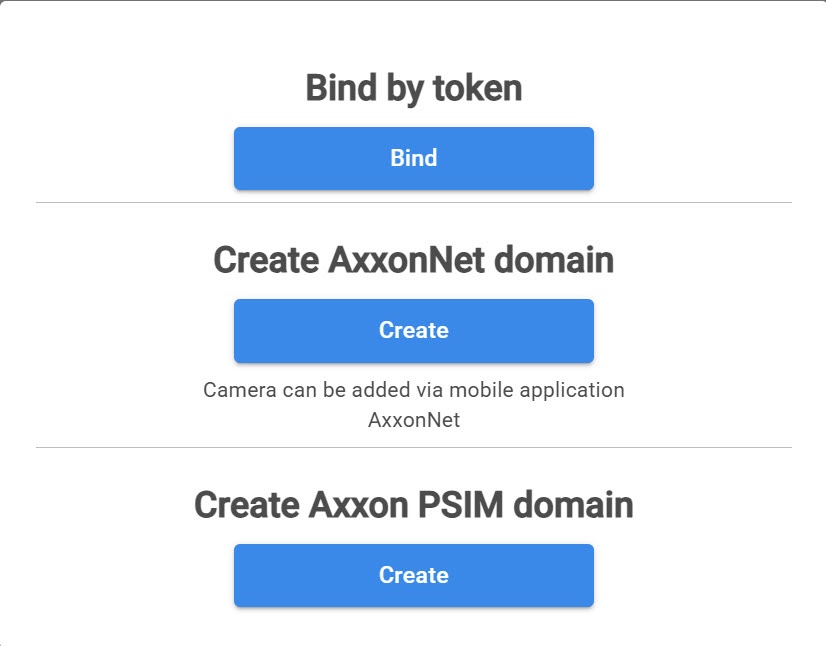
- Copy the token to bind assign to the Axxon One domain.

- In Axxon One, select Settings → Options → AxxonNet.

- In the Token field, paste the copied token to bind to assign to Axxon Datacenter.
- In the Cloud URL field, enter the address of the cloud solution.
- If you connect through a proxy - server:
- From the drop-down list, select the Proxy server type:
- None
- Http
- Https
- Socks5
- Enter the IP address of the cloud service to which you want to connect.
- Enter the Username and Password to to connect to the proxy - server.
- From the drop-down list, select the Proxy server type:
- Click the Connect domain button.
If the connection is successful, the status in Axxon One changes to AxxonNet connected. To disconnect the domain from Axxon Datacenter, click the Disconnect domain button.

If several domains with identical names are connected to Axxon Datacenter, a sequential number is added to each of the names listed on the Domains tab. If there is no connection with the Serverserver, the domain is highlighted in red color.

...
Connect the Axxon PSIM domain to Axxon Datacenter
To connect the Axxon PSIM domain to Axxon Datacenter, you must:
- Have access to the internet.
- Open ports 80 and 443.
- Allow access of incoming and outgoing traffic to the address website of the cloud service if if the Server server has limited internet access.
- Click the
 button in the upper right corner on the Domains tab.
 - Click the CREATECreate button.

- Enter the Name of the Axxon PSIM domain.


- Click the YESYes button. The created Axxon PSIM domain is displayed on the Domains tab.
- On the Domains tab, click the

 button next to the Axxon PSIM domain and select Generate domain token.
- Copy the token to bind to the Axxon PSIM domain.


- In Axxon PSIM (see Cloud authorization for sending Axxon PSIM push notifications):
- On the Hardware tab of the system settings window, create the Cloud authorization object.
- In the Cloud server URL field, enter the address of the cloud solution.
- In the Token field, paste the copied token to bind to Axxon Datacenter.
- Click the Apply button.
Connection The connection of the Axxon PSIM domain to Axxon Datacenter is complete.
Add users to a domain
Any user, regardless of role, can share domain permissions with other users. To do this:
- Go to the Domains tab.
- Click the button next to the domain permissions to which you want to share.
- Select Users and Groups.
- In the window that opens, click the button:
Add user Create user If the user already exists in the system and you need to give them access to the selected domain If you need to create a new user who doesn't exists in the system yet - In the window that opens, click the Users and Groups field.

- A window opens in which you can set the checkboxes next to the users or group of users you want to add to the domain. To view all users, turn on the Show all users toggle.

- Click the Apply button.
- From the Role drop-down list, select the domain role that you want to assign to the user.
- In the window that opens, click the Users and Groups field.
...
- You can assign the same role or any other role of a lower rank to the user.
- If you select a domain connected via a token, the VMS role field is available. From the VMS role drop-down list, select a role that exists in Axxon One to assign to the user.
- Click the Assign
 button
- In the window that opens, click the New user field.

- A window opens. In this window:

- In the Email field, enter the user's email address.
- From the Cloud permissions drop-down list, select a cloud permission for the new user.
- Click the Apply button.
- From the Role drop-down list, select the domain role that you want to assign to the user. You can assign the same role or any other role of a lower rank to the user.
- If you select a domain connected via a token, the VMS role field is available. From the VMS role drop-down list, select a role that exists in Axxon One to assign to the user.
- Click the Assign button
As a result, the permissions to the selected domain are assigned to the specified user or group of users.
Create a configuration backup
Backing up a domain configuration is used to ensure fault tolerance and the integrity of system settings. Creating a backup allows you to capture the current state of the configuration before making changes, migrate settings to another environment, and quickly restore domain functionality in the event of failures or incorrect configuration.
To create a configuration backup:
- On the Domains tab, click the button next to the corresponding domain and select Configuration backup.
- Click the Create backup
 button.
After you click the button, a task to create a backup is created.

Once the task is completed, the created configuration backup is displayed in the window.

The following actions are available for the created backup:
- Change the name—Click the Edit
 button in the Name column and enter a new name.
 - View date and time of creation—the date and time of creation are displayed in the Date/time of creation column in the list of backups.
- View the number of affected nodes—the number of affected nodes is displayed in the Affected nodes column.
- Keep a backup—by default, the backup file is saved (a closed lock
 icon is displayed). If you don't want to save the file, click the lock icon. The icon changes to an open lock
  , indicating that the saving of the backup file is disabled.
 - Download a backup file—click the Download file
 button.
 - Restore a backup—click the Restore
 button. When restoring, the current domain configuration is replaced with the data from the backup.
 - Delete a backup—click the Delete
 button.
Working with files
The Files tab is used to display the events generated as a result of executing macros in Axxon One.
To view events in the Files tab, you must first do the following:
- Create a list of faces or a list of license plates in Axxon Datacenter (see Creating, editing and deleting lists of faces in Axxon Datacenter, Creating, editing and deleting a list of LPs in Axxon Datacenter).
- The created lists must be synchronized to the corresponding domain (see Synchronizing a list of faces with the domain in Axxon Datacenter, Synchronizing a list of LPs with the domain and exporting in Axxon Datacenter).
- In Axxon One, configure a macro using the specified lists of faces or license plates (see Configuring macros when working with lists of faces, Configuring macros when working with lists of license plates).
- Additionally, you must configure in Axxon One:
- Email notifier to generate notifications (see Email notifier).
- Export agent to transfer data to the cloud solution (see Configuring Export agent).
The events from a macro are displayed in the Files tab as records containing information about the event.
Edit a domain name
To change a domain name in Axxon Datacenter
Editing a domain name
To change a domain name in Axxon Datacenter, do the following:
- On the Domains tab, click the
 button next to the corresponding domain and select Rename.
 - Enter a new name and click the APPLY button Apply button. You can use up to 100 characters in the domain name. If you exceed the number of characters, the message Name too long is displayed.

To cancel the changes, click the CANCEL button Cancel button.
Editing a domain name in Axxon Datacenter is complete. The domain name changes only in Axxon Datacenter. The name remains the same in Axxon One/Axxon PSIM.
...
Delete a domain
To delete a domain from Axxon Datacenter, do the following:
- On the Domains tab, click the button next to the corresponding domain and select Delete.
- In the window that opens, click the YES buttonYes button.
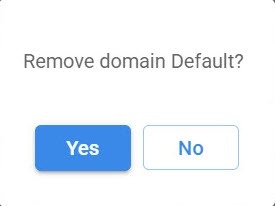
To cancel the deletion, click the NO button No button.
Deleting a domain is complete. The domain is deleted only from Axxon Datacenter. The domain remains in Axxon One/Axxon PSIM.