
Go to documentation repository


Page History
...
Axxon PSIM implements a way to work with a virtual video capture device. This way assumes that Axxon PSIM operates in a test mode and imitates the video stream feed to a virtual Video capture device by playing back video (video recording). In Axxon PSIM there are two types of virtual video capture devices:
- Virtual bench. It plays back video recordings in MKV, MP4, and AVI formats, for which DirectShow filters (codecs) are installed in Windows OS.
- Virtual Generic. It plays back video recordings in the Axxon PSIM internal format only.
| Note | ||
|---|---|---|
| ||
Video recordings with b-frames aren't supported. To check a video for b-frames, specify through ffmpeg in the command prompt:
|
Virtual video capture devices don't support multistreaming mode. To ensure the correct operation of a virtual video capture device, including the option of displaying the video archive and archiving, you must disable the multistreaming mode (see Configuring the multistream video).
...
| Info | ||
|---|---|---|
| ||
If only Windows Media Player 11 (or earlier versions) is installed on Windows OS to play video recordings, then you must update it to Windows Media Player 12 or use the DirectShow filters (codecs) of the third-party manufacturers. Enable Desktop Experience Feature when using the virtual video capture device on the server OS and AVI files. |
Creating and configuring the virtual video capture device
...
- Set the Use virtual grabber checkbox (see The settings panel of the Video subsystem section). Before that, shut down Axxon PSIM.

- Create the Video capture device object on the Hardware tab.
- Set the Virtual Generic or Virtual bench type of the video capture device, depending on the type of the file that you want to use for imitation of the video signal.
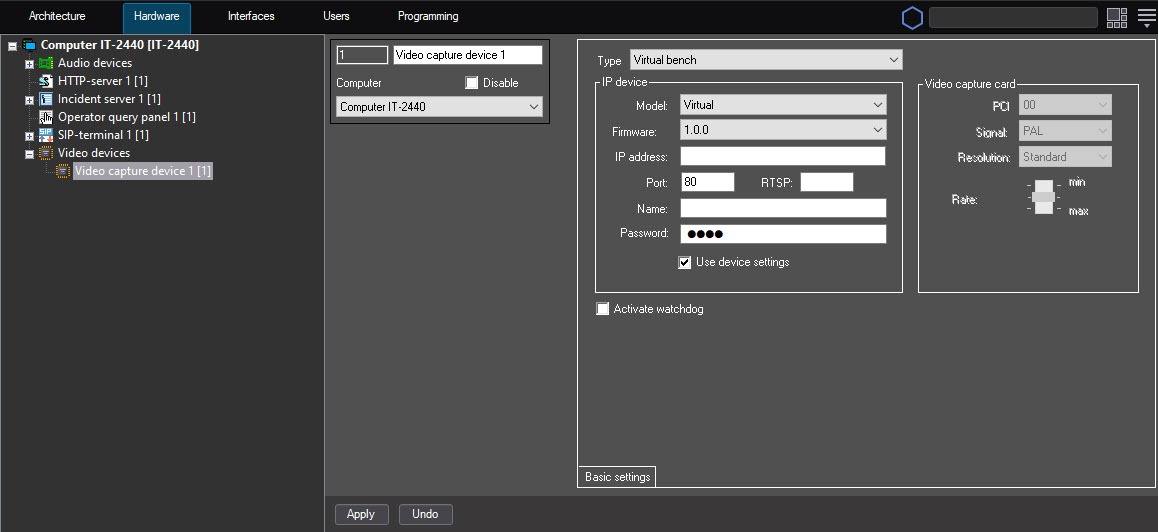
- Click the Apply button.
- Create the Camera child object for the Video capture device object.
Specify the storage for the video that you want to use for video signal imitation in the Basic settings tab of the selected Camera object.
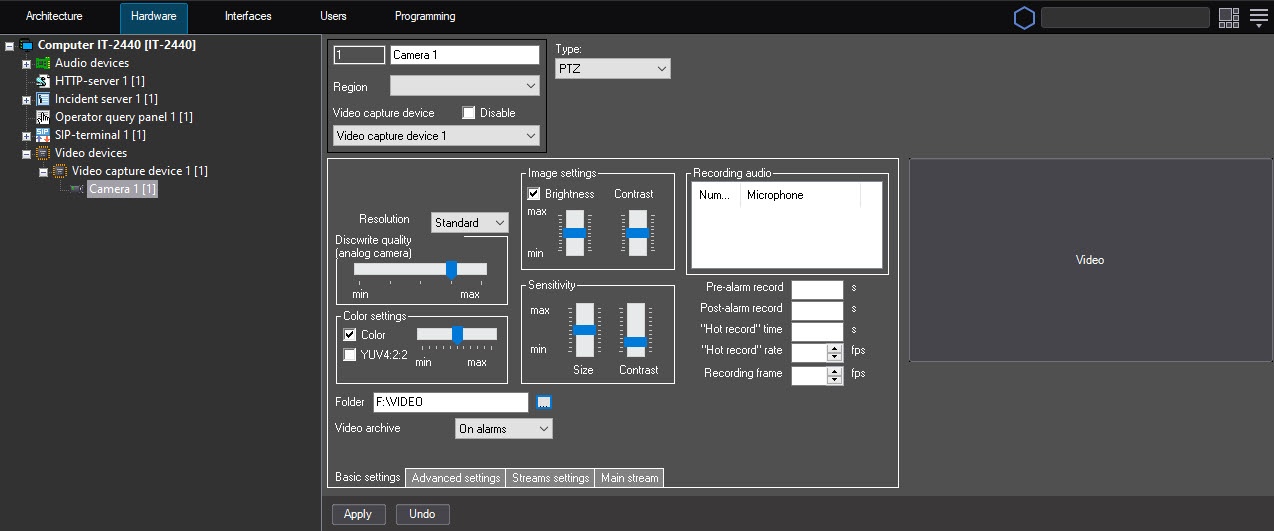
Info title Note We don't recommend using videos compressed by the Wavelet codec, as their use significantly increases the load on the server.
Click the Apply button.
If Axxon PSIM doesn't find files for playback within one minute after clicking the Apply button, the file search is interrupted.Note title Attention! The selected folder mustn't contain the video recordings of the Axxon PSIM internal format and AVI files at the same time.
We recommend using one video recording and specifying the folder containing only the recording or the path to the file. If you need to use several video recordings, select the recordings with similar codec codecs and resolutionresolutions. This helps to avoid delays in Axxon PSIM work when switching between the recordings.
...
Overview
Content Tools