
Go to documentation repository


To create a macro, do the following:
- Create the Macro object.
- Select the Macros object in the objects tree on the Programming tab (1).
- Specify the name of the Macro object (2).
- Click the Apply button (3).
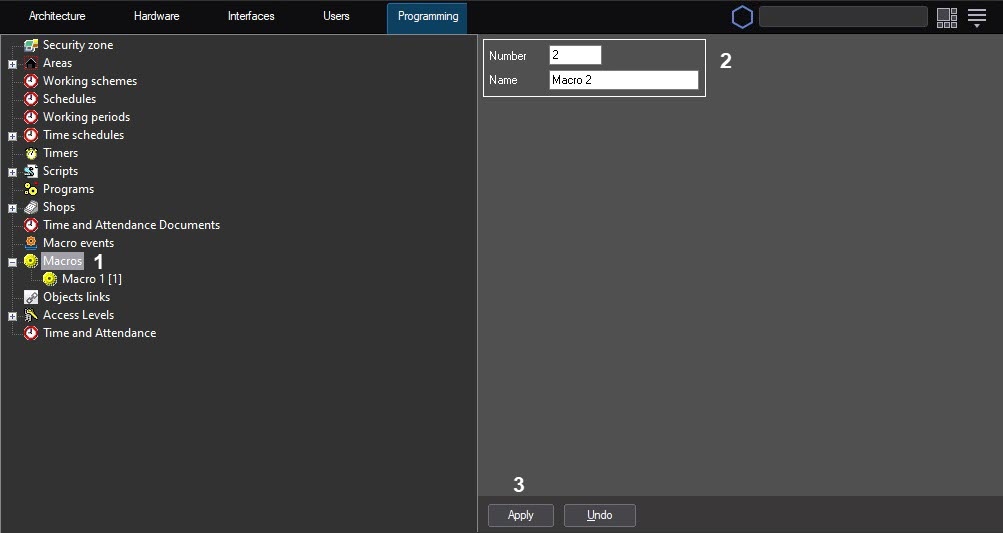
After the Macro object is created, its settings panel opens.
Specify the values of the parameters. The description of the parameters is given in the table below.

Note
To add a row to the Events or Actions table, select a cell in the bottom row of the table and press the "down" arrow on your keyboard.
To delete a row, select a cell in the row and press the Ctrl+Del buttons on the keyboard.
№ | Parameter name | Method of setting the parameter value | Parameter description | Representation | Default value | Value range |
The Settings group | ||||||
1 | State | Select the value from the drop-down list or enter the value from the keyboard | A message is displayed by the system in the data display when the macro is executed. If the Standard value is selected, no message is displayed | - | Blank field | A list of available messages and Standard |
2 | Local | Set the checkbox | If the checkbox is set, the macro cannot run on any other network computer except the local computer. Note. This checkbox does not apply to Hide and Show reactions of any Display. When you call these reactions from the Server/Remote Administrator’s workstation, they will run on the Server/Remote Administrator’s workstation and on all Clients connected to it. When you call these reactions from the Client, the reactions will run on the Client only, regardless of whether the checkbox is set or clear | - | Clear | Set—local only Clear—any computer |
3 | Hidden | Set the checkbox | Set the checkbox for those macros that are not intended to be run manually | - | Clear | Set—run Clear—don’t run |
The Events table | ||||||
4 | Type | Select the value from the drop-down list | Defines the object to be the source of the event that will trigger this macro. | - | Blank field | All active device and module objects |
5 | Number | Select the value from the drop-down list | Defines the number of the object to be the source of the event that will trigger this macro. | - | Blank field | The numbers of all active device and module objects. If the Computer object is selected in the Type column, enter its name here. |
6 | Name | Enters automatically on right-click | Information type | - | Blank field | Enters automatically according to the Type and Number values |
7 | Event | Select the value from the drop-down list | Event type | - | Blank field | The list of registered event types |
| Parameters table (is set, when parameter should be set for events, selected in Events table) | ||||||
| 8 | Name | Automatically | Displays name of event’s parameter | Latin alphabet, digits and characters | Blank field | Depends on the event, selected in Events table |
| 9 | Value | Entering of the text into the field | Set the value of event’s parameter | Latin alphabet, digits and characters | Blank field | A line of any characters. The number of characters is from 1 to 250. |
Actions table | ||||||
10 | Type | Select the value from the drop-down list | Defines the object to be the source of the event that will trigger this macro. | - | Blank field | All active devices and module objects |
11 | Number | Select the value from the drop-down list | Defines the number of the object to be the source of the event that will trigger this macro. | - | Blank field | The numbers of all active devices and module objects. If the Computer object is selected in the Type column, enter its name here. If the field is left blank, the reaction will be performed for all objects of the selected type. If you enter the symbol # in the field, the identifier of the object from which the event was received will be substituted into the reaction. Object types in Events and Actions tables may differ. When the macro is run manually from the main control panel, the # symbol is treated as if the field was blank, i.e. the macro is executed for all objects of the selected type. |
12 | Name | Automatically | Displays name of the selected object | Name of objects, registered in the system and of specified type | Blank field | A line of any characters. The number of characters is from 1 to 60. |
| 13 | Action | Select the value from the drop-down list | Reaction to be executed for the selected object when the event is registered | - | Blank field | The list of registered reaction types for the selected object type |
Parameters table (is set, when parameter should be set to perform action, selected in Actions table) | ||||||
14 | Name | Automatically | Displays name of action’s parameter | Latin alphabet, digits and characters | Blank field | Depends on the action, selected in Actions table |
15 | Value | Entering of the text into the field | Set the value of action’s parameter | Latin alphabet, digits and characters | Blank field | A line of any characters. The number of characters is from 1 to 255. |
| Outside the groups | ||||||
| 16 | Response sending delay (sec) | Entering of the value into the field | Sets time period (in seconds) that must pass after events specified in the Events column occur and before executing reactions specified in the Actions column. Note. If the events reoccur before the specified time period expires, the reaction execution wait period is prolonged, i.e. reactions will be executed only once when events do not reoccur over the specified period. | Integer number | - | >0 |
| 17 | The Fast call field | Left-click in the field and click the required key combination | Sets a shortcut for a macro. If the same combination of hot keys is set for several macros, when clicking a key combination, all of these macros run. Note. You can disable keyboard shortcuts for macros using the UseHotKeys key — see Registry keys reference guide. | Key combinations | No | Some keys of the main or numeric keyboard, as well as these keys in combination with Shift, Ctrl and Alt. |
| 18 | The Icon type dropdown list | Select the value from the drop-down list | Sets a set of icons for displaying a macro on the map. By default, an empty value is set for all macros which corresponds to the Macro 1 icon. Note. Changing the icon appearance will take effect after restarting the map interface. To restart the interface, restart Axxon PSIM or log in once again under the corresponding Operator account. | Available icon appearances on the map | - | Macro 1 - Macro 7, empty value. |
Note
As action’s parameter Play sound file may be used only files of WAV format. Otherwise, action Play sound file is not carried out.
Note
If required action, event or parameter is absent in the corresponding table, add it in the ddi-file with the ddi.exe utility (see Editing the external setting file (Axxon PSIM.ddi) using the ddi.exe utility)
Note
Compressed sound in WAV format may be played back incorrectly, that’s why it is strongly recommended to play back only PCM WAV files. Maximum values of frequency and depth of files digitization for playing back are determined by technical characteristics of digital to analog converter of the installed video card.
3. Click the Apply button to save the settings.
Overview
Content Tools