
Go to documentation repository

Documentation for Axxon One 2.0. Documentation for other versions of Axxon One is [available too].
Previous page Next page

수위 검출 도구를 설정하려면 다음 단계를 따르세요.
수위 감지 기록을 아카이브에 저장하려면 아카이브에 마스크 기록 매개변수를 예로 설정하세요 (1).
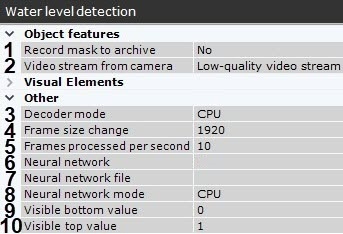
- 카메라가 멀티 스트리밍을 지원하는 경우, 감지를 수행할 스트림을 선택하세요. 서버 부하를 줄이기 위해 낮은 화질의 비디오 스트림을 선택하는 것이 좋습니다 (2).
- 비디오 스트림을 디코딩할 처리 리소스를 선택하세요 (3). GPU를 선택한 경우, 별도의 그래픽 카드(NVIDIA NVDEC 칩셋 사용 시)가 우선적으로 사용됩니다. 적절한 GPU가 없으면 Intel Quick Sync Video 기술이나 CPU가 사용됩니다.
분석된 프레임은 지정된 해상도로 축소됩니다 (4, 긴 쪽 기준 1920 픽셀). 작동 방식은 다음과 같습니다.
원본 영상의 긴 쪽 해상도가 프레임 크기 변경 항목에 지정된 값을 초과할 경우, 해당 값은 절반으로 나뉩니다.
결과 해상도가 지정된 값보다 작으면 해당 해상도가 그대로 사용됩니다.
결과 해상도가 여전히 지정된 값을 초과할 경우, 지정된 값보다 작아질 때까지 계속 절반으로 나뉩니다.
Note
예를 들어, 원본 해상도가 2048×1536이고 지정된 값이 1000인 경우, 해상도는 두 번 절반으로 줄어들어 512×384가 됩니다. 이는 첫 번째 분할 후 긴 쪽 해상도가 여전히 지정된 값(1024 > 1000)보다 크기 때문입니다. 고해상도 스트림에서 감지 오류가 발생할 경우 압축률을 줄이는 것이 권장됩니다.
- 검출 도구가 1초에 처리할 프레임 수를 설정하세요 (5). 값은 [0.016; 100] 범위 내여야 합니다.
화면에 보이는 물이 투명해서 검출 도구가 정확하게 수위를 인식하지 못할 경우, 신경망을 사용하세요 (6):
아니요를 선택한 경우, 감지 도구는 CPU 기반의 일반 알고리즘으로 동작하며 신경망 파일 항목에 지정된 값을 무시합니다.
예를 선택한 경우,
- 신경망 파일 항목에 아무 값도 지정하지 않으면 시스템이 신경망 모드 항목에 지정된 장치에 적합한 표준 신경망을 자동으로 선택합니다.
신경망 파일 항목에 지정된 사용자 정의 신경망이 신경망 모드 항목의 장치와 일치하고 수위 감지를 위한 신경망일 경우, 해당 신경망 기반의 감지 도구가 생성됩니다.
Attention!
신경망 파일이 정확하게 지정되지 않으면 감지 도구가 작동하지 않습니다. 신경망 알고리즘은 20초마다 자동으로 재생성됩니다.
신경망 파일을 선택하세요 (7). 다양한 프로세서 유형에 맞는 표준 신경망은 C:\Program Files\Common Files\AxxonSoft\DetectorPack\NeuroSDK 폴더에 있습니다. 이 필드에 표준 신경망을 선택할 필요는 없으며, 시스템이 자동으로 필요한 것을 선택합니다.
사용자 정의 신경망을 사용할 경우, 해당 파일 경로를 입력하세요.Note
For correct neural network operation on Linux, place the corresponding file in the /opt/AxxonSoft/DetectorPack/NeuroSDK directory.
Select the processor for the neural network—CPU, one of GPUs, or one of Intel processors (8) (신경망 분석 작업을 위한 하드웨어 요구 사항, 검출 구성에 대한 일반 정보 참조).
Attention!
- It may take several minutes to launch the algorithm on NVIDIA GPU after you apply the settings. You can use caching to speed up future launches (GPU에서 신경 분석 작업 최적화 참조).
- If you specify other processing resource than the CPU, this device will carry the most of computing load. However, the CPU will also be used to run the detection tool.
- Starting with Detector Pack 3.11, Intel HDDL and Intel NCS aren’t supported.
- On the measurement scale (9, 10), set the top and bottom visible values in normal conditions. The value should be in the range [0; 19].
- Move the anchor points
 in the preview window:
Set the measurement scale in the frame.

Attention!
Top and bottom values of the measurement scale should match the actual settings (see step 9).
Note
Water level sensor is shown in the lower left corner. If the sensor is green, the water level is below high and critical marks. If the sensor is orange, the water level is at high mark, but below critical mark. A red sensor means that water level is above critical mark.
- Draw a line to set the top limit for water level upon reaching which the detection tool triggers an alarm.
- Draw a line to set the top limit for water level upon reaching which the detection tool highlights the sensor icon in the video surveillance window with orange color.
- Click the Apply button.
Configuring Water level detection tool is complete.
When you have created a detection tool, you can see a sensor on the layout in the video surveillance window.
If the sensor icon is green  , the water level is lower than both critical and high marks. If the icon is orange
  , the water level is above the high mark, but below the critical mark. A red icon
  means that the water level is above the critical mark.
You can also add a numerical value of the water level to the video surveillance window (Configuring display of water level detection 참조).
Overview
Content Tools