The RTSP Server object is used for transmitting video from Server to remote workplaces using the RTSP protocol. Use of the RTSP protocol allows viewing video from IP cameras and video archive on remote clients by means of the Intellect software or using video players that support this protocol. Transmitting Video gate archive and Long-term archive is also supported.
If there is sound with live video or the archive is recorded with sound, then video broadcast with sound through RTSP Server is supported – for this specify the ID of microphone from which the archive is recorded when requesting video (see the table with requests examples). For proper operation of this feature set the VLC media player compatibility mode checkbox checked in VLC Media Player (see item 14).
Transmitted video stream is to be compressed using H.264, H.265, MPEG4 or MJPEG codecs. When MJPEG codec is in use, video of height and/or width more than 2048 pixels is not supported. The client is to reconnect to URL when the codec is changed. |
It is to be taken into account that while configuring each rtsp Server loads only one CPU core. To increase the number of rtsp streams several rtsp Server objects are to be created and configured on several cameras.
Create and configure the RTSP Server object as follows:
- In the context menu of the Computer object select Create object => RTSP Server.
- Specify the name and ID of the object in the opened panel.
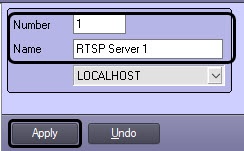
- Click the Apply button to create the object.
- Open the settings panel for the RTSP Server object. For this select the created object in the Intellect objects tree.
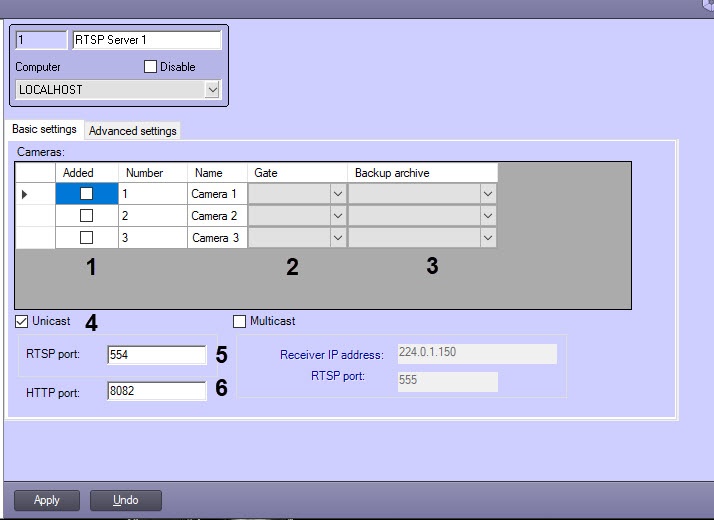
In the Cameras table set the checkboxes next to video cameras video from which is to be displayed (1).
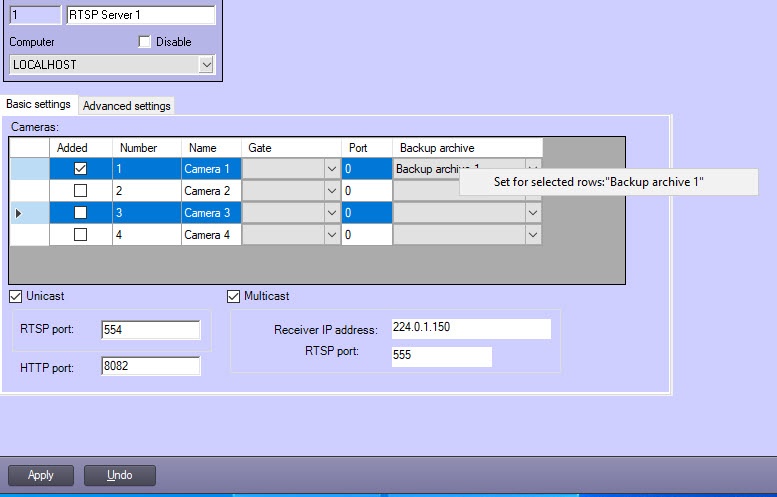
To select several cameras at the same time, mark lines in the table and then holding down the Ctrl key on the keyboard click the unchecked box in one of the marked lines.
As a result all selected lines will be set checked.
To uncheck several boxes at the same time, do the same, but click the checked box after the selection of the lines. |
- If video from the camera is to be received through the video gate, then select the Video gate object in the Gate drop-down list (2).
- Set the Unicast checkbox checked if signals from all cameras are to be broadcast through one port (3).
In the RTSP port field specify the port via which the video is transmitted (4).
The "Windows Media Player Network Sharing" service can use the default port 554. Change the port number or disable this service for broadcast.
To disable the service go to the Control panel - Administrative Tools - Services and double-click the service name and click the Stop button in the opened window. |
- In the HTTP port field specify the port that is to be used for transmitting video via http-protocol (5).
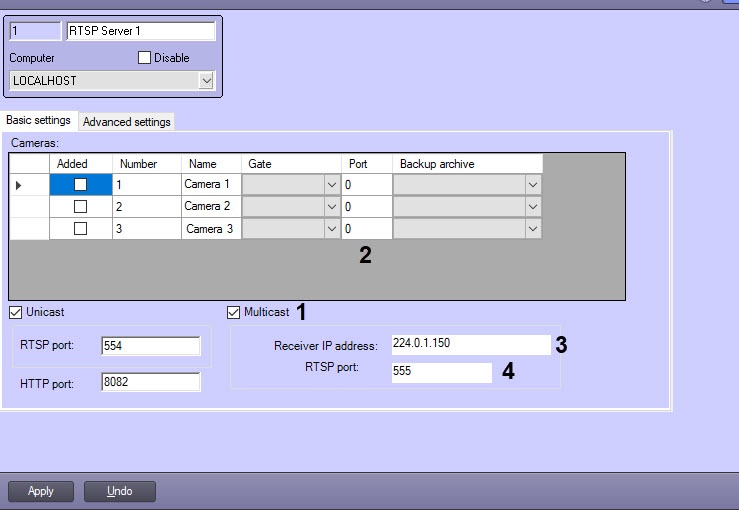
To distribute transmitted signal among different RTSP-ports set the Multicast checkbox (1). In the Cameras table the Port column is displayed. Every video camera is to have a data transmission port (2). Bear in mind the following when specifying ports:
- The following ports are in use for each camera in the Multicast mode: nPort, nPort + 18000 (rtp), nPort + 19000 (rtcp), where nPort – port number specified for camera in the Port column.
For proper operation of RTSP server in the Multicast mode these ports are to be vacant. - Specified ports are not addressed directly. Use RTSP port to get video from all cameras inthe Multicast mode (see item 12).
In spite of specifying video data port it is required to specify camera number in the data source address (see the table below).
| Use of the Multicast mode allows decreasing Server load due to reduction of transmitted data |
RTSP Server can translate both in Multicast and Unicast modes simultaneously. Receiving both these streams on the Intellect client is impossible due to RTSP key defining the mode (see the note above). However, the VLC player allows receiving streams in both modes in the same time. |
In the Receiver IP address field specify the address from which the broadcast in Multicast mode will be performed. Address is to be in range from 224.0.1.0 to 239.255.255.255 (3). By default, the receiver IP is 224.0.1.150.
224.0.0.0-224.0.0.255 address range is reserved for routing protocols and other service protocols. Destination IP address cannot be set from the specified range. |
RTSP-server can broadcast to one network simultaneously. The network with minimal metric is selected by default. To change the broadcast network, create the IpInterface = "IP-address of required interface" key in the registry. See also Registry keys reference guide. |
- In the RTSP port field specify the number of port through which video signal will be sent in the Multicast mode (4). When requesting video data from the camera using the RTSP protocol, it is necessary to specify this port. The system itself forwards the request to the port of the requested camera.
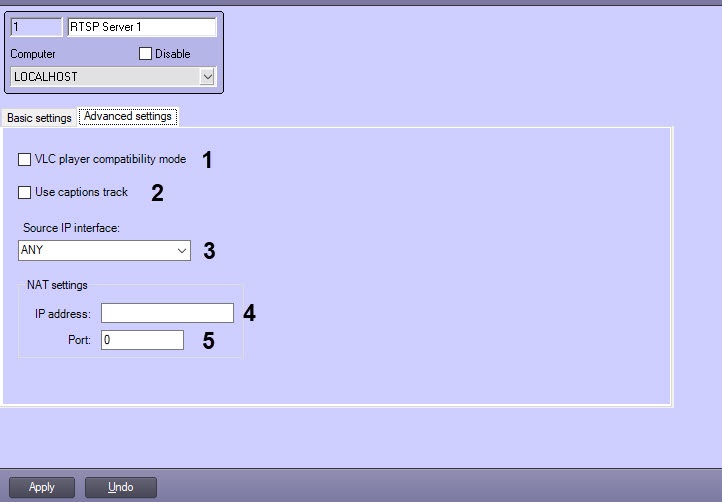
- Go to the Advanced settings tab.
If the current time is to be sent to VLC Media Player instead of the frame time, then set the VLC media player compatibility mode checkbox checked (1). This option is to be used in case of problems when playing back the archive received over RTSP in VLC Media Player.
If there are captions on the video (see Configuring captions display on a video image), set the Use captions track checkbox checked to send them along with video via RTSP Server and to display them in the receiving app – VLC player (2).
Correct video and captions operation are enabled only in VLC Media Player 2.0.0. These features are not guaranteed to work in other versions of VLC Media Player or other programs. |
Click the Apply button to save the changes.
The RTSP Server object is now configured.
To connect to Server and display video in the video player that supports RTSP protocol, specify the address of data source in the format given in the table:
Address | Example | Description |
rtsp://Server IP address[:Port]/CameraNo | rtsp://127.0.0.1/1 | Viewing video signal from Camera 1 if default port is in use. |
| rtsp://127.0.0.1:555/1 | Viewing video signal from Camera 1 when broadcasting in Multicast mode if port 555 is in use for video transmission from this camera. Note. Connection to the RTSP stream is performed via the broadcasting adapter IP-address, not by the destination IP which is specified in the settings panel of the RTSP Server and is used internally. |
| rtsp://Login:Password@Server IP address[:Port]/CameraNo | rtsp://login:pass@127.0.0.1:554/1 | Viewing video signal from Camera 1 if users and permissions are configured in Intellect (see Rights administration). |
| rtsp://Server IP address[:Port]/CameraNo?mic_id=Microphone ID | rtsp://127.0.0.1:555/15?mic_id=1 | Viewing video from Camera 15 with sound. |
| rtsp:// Server IP address[:Port]/?mic_id= Microphone ID | rtsp://127.0.0.1:555/?mic_id=1 | Getting sound only from microphone 1 with no video from any camera. |
rtsp:// Server IP address[:Port]/archive?id= CameraNo.&time_begin=yyyy.mm.dd-hh:mm:ss&&time_end= yyyy.mm.dd-hh:mm:ss | rtsp://127.0.0.1:554/archive?id=1&time_begin=2011.11.11-11:11:11&&time_end=2011.11.11-11:12:00 | Viewing video archive from Camera 1 for specified time period. |
| rtsp:// Server IP address[:Port]/archive?id=CameraNo&mic_id= Microphone ID &time_begin=yyyy.mm.dd-hh:mm:ss&&time_end= yyyy.mm.dd-hh:mm:ss | rtsp://127.0.0.1:554/archive?id=1&mic_id=1&time_begin=2011.11.11-11:11:11&&time_end=2011.11.11-11:12:00 | Viewing video archive from Camera 1 with sound from microphone 1 for specified time period. |
| rtsp://Server IP address[:Port]/archive?id=CameraNo.&time_begin=yyyymmddThhmmssZ&time_end=yyyymmddThhmmssZ | rtsp://127.0.0.1:555/archive?id=1&time_begin=20160331T080000Z&time_end=20160331T080800Z | Viewing video archive from Camera 1 for specified time period. |
| rtsp://Server IP address[:Port]/archive?id=CameraNo.&time_begin=yyyymmddThhmmssZ | rtsp://127.0.0.1:555/archive?id=4&time_begin=20160316T065000Z | Viewing video archive from Camera 4 from specific start time till the archive end (as the value of time_end is not specified in the address). |
| rtsp://Server IP address[:Port]/archive?id=CameraNo | rtsp://127.0.0.1:555/archive?id=4 | Viewing video archive from Camera 4 from the beginning till the end. |
| rtsp://Server IP address[:Port]/archive?id=CameraNo.&long_term_archive=Long-termArchiveNo | rtsp://127.0.0.1:559/archive?id=1&long_term_archive=2 | Viewing Camera 1 video archive from Long-term archive 2. |
| rtsp://Server IP address[:Port]/archive?id=CameraNo.&gate=VideogateNo | rtsp://127.0.0.1:559/archive?id=1&gate=3 | Viewing Camera 1 video archive from Video gate 3. |
If 554 port is in use (default value), it can be not specified in the address line. In the examples given above specify the IP address of the computer where the RTSP Server object is instead of 127.0.0.1. |
The figure shows how to view video from the Server.