
Click the  button to go to the next screen and perform the initial setup.
To skip the initial setup, click the |
 button.
 button, a Permissions screen is displayed. On this screen, it is necessary to grant the access to some device functions.
Click GRANT to open a dialog box where you can provide the access to the mobile device functions.
If you skip this setting, then the access request messages will be displayed when you will try to use the corresponding mobile client functions. |
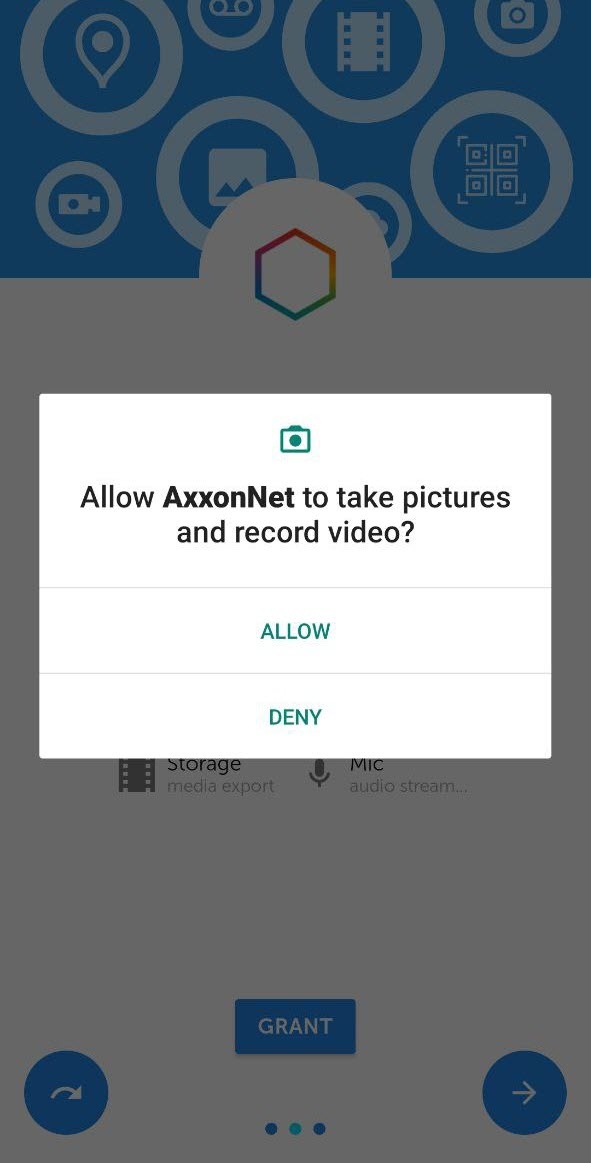
To grant the access, click the Allow button.
If you click Deny, then the access to this function will be permitted. In this case, the mobile client will operate incorrectly. |
If all permissions are granted, the icons of the corresponding functions are green.
In the Play method drop-down list, select the preferred video playback method.
You can specify this setting later (see Configuring video in AxxonNet client on Android OS). |

To complete the initial settings, click the  button.