
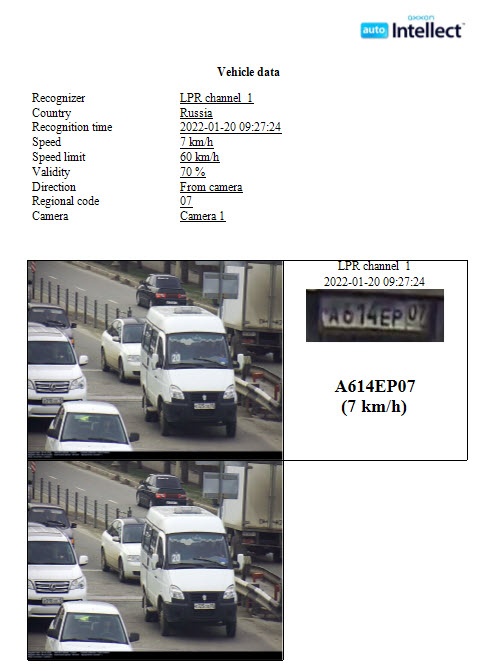
If necessary, do the following operations with the report, then quit the report preview program by clicking the File -> Exit viewer in the main menu, or by clicking the  button in the top right corner.
The available operations for the report are listed in the table below.
Operation | Operation invocation | ||
|---|---|---|---|
Main menu item | Context menu item | Toolbar button | |
Open the report, saved in .rsd or .xml | File -> Open | - |
|
Save the report in .rsd or .xml | File -> Save | - |
|
Export the report to one of the common formats | File -> Export | - |
|
Print the report | File -> Print | - |
|
Activate the «Hand» tool | View -> Scrolling | Scrolling |
|
Zoom in the report pages | View -> Zoom in | Zoom in |
|
Zoom out the report pages | View -> Zoom out | Zoom out |
|
Enable dynamic scaling of report pages | View -> Dynamic scaling | Dynamic scaling |
|
Zoom in the selected area of the report | View -> Region scaling | Region scaling |
|
Scale in page size | View -> In page size | In page size |
|
Scale in page width | View -> In page's width size | In page's width size |
|
Display pages in real size | View -> Real size | Real size |
|
Enter or select from the list the required scale of displaying the report pages | View -> Set the scaling | Set the scaling |
|
Enable the nonstop paginal report displaying | - | - |
|
Enable the page-by-page report displaying | - | - |
|
Go to the first page | Navigate -> The first page | The first page |
|
Go to the previous page | Navigate -> Previous page | Previous page |
|
Go to the next page | Navigate ->The next page | The next page |
|
Go to the last page | Navigate ->The last page | The last page |
|
Go to the certain page (open the «Go to page» dialog window) | Navigate -> Go to page | - | - |
Display the previous view | Navigate -> Back | Back |
|
Display the next view | Navigate -> Forward | Forward |
|
Find the required characters in the report | Document -> Find | Find |
|
Update the report | Document -> Update | Update |
|
Edit the report (open the editing program) | Document -> Edit the report | Edit the report |
|
Display table of contents | - | - |
|
Display information about the program to view the report | Help -> About program | - | - |
Close the preview report program | File -> Close | - | - |


Operations with report files (opening, saving, exporting, and printing) are performed via the standard OS Windows dialog windows. |
To go to the required page, enter the page number in the Page № field of the Go to page dialog window and then click OK. |