You can change some of the map settings in Live Video. Use the controls in the bottom right corner of the screen.
You can adjust transparency of video display in the Map View using a dedicated slider in the bottom right corner.

The leftmost position corresponds to no video, the rightmost makes the video opaque.
Use the  /
/ button to toggle the display of devices' names and their IDs.
To enable/disable camera icon fluttering on alarm, use the  /
/  button.
To change the action when you click on the video camera icon on the map, use  (takes you to the layout with the camera) /
  (switches to immersion mode (see Immersive mode)).
To change map view, use the button  (3D view) /
  (flat view).
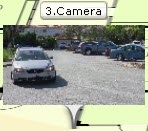
Video in 3D view:
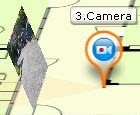
Video in flat view: