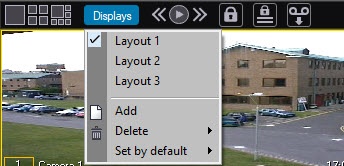
The layout determines the number and position of surveillance windows on the video surveillance monitor. You can change the position of surveillance windows using the mouse. The operator can create custom window layouts if they are given rights to control the Monitor object.
To control the layout, use the menu that you can open by clicking the Displays button on the toolbar of the video surveillance monitor.
You can also control the layouts using the display manager—see Configuring and activating the layouts. The monitor can display up to 94 layouts. You cannot work with layouts added beyond this limit. |
To create a new layout:
Then a new layout appears in the layout list.
To select a layout, click its name in the list. To delete an existing layout, use the Delete option in the menu.
If you enable the Overlay 1 mode during the system setup and the monitor displays six surveillance windows, the surveillance windows' layout cannot be changed. Changing the location of surveillance windows on the video surveillance monitor with the mouse can also be prohibited by the DisableReplaceCam registry key—see Registry keys reference guide. |
The Add and Delete options can be unavailable depending on the user rights (see Restriction of administration, control, and monitoring rights).
The Displays menu also allows assigning default layouts. The default layout is displayed when you start Axxon PSIM. To use the default layout each time the corresponding screen with the monitor is displayed, use the UseDefaultLayoutOnlyAtStartup key of the registry section HKEY_LOCAL_MACHINE\SOFTWARE\AxxonSoft\PSIM\Video (see Registry keys reference guide).
To select a default layout, go to Displays → Set by default, then select the required layout.
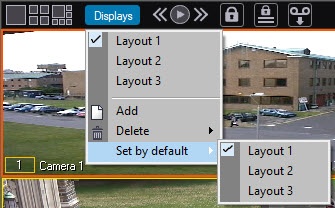
The default layout is highlighted in bold in the list.