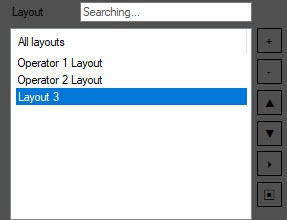
The monitor can display up to 94 layouts. You cannot work with layouts added beyond this limit. |
You can use the following group of settings to select, create, delete, rename, sort, search, and scroll layouts:
To search for the required layout, start entering the layout name in the Layout field. The found elements are highlighted in grey.

To select a layout to be displayed on the layout creation panel, left-click its name in the list.
To create a layout, click the  button. The layout is added to the list with the default name ("Layout <number>"). To rename the layout, select it in the list, then left-click its name and enter a new name.
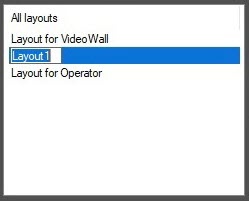
To delete a layout, select it and click the  button. You can select several layouts with the Ctrl key pressed on the keyboard.
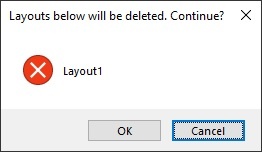
When you click the button, a window opens. This window confirms the deletion of the list of layouts. Click OK to delete the layouts or Cancel to cancel the operation.
To move a layout up or down in the list, use the  and
and  buttons, respectively.
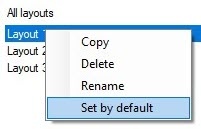
You can also delete or rename a layout using the corresponding commands in the menu that you can open by right-clicking the layout name:
To scroll the layouts, you can use the  (start scrolling) and
  (stop scrolling) buttons or macros (see Examples of scripts with Cameras and Video surveillance monitor).