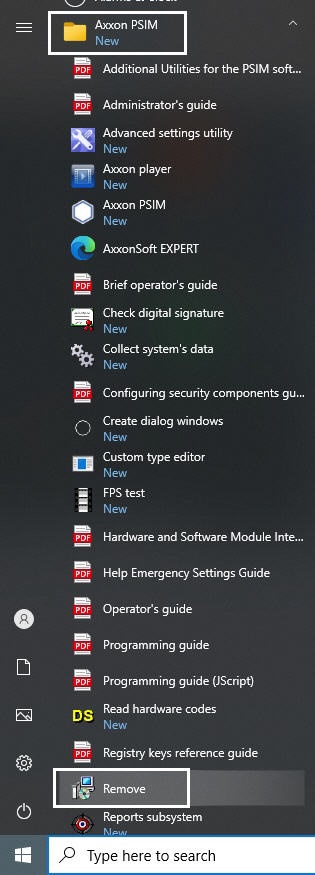
The dialog window for selecting the type of action opens.
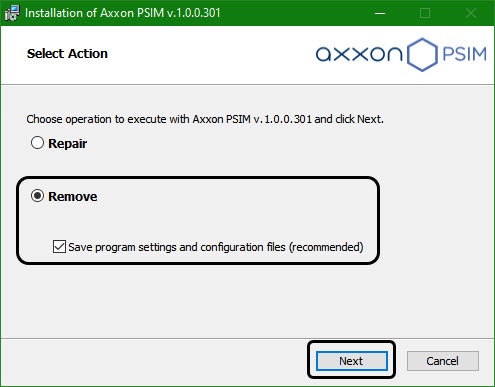
If you want to save the Axxon PSIM settings in the database, set the Save program settings and configuration files (recommended) checkbox.
If you make changes in the sync.xml file, then when you remove it with the configuration saved, the file isn't deleted, but the next time you install Axxon PSIM, it will be overwritten. |
If you clear the Save program settings and configuration files (recommended) checkbox, the warning message appears.
When you remove Axxon PSIM without saving the configuration, all ddi and dbi files, as well as the sync.xml file, are deleted. |

Click the Next button.
| Click the Cancel button to cancel Axxon PSIM removal. |
The dialog window displaying the Axxon PSIM removal process opens.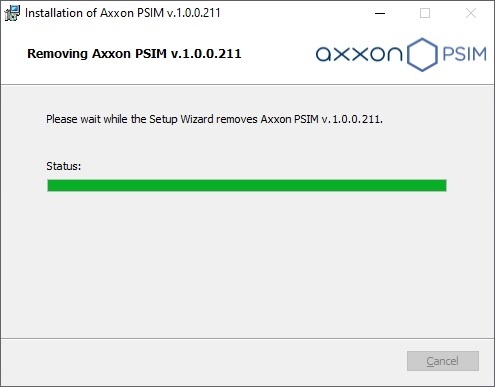
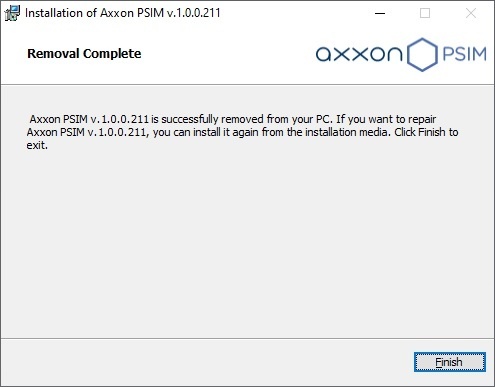
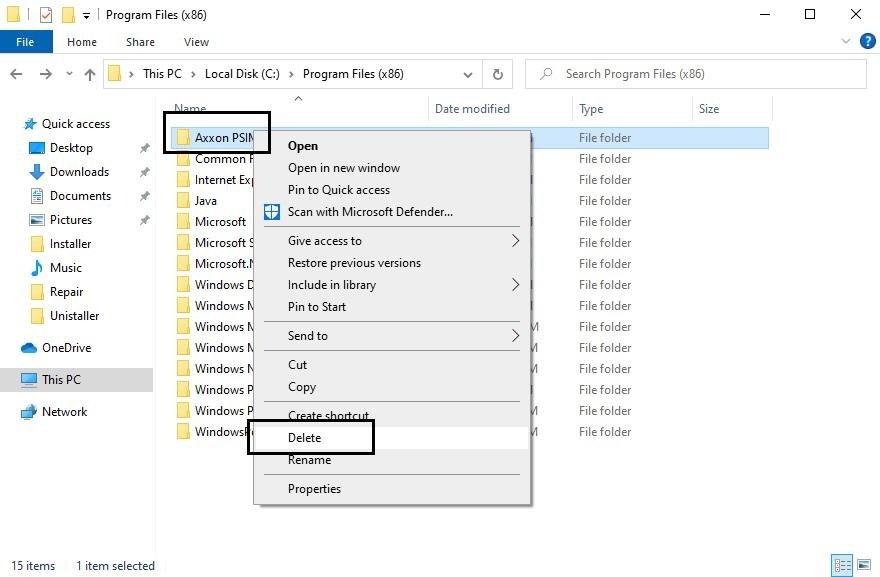
As a result, the message indicating the removal of Axxon PSIM and files is displayed.