In the setup.ini file, located in the directory with the POS PSIM distribution kit (see Installation), enter the following:
CmdLine= /quiet |
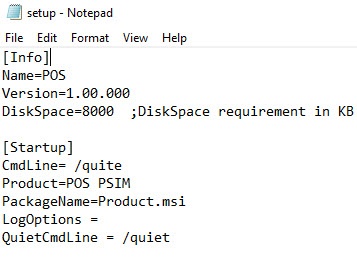
When you run the Setup.exe file, the POS PSIM installation in silent mode begins.
Go to the directory with the POS PSIM distribution kit and use the Windows command line to specify the parameters of the setup.exe file. The parameters of the setup file are listed in the table.
| Parameters of the setup.exe file in the command line | Description |
|---|---|
/x | Removal of POS PSIM |
/uninstall | Removal of POS PSIM |
/r | Repair of POS PSIM |
/repair | Repair of POS PSIM |
/qn | Installation/update of POS PSIM |
/quiet | Installation/update of POS PSIM |
/norestart | Disable automatic system restart during installation |
/debug | Logging |
/LANG=”en” | Select the English language for the installation program |
/CMD="[commands]" | Property values for the base installation program, where commands is [Property]="[Value]" or [Property]='[Value]'. The available properties of the installation program are listed in the table below |
Immediately after running this command, the POS PSIM installation in quiet mode begins.
When the setup.exe process completes in Windows Task Manager, the installation finishes as well.
During installation of POS PSIM in quiet mode, the computer will restart. After the restart, the installation process continues automatically. |
Example of running the POS PSIM installation/update in quiet mode with the setup.exe file
setup.exe /quiet /norestart
This action launches the setup.exe file with the following parameters:
The program installs POS PSIM in quiet mode (/quiet).
Automatic system restart during installation/update is disabled (/norestart).
Example of running the POS PSIM repair in quiet mode with the setup.exe file
setup.exe /r /quiet /norestart
This action launches the setup.exe repair file with the following parameters:
The program repairs POS PSIM (/r).
The program repairs POS PSIM in quiet mode (/quiet).
Automatic system restart during repair is disabled (/norestart).
Example of running the POS PSIM uninstaller in quiet mode with the setup.exe file
setup.exe /x /uninstall /quiet /norestart
This action launches the setup.exe uninstaller with the following parameters:
The program uninstalls POS PSIM (/x /uninstall).
The program uninstalls POS PSIM in quiet mode (/quiet).
Automatic system restart during uninstallation is disabled (/norestart).
You can use the Windows system utility Msiexec.exe to determine the parameters of the Product.msi installation file in the Windows command line.
Example of running the POS PSIM installation/update in quiet mode with the Msiexec.exe utility
msiexec /i Product.msi /qn /norestart
This action launches the MSI installation file with the following parameters:
The program installs/updates POS PSIM (/i Product.msi).
The program installs/updates POS PSIM in quiet mode (/quiet).
Automatic system restart during installation/update is disabled (/norestart).
Example of running the POS PSIM uninstaller in quiet mode with the Msiexec.exe utility
msiexec /x Product.msi /qn /norestart
This action launches the MSI installation file with the following parameters:
The program uninstalls POS PSIM (/x Product.msi).
The program installs/updates POS PSIM in quiet mode (/qn).
Automatic system restart during uninstallation is disabled (/norestart).
Example of running the POS PSIM repair in quiet mode with the Msiexec.exe utility
msiexec /fvomus Product.msi /qn /norestart
This action launches the MSI installation file with the following parameters:
Automatic system restart during installation/update is disabled (/norestart).
The program repairs POS PSIM (/fvomus Product.msi):
- Reinstalls the product (/f).
- Starts execution from the original package and caching of the local MSI database (v).
- Installs if an older version is installed (o).
Overwrites all necessary files (m).
- Overwrites all registry entries for the current user (u).
- Overwrites all registry entries for the local computer and runs all shortcuts (s).