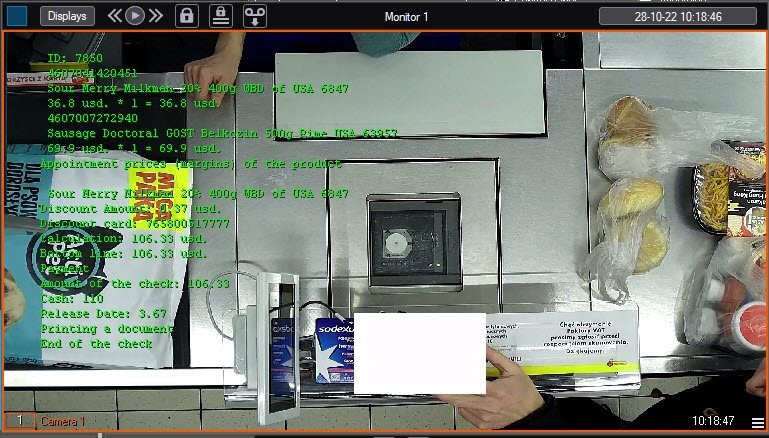
The figure shows the interface of the Monitor window.
The Monitor contains Surveillance windows and the toolbar, which includes the following elements:
 buttons allow changing the number of the Surveillance windows displayed in the Monitor.
 button allows managing Monitor layouts.
 buttons allow switching between the Surveillance windows.
 field. If the Debug mode is disabled, the current date and time are displayed in the field
  field.
Each Surveillance window includes the video image area and the area that displays captions that are overlaid on the video image. Besides, a Surveillance window has a function menu that allows you to access various system functions.
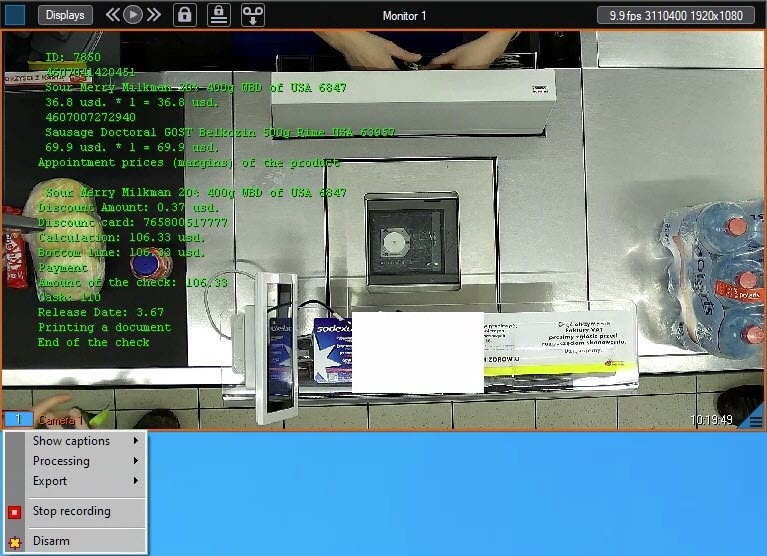
To open the function menu, left-click the camera number in the Surveillance window.
The table describes the keyboard shortcuts available for the Monitor and Surveillance windows.
Shortcut | Action | Description |
0 .. 9 Numpad | Selecting the active window | Numerals correspond to the Surveillance window numbers. To select a two-digit number, press two keys in quick succession |
F1 .. F8 | Selecting the number of Surveillance windows in the Monitor | F1—one window. F2—four windows. F3—nine windows. F4—16 windows, etc. |
Ctrl + R Ctrl + T | Managing video recording | Ctrl + R—start recording Ctrl + T—stop recording |
Shift + LeftClick/RightClick | Scaling video image in the window | Shift + LeftClick—zoom in Shift + RightClick—zoom out |
Tab | Switching the active window to the archive mode and back | Please, refer to Axxon PSIM. Operator’s Guide |
Ctrl + “/” Ctrl + Spacebar Ctrl + * Left/Right | Managing archive playback | Ctrl + “/”—playback Ctrl + Spacebar—stop Ctrl + *—pause Left/Right—previous/next frame (in the pause mode) |
Ctrl + A/D | Arming the camera | Ctrl + A—Arm the camera Ctrl + D—Disarm the camera |
Ctrl + E/P | Operations with individual frames | Ctrl + E—export (save) the frame Ctrl + P—print the frame |
Ctrl + W | Increasing image contrast | Set maximum contrast. Press the same shortcut to restore normal contrast |
Ctrl + S Ctrl + H | Setting camera mask | Ctrl + S—display the camera mask Ctrl + H—hide the camera mask Please, refer to Axxon PSIM. Operator’s Guide |
| For a detailed description of the Monitor and Surveillance windows, see Axxon PSIM. Operator’s Guide. |