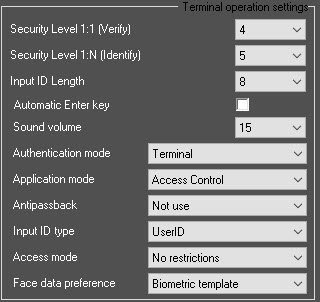
From the Input ID Length drop-down list, select the user ID length from 4 to 8 characters.
To ensure the terminal operation with ACFA PSIM, it is necessary to select 8. Also, the Input ID Length must be set to 8 in the terminal. |
- Server/Terminal—the decisions are made by the server, and if it is not available, then by the terminal.
- Terminal/Server—the decisions are made by the terminal, and if it is not available, then by the server.
- Server—the decisions are made by the server.
- Terminal—the decisions are made by the terminal.
Offline mode—the offline mode of the terminal.
In the offline mode, the terminal cannot be managed from the ACFA PSIM server.
Access Сontrol—access point mode.
To ensure the terminal operation with ACFA PSIM, it is necessary to select the Access Сontrol operation mode.
- Time/Attendance—working time tracking mode.
- Drinking Water—breathalizers compatibility mode.
- Not use—not used.
- Access when disconnected—allow entry if the connection with the server is lost.
- Prohibit when disconnected—prohibit entry if the connection with the server is lost.
- UserID—custom user identifiers.
- UniqueID—unique user identifiers specified in the terminal.
- No restrictions—no restrictions.
- Only fingers and password—only fingerprints and password.
- Biometric template—the saved biometric template of the user is used.
- Person photo—the photo of the user's face from the Access Manager is used.
Not all terminal models support the feature of selecting data for biometric user authorization.