
When searching for objects in the Access Manager module, you can use the following logic operators:
Search rules are combined according to the following principle:
(Rule11 OR Rule12 OR ... OR Rule 1N) AND
(Rule21 OR Rule22 OR ...Rule 2M) AND
...
(Rule K1 OR Rule K2 OR ... OR Rule KL)
Where N, M, K, L are arbitrary integers.
In the Access Manager window, the search rules combined by the OR operator are displayed in one string. The search rules combined by the AND operator are displayed under each other.
To add a search rule, do the following:

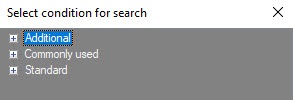
The Standard group contains the criteria for filtering by the standard user parameters.
For the details on the user parameters description, see Specifying user parameters. |
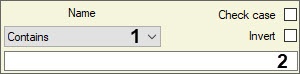
From the drop-down list (1), select the comparison method of a field value with the specified search line.
Comparison method | Description |
Equals | Search for all users for who the value of the selected field is fully coincides with the specified search line |
Contains | Search for all users for who the value of the selected field contains the specified search line |
Starts with | Search for all users for who the value of the selected field starts with the specified search line |
Ends with | Search for all users for who the value of the selected field ends with the specified search line |
Set the Check case checkbox if you want the search to be case-sensitive.
Set the Invert checkbox if you want to apply the negation of the specified search rule. if you set this checkbox, all users who don't meet the specified search condition will be found.
Enter the search line in the field (2).

Set the Invert checkbox if it's required to apply the negation of the specified search rule.
Select value for search from the drop-down list (1) or click the  button. Working with the search window is described in Working with the Search access level window.
 button to search for the required temporary access level. Working with the search window is described in Working with the Search access level window.
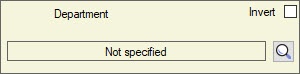
To search for required department, click the button. Working with the search window is described in Working with the Search for department window.
You can search for department only if you performed user search by pressing the Ctrl+F keys. |

Select the comparison method of the specified value for search with a field value (1):
Comparison method | Description |
Equals | Search for all users for who the value of the selected field is fully coincides with the specified date |
Not equals | Search for all users for who the value of the selected field is not coincide with the specified date |
Higher | Search for all users for who the value of the selected field is higher than the specified date |
Lower | Search for all users for who the value of the selected field is lower than the specified date |
In range | Search for all users for who the value of the selected field is in the specified range of dates |
Out of range | Search for all users for who the value of the selected field is out of the specified range of dates |

 button to select the search value. Working with the access point search window is described in Working with the Search access level window.
Adding a search rule is completed.