The Editor-Debugger toolbar is used for calling frequently used functions of the utility.
The toolbar operates in two modes: when the script control buttons are active, or when the debugger window control buttons are active.
The mode depends on the currently active tab of the Editor-Debugger utility: either the Script Debug/Edit tab for editing scripts, or the Script Messages tab for viewing messages in the debugger window.
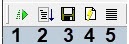
Figure shows the toolbar in the script editing mode.
Table shows the elements of the toolbar in the script editing mode.
№ | Element name | Element type | Description | Units | Default value | Value range |
1 | Test run | Button | Runs the script with the test event | - | - | - |
2 | Test run in third-party debugger | Button | Runs the script using the third-party debugger | - | - | - |
3 | Save | Button | Saves the script to the Script object | - | - | - |
4 | Edit test event | Button | Opens the window for editing test events | - | - | - |
5 | Summary information | Button | Opens the Thread Information window that displays system, test and user messages related to the current script | - | - | - |
Figure shows the toolbar in the script debugging mode.
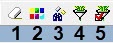
Table shows elements of the toolbar in the script debugging mode.
№ | Element name | Element type | Description | Units | Default value | Value range |
1 | Clear | Button | Clears the Description field in the debugger window | - | - | |
2 | Colors | Button | Opens the window allowing to specify the words that a line should contain to be highlighted in color | - | - | - |
3 | Search | Button | Searches for a word in the Description window | - | - | - |
4 | Set filter | Button | Opens the window allowing to set the filtering criteria for the messages in the debugger window. | - | - | - |
5 | Apply filter | Button | Applies the current filter | - | - | - |