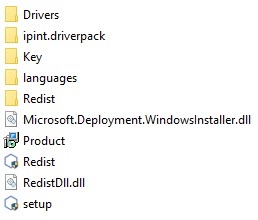
As a result, a window for choosing the Installation wizard language is displayed.

As a result, the Type of installation window opens.

To log all installation events, set the Enable full installation log (increases product installation time) checkbox.
| When you update the software, events are logged to the PSIMSetup.log log file. To collect log files, use the Support.exe tool (see The utility for collecting system data for the technical support service). |
The Selecting components for installation window opens.
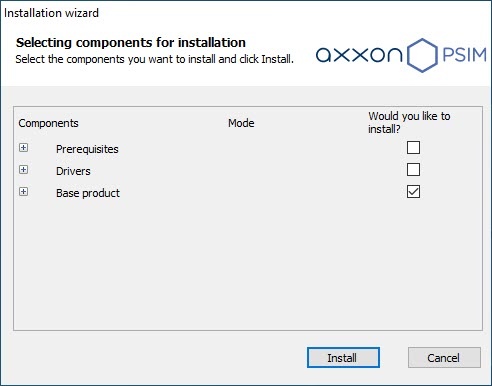
Set the checkboxes next to the components that you want to install.
| We recommend installing all suggested components. |
Click the Install button.
The selected prerequisites and drivers will be installed.
During the installation process, you will be prompted to remove the installed vertical solutions. Two options are possible:
|
When prerequisites and drivers are installed, the window of Axxon PSIM update opens.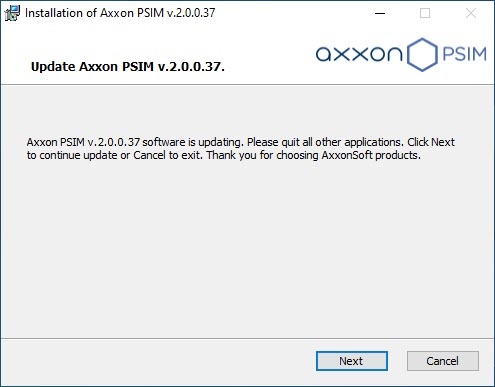
The window for selecting the type of update opens.
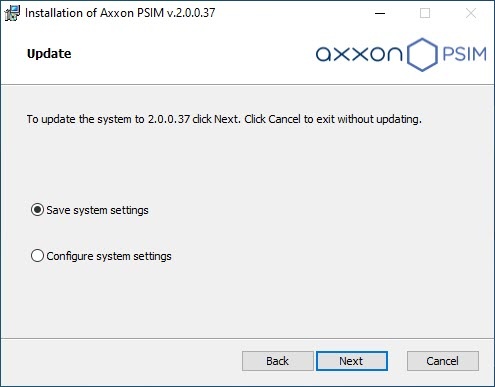
Select one of the suggested types of update. The types of updates are described in the table below:
The type of update | Description |
Save system settings | The usage of settings selected when you installed the previous version of Axxon PSIM |
Configure system settings | Proceed to the step-by-step system configuration. Step-by-step configuration is described in Installation of Axxon PSIM as a Server/Remote administrator's workstation |
Click the Next button.
When the system is configured, installation of Axxon PSIM starts.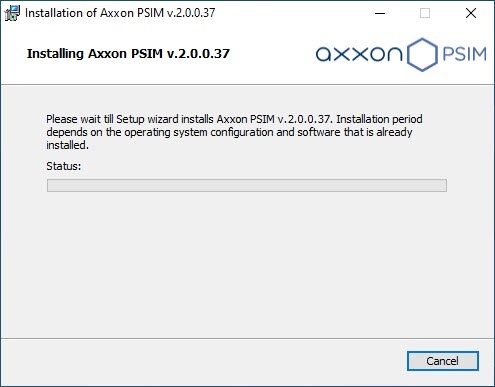
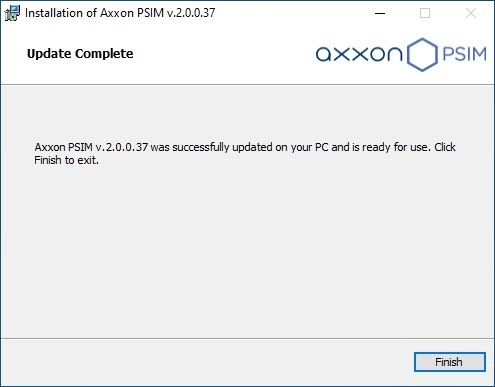
Click the Finish button.
Then the DriversPack will be installed if you selected this component. |
The Installation complete window opens. It contains the information about the mode (installed or not) of Axxon PSIM components. 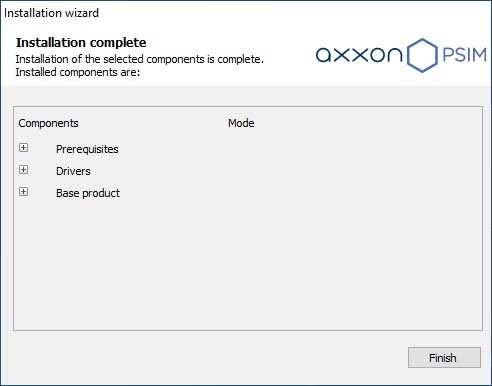
A window prompting to restart the computer opens.
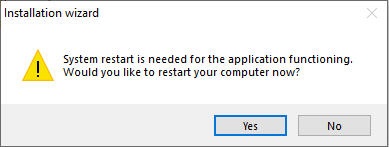
To correctly finish the installation of Axxon PSIM, you must restart the computer. If you don’t choose to restart now, you will have to do it yourself after the installation.