This action starts an external program on the selected Server of the Axxon-domain.
We don't recommend running programs with GUI on the Server. If you have problems with running interactive services, refer to the Windows OS user manual. |
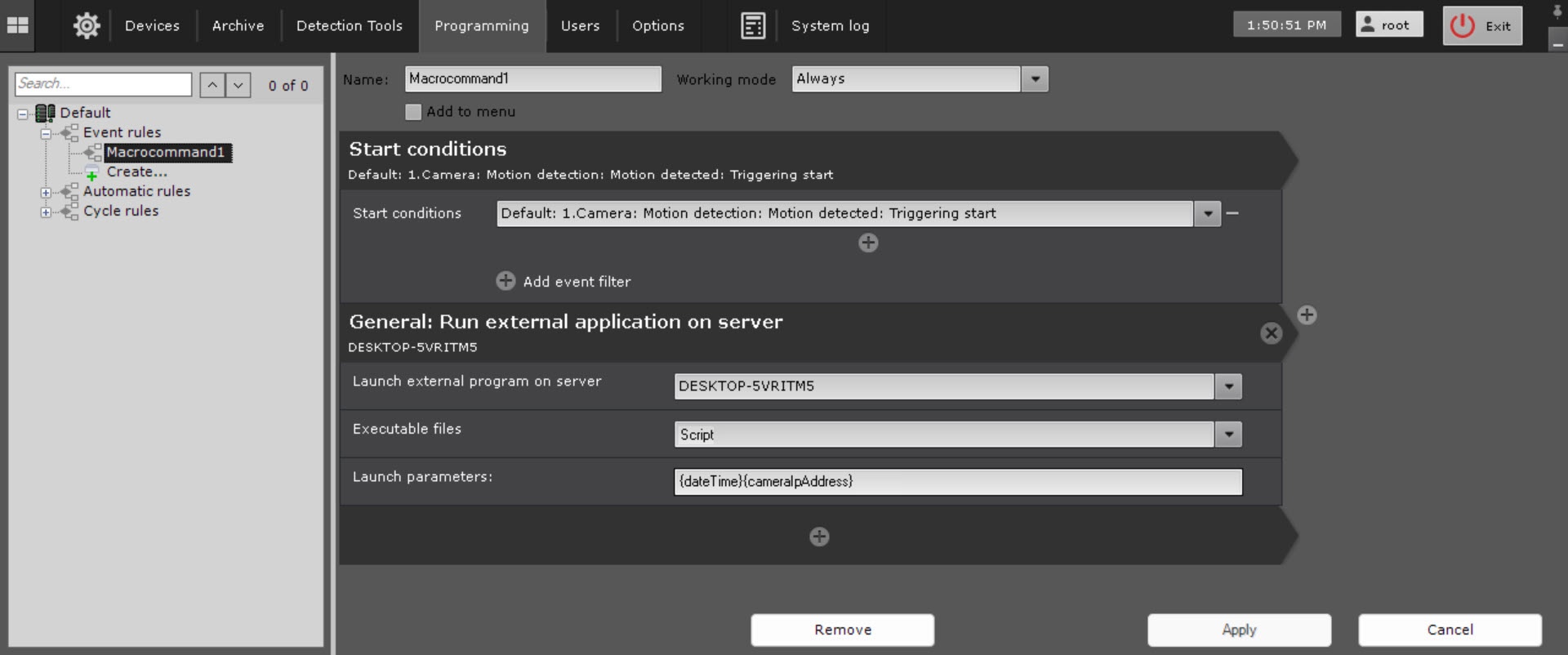
To configure, do the following:
Allow interaction of the server NGP Host service with the desktop: Start → Control Panel → Administrative Tools → Services → Net Logon → Properties → Log On.

For the Failover server and client installation type (see Installation), you must allow the NGP RaFT supervisor service to interact with desktop. |
- Add to folder <Axxon One installation directory>\UserScripts\ one or more .bat files with the application startup command.
The command must include a path to the executable file. You can specify a network path, command line parameters (see Run external application on client) and use templates (see Text templates in the action settings). - Select the Server where you want to run the program (1).

- Select a .bat file with the run command (2).
- Enter templates, if they were set via a .bat file (3).
If the wildcard is expected to contain spaces and/or some special shell characters (> & | <, and so on) as a result of the query, the template must be enclosed in quotation marks (“”). For example, “{rectangles}”. It is necessary to quote the entire template string. |
Example 1: If you apply the following bat file:
SET "datatime=%1"
SET "cameraIpAddress=%2"

msg * Current time is %datatime%, IP-address: %cameraIpAddress% |
executing the macro will lead to the following message:
Example 2: Exporting events about camera status change (offline/online) to a csv.bat file containing the following:
SELECT "timestamp"
    ,REGEXP_REPLACE("object_id", 'hosts/', '') as device,
    CASE
                                WHEN ("any_values"::json->>'state') = '4' THEN 'Signal Lost'
                                WHEN ("any_values"::json->>'state') = '3' THEN 'Signal Restored'
                                ELSE ''
        END as state
FROM public."t_json_event"
WHERE type = '0' AND ("any_values"::json->>'state'='3' OR "any_values"::json->>'state'='4') AND timestamp >= '20200211T0000'
ORDER by timestamp DESC |
Example 3: Exporting events from all inputs to a csv.bat file containing the following:
SELECT "timestamp",
        REGEXP_REPLACE("object_id", 'hosts/', '') as device,
        CASE
                                WHEN ("any_values"::json->>'phase') = '1' THEN 'Closed'
                                WHEN ("any_values"::json->>'phase') = '2' THEN 'Opened'
                                ELSE ''
        END as state
FROM public."t_json_event"
WHERE type = '1' AND timestamp >= '20200209T110000' AND "object_id" LIKE '%ray%'
ORDER by timestamp DESC |