To configure the object of the Protege integration module, do the following:
- Go to the settings panel of the Protege object.

- In the Address field, enter the full URL of the Protege GX SOAP service. The standard format is http://<IP address of the Protege GX server>:<port>/ProtegeGXSOAPService/service.svc
- This address is the endpoint of the web service through which Axxon One communicates with the access control system. Make sure that the specified port (8030 is often used by default) is open and accessible from the Axxon One server.
- Specifying only the IP address without the full path to the service is insufficient and results in a connection error.
|
- In the Login field, enter the username for authorization in the Protege GX manufacturer's software.
- We recommend using a separate user created directly in the Protege GX software with an explicit password for connection.
- We recommend not using the embedded admin account without a password. In some configurations, this results in a Server not connected connection error, even if you specify the IP address correctly.
|
- In the Password field, specify the user password for authorization in the Protege GX manufacturer's software.
- Click the Apply button to save the settings.
- To download the configuration and build the device tree, click the
 button and select Download configuration from the drop-down list.
 - Click the Apply button.
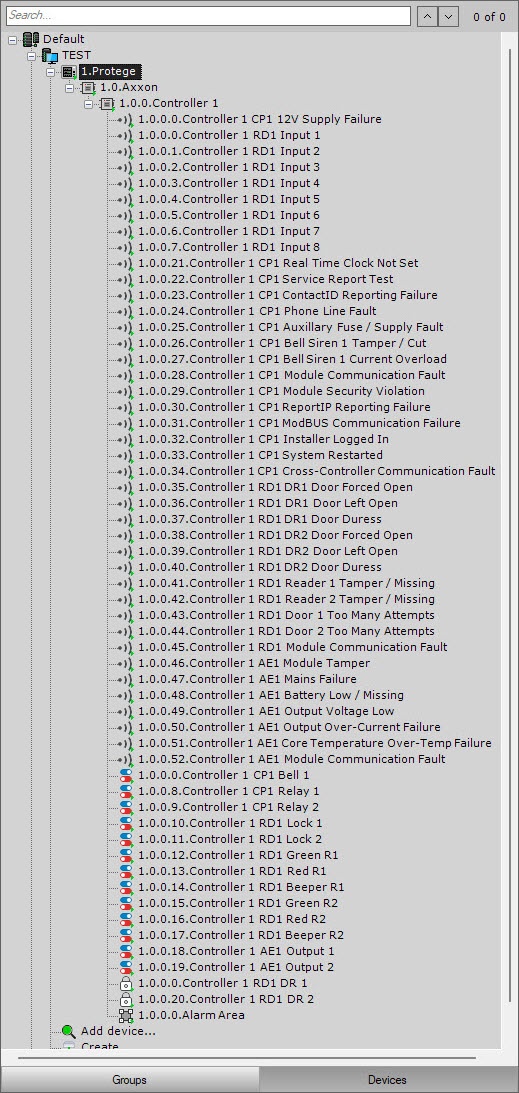
Configuring the object of the Protege integration module is complete. A device tree is built: