To configure the password policy, do the following:

  1. Go to the Programming tab and select the Security zone object.
  2. On the settings panel of the Security zone object, go the Password policy tab.
  3. If you want to change password settings, set the User password setting policy checkbox.
  4. In the Password length field, enter the password length. The default value is eight characters.
  5. Select the OK or No value for each parameter depending on the requirements for the password complexity:
    1. Small letters—a password must contain at least one letter of the lowercase.
    2. Capital letters—a password must contain at least one letter of the uppercase.
    3. Use numbers—a password must contain at least one number.
    4. Symbols—a password must contain at least one special symbol.

      We recommend setting the OK value for all parameters to ensure the maximum security.
  6. Click the Apply button.

Changes take effect after you click the Apply button, and then you cannot enter a password that doesn't meet the requirements.

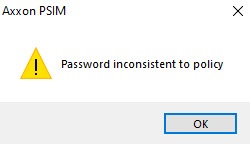
If you enter an inconsistent password, the following message appears:

Configuring the password policy is complete.

If you create the user account before changing the password policy and its password doesn't meet the new requirements, you must not change it.

Login and password are stored in the database in encrypted form. The data are transferred between servers/remote administrator’s workstations and remote clients in encrypted form as well.