Video export is available in archive and archive analysis modes.
To export a video recording (fragment):
- Go to archive mode or archive analysis mode (see the sections Switching to Archive Mode and Switching to Archive Search mode).
- Select the video fragment that you want to export using one of the following methods:
- Set the export interval on the main timeline: set the timeline indicator to the location that matches the beginning of the export interval. Click the
 button. Set the indicator to the location that matches the end of the export interval and click
  . You can also select the export interval by using the right mouse button. To clear the interval, click the
  button
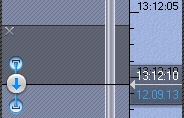
- Set the export interval on the extra archive navigation panel. This process is the same, but the export interval cannot be set by the right mouse button. To clear the interval, click the button.

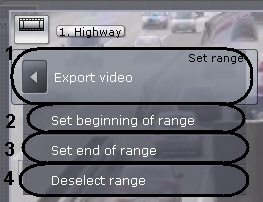
- Set the export interval by using the context menu of the viewing tile: select the Set range ->Set beginning of range (2) menu item to set the indicator of the primary or secondary timeline in the position that matches the beginning of the export range; then select the Set range ->Set end of range (3) menu item to set the indicator of the primary or secondary timeline in the position that matches the end of the export range To remove the interval, select the Set range ->Deselect range menu item (4)
- Click the
 button or select the Set range ->Export video menu item (1).
 - If necessary, add comments for the export. The comments will be shown as captions when the exported video is played.

- Click the Export button.
The export process begins. Its status is shown in a message below the layouts ribbon.

If several export processes are ongoing, use the 
 buttons to switch between them. The following information is displayed between them: number of the current export operation / total number of export operations (export progress for all operations). To cancel a current export, click the
  button.
When an export operation finishes, the selected video fragment is saved in .mkv format in the folder (to open this folder, click the  button; to close the export notification, click the
  button) that was specified in the export settings (see Configuring export). Titles containing a date and time stamp will be superimposed on video from that footage.
Captions are stored in a separate video track and, if necessary, are disabled in the player through software |
To close all export notifications, click the  button.
Export of the video recording is now complete.
A list of software that supports the .mkv format is available here. |