Unable to render embedded object: File (books.jpg) not found.
Go to documentation repository

Page History
...
- From the installation kit, start the executable file setupMonitoringsetup.exe. A dialog box appears, informing of the beginning of installation.
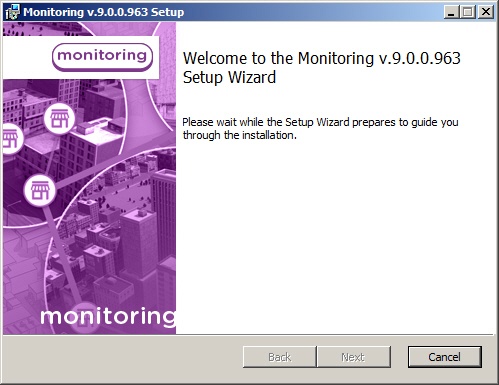
- A prompt to start installation then appears. Click the Next button.

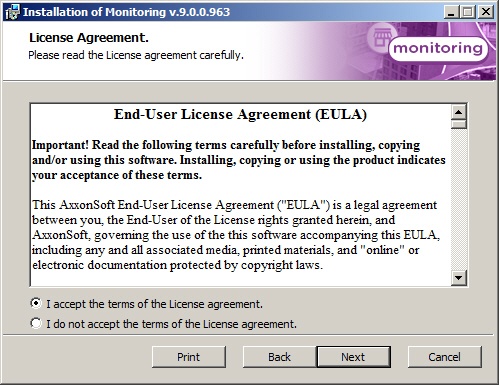
- The License Agreement window presents the terms of the end user license agreement. Select I accept the terms of the License Agreement and click the Next button.
- On the next screen, select not to install the Control Serverthe Additional client workstation installation type. Click the Next button.

- A dialog box then appears for configuring the string to connect to the remote Monitoring database. Click the Set buttonto configure database connection will be displayed. Select the database server name and set up the connection parameters.

- In the Database connection properties dialog box, select field specify the name of the database server, indicate the name of the database (by default, "MonitorSSTV"), and indicate other connection parameters. If a password is used, in the Allow password to be saved dialog box, select the check boxexisting database or select it in the list of databases, which are created in the server, and click <<.

If the parameters have been indicated correctly and the database server is functional, click the Test connection button, after which a message appears: Test connection succeeded. Otherwise, an error message appears.

Info title Note. If the English version of MDAC components is installed on the computer, English is used in the dialog boxes as well.
Specify the export catalog path. This catalog will contain video data received from Agent of control.
- Specify IP-address and port for connection to Server of control communication module videosrv.

- Click Install on the next pane.
 If the connection string has been properly configured, the message "Connection string determined" appears.
 - The installation process is launched.

- When installation is complete, a wizard page appears with a message about successful installation. Click the Finish button.

Installation of Monitoring Light is complete.
Overview
Content Tools