
Go to documentation repository


Page History
To display the status of a video camera’s the camera input, select Show input in the context menu of the viewing tileSurveillance window.
| Info | ||
|---|---|---|
| ||
| You must first activate an object to display the status of its input. |

The As a result, the status of the input will now appear is displayed in the viewing tileSurveillance window.
| Info | ||
|---|---|---|
| ||
| To hide the input status, select Hide input in the context menu of the viewing tileSurveillance window. |
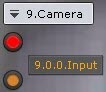
There are four possible statuses of a input.
Input status | Description |
| Video camera Camera is armed, input is in normal status |
| Video camera Camera is armed, input is in alarm status |
| Video camera Camera is disarmed, input is in normal status |
| Video camera Camera is disarmed, input is in alarm status |


| Tip |
|---|
Overview
Content Tools