
Go to documentation repository


Page History
| Note | ||
|---|---|---|
| ||
AxxonSoft isn’t a developer and doesn’t provide technical support for Grafana | Prometheus software. |
To view the self-diagnostics metrics using third-party Grafana | Prometheus software, do the following:
- Download and install Grafana.
- Go to the web interface of Grafana self-diagnostics service: http://localhost:3000.
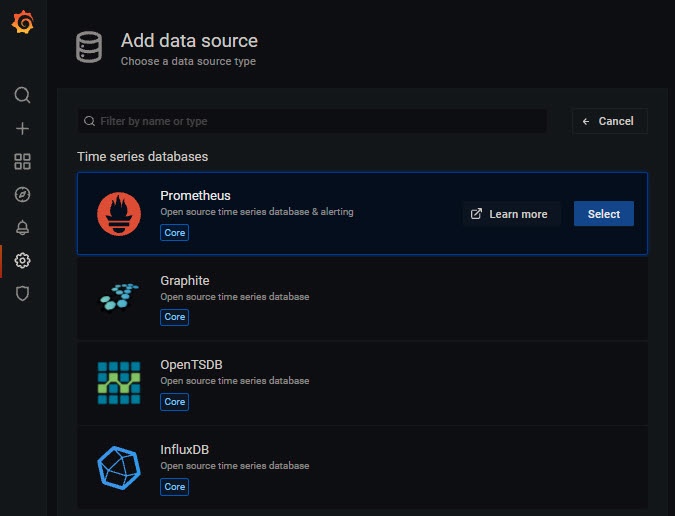
Add Prometheus as a data source in Grafana:
In Grafana, select the Configuration tab → Data sources and click the Add data source button.

- Select Prometheus and click the Select button.
Specify the URL address and Prometheus port
and click the .
Click the Save & test
 button. The default is port 20040.
When Prometheus is successfully added to Grafana, the following window will be displayed:
Configure the display of dashboards in Grafana.
Tip To get informative charts with the right frequency and with the right time intervals on dashboards, use Querying Prometheus.
In Grafana, select the Create tab → Dashboard and click the
 button.
Configure the dashboards to display the necessary information (see official documentation).
After configuring dashboards in Grafana, you will be able to view the self-diagnostics metrics.
Overview
Content Tools