
Go to documentation repository


Page History
| Tip |
|---|
The Input object is displayed as a child object of the Camera object in the object tree if a camera has a built-in or pluggable digital input. The number of Input objects for a camera corresponds to the number of pluggable digital inputs a camera has.
...
To configure the Input object, do the following:
- Go to the
- the Devices tab
- tab.
- Select the Input object in the object tree. If necessary, you can change the values of the parameters that are listed in the table:
Parameter Value Description Other Enable Yes By default, the input is disabled. To enable it, select Yes No Name Input If necessary, enter the input name Input/output ID 0 (non-editable field) Input/output ID for the input on the controller Normal status Open From the drop-down list, select the status of the input in which it must be when there is no alarm Closed Camera Camera 1.Camera {Short name.Name} From the drop-down list, select the camera with which you want to bind the input (see Camera). As a result, the input becomes a child of the selected camera
Info title Note - If the input is a child of the Channel object, then:
- When you enable the input, the Channel parent object is automatically enabled.
- When you enable all Input and Output child objects, the Channel parent object is also enabled.
- If the input is a child of the Channel object, then:
- Click the Apply
 button.
As a result, the input is switched to the specified operating mode.
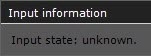
The current state of the input is displayed in the Input information group.
Overview
Content Tools