
Go to documentation repository


Page History
If you install INTELLECT™ software Axxon PSIM on a computer where an earlier version is used, then the installation will be is performed in the updating update mode.
| Infonote | ||
|---|---|---|
| ||
Update the Intellect software on Remote Clients while its updating on the Server or on Remote Admin Workstation. The compatible versions of the Intellect software should be installed on Remote Clients and on Server/Remote Admin Workstation, i.e. the first two digits of version number should be the same (e.g. versions 4.10.4 and 4.11.0 are not compatible, but versions 4.10.3 and 4.10.4 are compatible). Intellect since version 4.10.2 is not compatible with earlier versions in the distributed configuration. |
| Note | ||
|---|---|---|
| ||
It is recommended to create database backup before updating – see Creating the database backup copy. |
...
| ||
Important to know before you update Axxon PSIM:
|
To update Axxon PSIM, do the following:
- Unpack the installation kit as described in Getting ready for Axxon PSIM installation; the . The destination folder will show the contents of the kit.

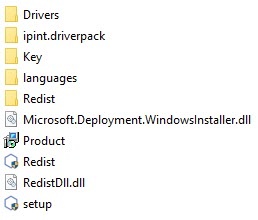
- Run the setup.exe file to start the INTELLECT™ software Axxon PSIM installation procedureprocess.
As a result the dialog box of choosing , a window for choosing the Installation wizard language is displayed. - Choose the language of INTELLECT™ software installation theInstallation wizard and click the Install button.

As a result, the Type of installation dialog box is displayed window opens.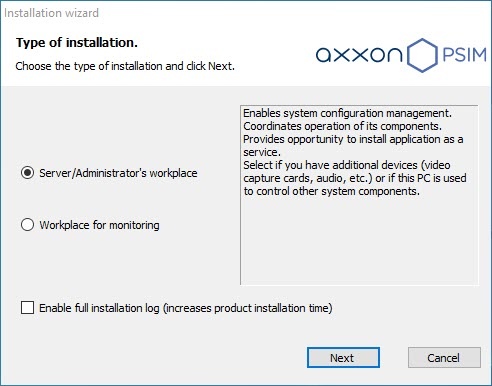
- Choose the type of installation needed.
To log all installation events, set the Enable full installation log (increases product installation time) checkbox.
Info title Note. When you update While installing and uninstalling the software, events are logged to Intellectthe PSIMSetup.log and Intellect uninstall. log correspondinglyfile. To collect log - files, use the “SupportSupport.exe” exe tool is to be used (seeThe utility for collecting configuration data on servers and RWS for the Technical Support section). - Click the Next button.
The Selecting components for installation dialog box is displayed window opens.
Set the checkboxes next to the components that are you want to be installedinstall.
Info title Note. We recommend installing all suggested components All offered components are recommended to be installed. Click the Install button.
The selected prerequisites and drivers will be installed.Note title Attention! During the installation process, you will be prompted to remove the installed vertical solutions. Two options are possible:
If you click the Yes button, the vertical solutions are removed during the update process. In this case, you will need to reinstall them after the update. Installation manuals are available in the documentation for each solution, links are on the main documentation page for Axxon PSIM 1.0.0-1.0.1. You must also take into account the compatibility of versions: General information about product releases and versions compatibility.
If you click the No button, the vertical solutions won't be removed and will be compatible with the new version of Axxon PSIM after the

To remove industry-specific vertical solutions that are installed on the computer, select Yes. Otherwise, problems can occur when starting Intellect afterupdate.
When prerequisites and drivers are installed, the dialog box window of INTELLECT Axxon PSIM update is displayedopens.
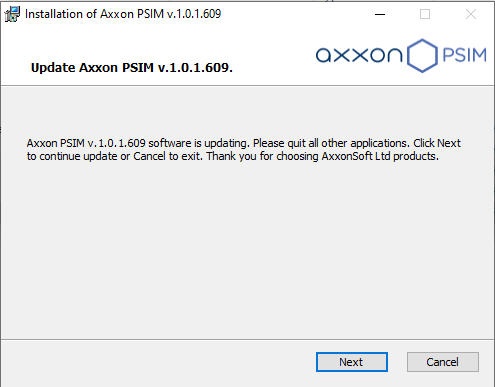
- Click the Next button.
The dialog box of window for selecting the type of update is displayedopens.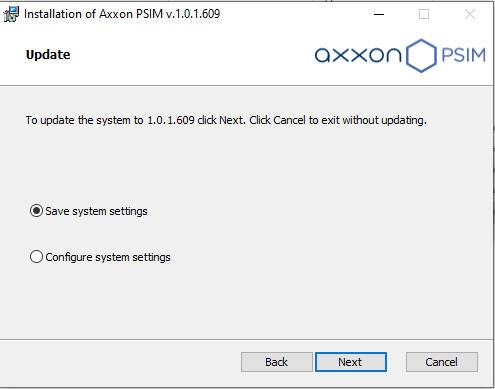
Select one of the offered suggested types of update. The types of update updates are described in the table below:
The types type of update
Description
Save system settingsUse
The usage of settings chosen for installation of an earlier versionselected when you installed the previous version of Axxon PSIM
Configure system settings
Switch Proceed to the step-by-step system configuration. Step-by-step configuration is described in in Installation of INTELLECT™ software Axxon PSIM as a Server/Remote administrator workplace section.Administrator's workstation
Click the Next button.
When the system is configured, installation of INTELLECT™ software starts Axxon PSIM starts.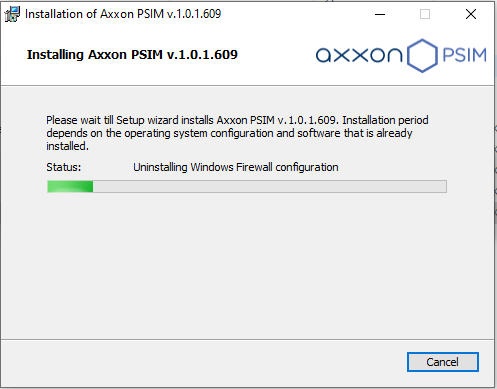
Info title Note. - As a result, the Update Complete dialog box is displayed window opens.

Click the Finish button.
Info title Note. Then the
Axxon Driver Pack will be installedDriversPack is installed if you selected this component.
The Installation complete dialog box is displayed window opens. It contains the information about INTELLECT components the mode (installed or not) of Axxon PSIM components.
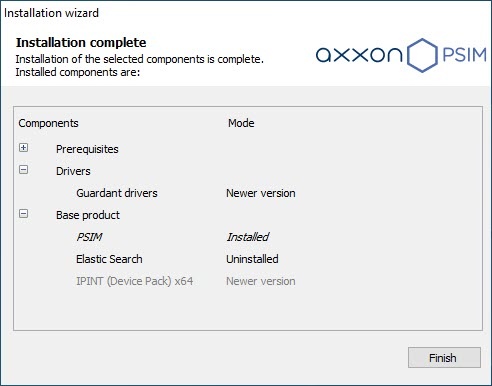
- Click the Finish button.
...
- A window prompting you to restart the computer
...
- opens.
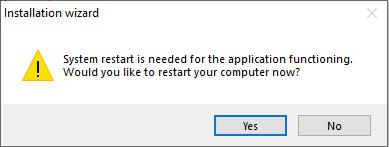
To correctly finish the installation of Axxon PSIM, you must restart the computer. If you don’t choose to restart now, you will have to do it yourself after the installation.
Axxon PSIM is now updated.
| Info | ||
|---|---|---|
| It is recommended to select the option of closing the program with computer restart.
...
If you try to update Axxon PSIM to an older version, the updating process goes as described above, but the version remains the same, and there are no changes in the software. |
| Tip |
|---|
Updating Axxon PSIM installed as a Service |
Overview
Content Tools