Versions Compared

Key

  • This line was added.
  • This line was removed.
  • Formatting was changed.

The POS Intellect software PSIM is installed as a part of the Intellect software. Information about compatibility of the Intellect software versions and POS Intellect is presented in the General information about product releases and versions compatibility section. Axxon PSIM

Note
titleImportantAttention!

The POS Intellect software should POS PSIM should be installed on both both the Server/Remote administrator workplace and Administrator's workstation and the Client. For details, see IntellectAxxon PSIM. Administrator's Guide.

To install POS IntellectPSIM, do the following:

  1. In the root directory of the distribution package, run the setup.exe executable file.
  2. To continue the installation process, click  the Next button.
    Image RemovedImage Added
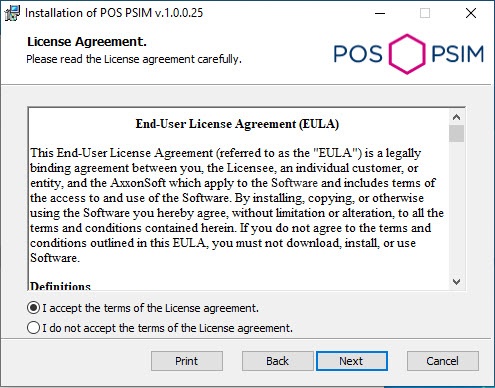
  3. Read the terms of the license agreement carefully. Then set the radio button to I accept the terms of the License agreement and click  the Next button.
    Image RemovedImage Added
  4. Select the database MS SQL Server and specify the authorization parameters for connection. For details, see Installation of INTELLECT™ software Axxon PSIM as a Server/Remote administrator workplaceAdministrator's workstation. To continue the installation process, click  the Next button.
    Image RemovedImage Added

  5. Click the Install button to start the installation process.
    Image RemovedImage Added
  6. As a result, the necessary the necessary components of the POS Intellect software packagePSIM will be copied to hard drive of your computer.
    Image RemovedImage Added
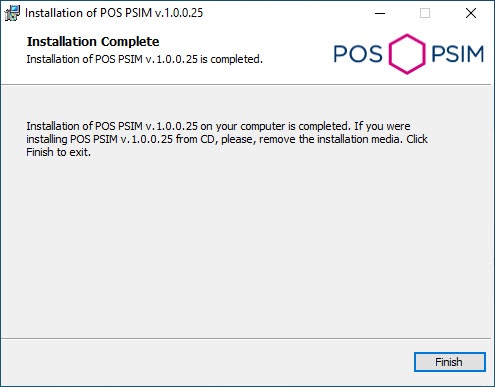
  7. After all software components are successfully copied on your hard drive, the message about the completion of the installation process will be displayed. Click  the Finish button.
    Image RemovedImage Added

The POS IntellectPSIM installation is now complete.