
Go to documentation repository


Page History
| Section | |||||||||||||||||||||
|---|---|---|---|---|---|---|---|---|---|---|---|---|---|---|---|---|---|---|---|---|---|
|
| Tip |
|---|
General information
A remote archive can only be represented as a file on one or several remote storages.
The following protocols of remote storages are supported:
- For Linux OS:
- SMB2/SMB3.
- NFSv3/NFSv4.
- CIFS.
- iSCSI.
- For Windows OS:
- WinAPI access mechanism (current version for Windows 10 and 11).
The choice of protocol depends on the configuration, security policies, and capabilities of the NAS.
Create a remote archive
To create a remote archive:
- Go to the Archive tab.
- In the branch of the Server object, click the Create... link.
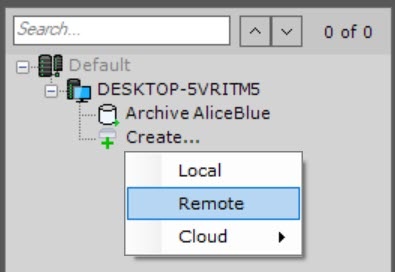
- Select the Remote archive type.
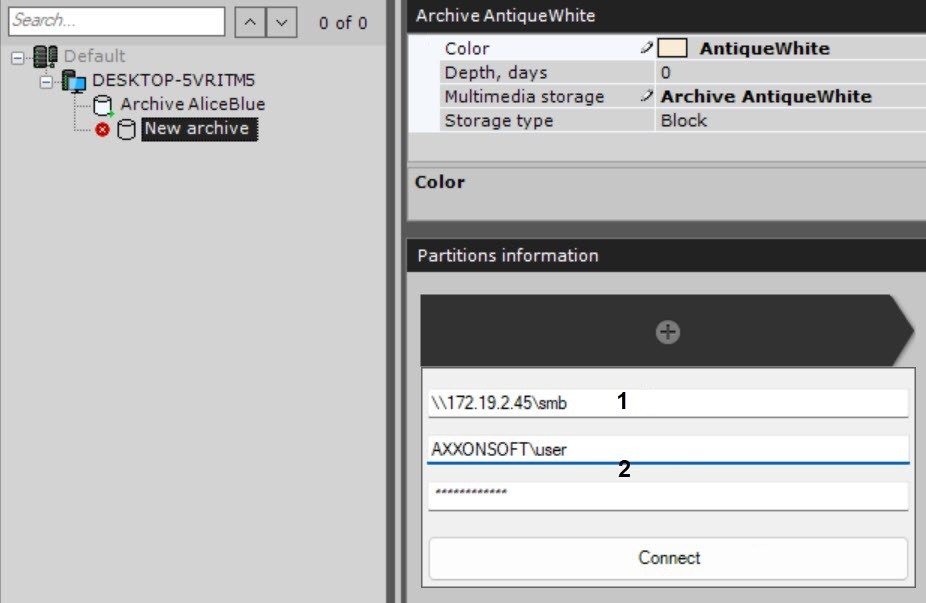
- In the Color field, select the color of an archive.
- If necessary, in the Depth, days field, specify the maximum depth of storing an archive in days. If you specify the 0 value, the archive depth is unlimited (see Configuring recording to an archive).
- In the Multimedia storage field, specify the name of an archive.
- In the Storage type field, select the type of archive storage:
- Block, if you need low latency and high performance in various situations. For example, for tasks with a large read and write load;
Object, if you need to be able to change the size of an archive volume without restarting the system (see General information about the Round-robin algorithm), as well as to encrypt an archive volume (see Encrypting a volume of an object archive).
- In the Partitions information section, click the + button.
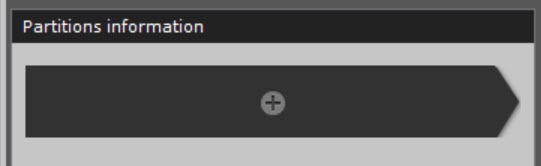
As a result, a panel for configuring a path to a remote storage opens. Enter a path to a remote storage, where an archive must be located (1).
- Enter the username of the user who has permission to access the remote storage (2).
Note title Attention! You must enter the username
Network archives are files on NAS (network attached storage).
To create a network archive, do as follows:
- Go to the Server object and click the Create button.
- Set the archive type to Remote (1).
- Specify the name and color of the archive (2).
- Launch text editor and open the file: C:\Windows\System32\Drivers\etc\hosts ,then add the following string: "192.168.1.1 DNSname1", where 192.168.1.1 − IP address of the NAS, DNSname1 − domain name of the NAS.
- The name of a newly created network archive must include the actual domain name.
- Launch text editor and open the file: C:\Windows\System32\Drivers\etc\hosts, and add IP addresses and domain names of all necessary NAS.
- The names of newly created archives must include actual domain names.
with a prefix of the domain (domainname\username) or name of the computer (computername\username) where this account is located.
Click the Add storage button (5- Enter the password of the user who has access to the remote storage (2).
- Click the Connect button.
- This will connect you to the NAS
- remote storage. When you are connected,
- you can
- see a dialog box for setting up your archive.
- window for configuring the archive parameters.
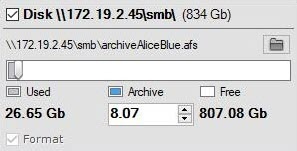
- In the Archive field, enter the file size in GB or set it by moving the slider. The size of an archive file must be greater than or equal to 1 GB. For the Fat32 file system, the maximum archive size is 4 GB.
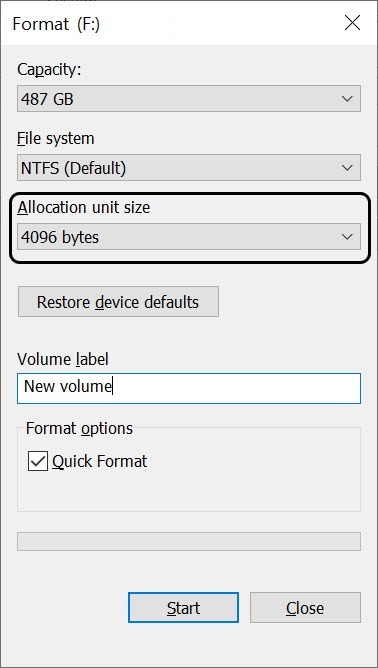
Note title Attention! If you need to create an archive file larger than 16 TB, the cluster size for the NTFS file system must be set to a value greater than 4 KB when formatting the disk in Windows OS. To do this, right-click the disk to which the archive file will be written, and in the menu that opens, select the Format... item.

In the Format window that opens, from the Allocation unit size list, select a cluster size greater than 4 KB and click the Start button.
Info title Note To change the archive folder in the remote storage, click the
 button and select the required location. Only one network
 - If necessary, you can add other remote storages to the archive and configure their parameters.
- Click the Apply
 button.
Enter a path to the archive network destination (3).
| Note | ||
|---|---|---|
| ||
If a particular PC is used to access a particular network archive from multiple user accounts, do the following: If you need to add several network archives under different user accounts, do the following: In a backup Server-driven failover system (see Setting up a configuration with the backup Server), if domain names differ from one Server to another, the hosts file on the backup Server must include records from all Servers. |
Enter the user name and password (4). The user must have permissions to access the NAS.
| title | Attention! |
|---|
Creation of a remote archive is complete. After the archive is created, the status of the remote storages, where the archive is located, is displayed.

Limitations when working in Windows OS
! Only one remote user can connect to
...
the remote storage at a time. This is a limitation of
...
Windows OS !
Attempting to connect multiple users at the same time can result in connection errors and storage malfunctions. You can check the active user connections in the Partitions information section.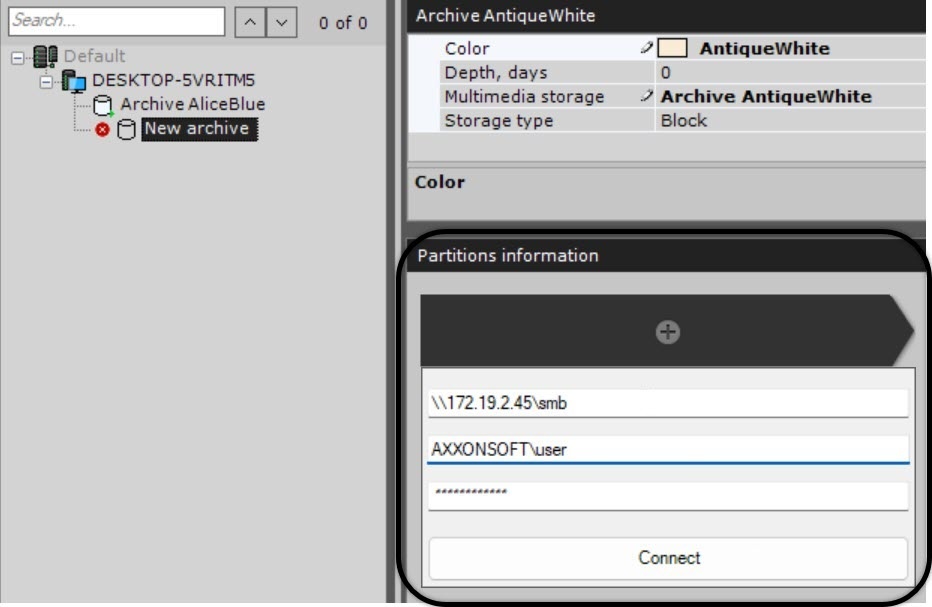
If this error occurs, disconnect the previous user from the device on which Axxon One is installed in one of the following ways:
- 1.
- Run the command
- net use /delete command. 2.
- Use the PsExec system program to open the command prompt as the LocalSystem user (psexec.exe -i -s cmd.exe) and execute
- run the same command.
- If you want, you can add other NAS for your archive and set them up.
- Click the Apply button.
For this archive volume, you must enter a file size (in gigabytes) or set it by moving the slider. The size of the archive file must be more than 1 GB. For the Fat32 file system, the maximum archive size is 4 GB.
| Info | ||
|---|---|---|
| ||
To change the archive folder, click the |
You have created your network archive. After creating the archive, the NAS status is displayed.
| Note | ||
|---|---|---|
| ||
If you plan to connect several users from this computer to a remote archive, do the following:
If you need to add several remote archives using different remote user accounts, do the following:
In a failover system with a backup server (see Setting up a configuration with the backup Server), the hosts file on the backup server must include recordings from all servers if domain names differ on each server. |
...
Overview
Content Tools