


Page History
Starting with Axxon Datacenter 3 3.1817, you can select the language of the user interface. To do this, do the following:
Register or authorize sign in to Axxon Datacenter (see Registration, authorization, password recovery and change).
- On the Domains tab, click the
 button in the upper right corner.
 - In the window that opens, click the
 button.
- In the window that opens, go to the GENERAL tab General tab.
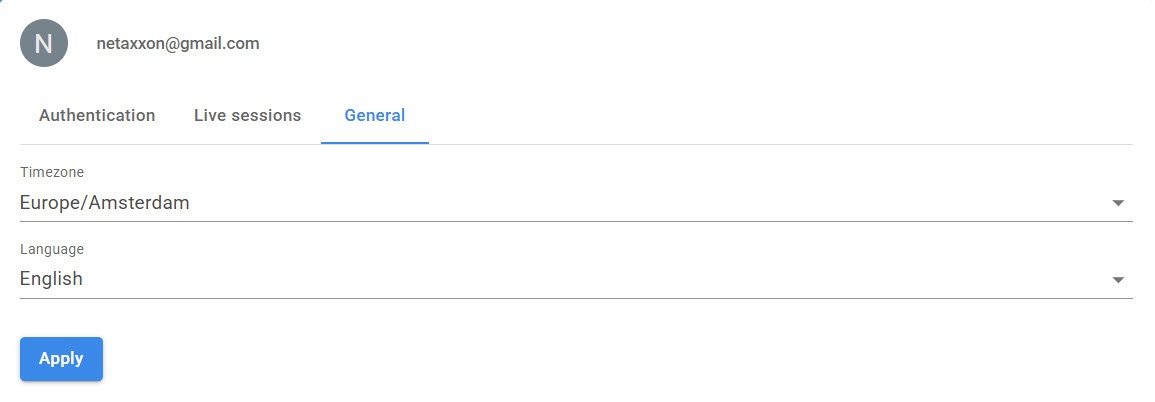
If necessary, change the time zone by selecting the required value from the Timezone drop-down list.
From the Language drop-down list, select the interface language.
Click the
APPLY Apply button.
Selection of the interface language is complete.
Overview
Content Tools