
Go to documentation repository


Page History
| Info | ||
|---|---|---|
| ||
The monitor can display up to 94 layouts. You cannot work with layouts added beyond this limit. |
You can use the following group of settings to To select, create, delete, rename, sort, search, and search layouts, the following settings group is usedscroll layouts:
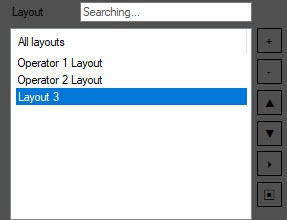
To search for the required layout, start typing entering the layout name in the Layout field. The found items will be elements are highlighted in graygrey.

To select a layout to be displayed on the layout creation panel, left-click its name in the list.
To create a layout, click the  button button. The layout will be is added to the list with the default name ("Layout <number>"). To rename the layout, select it in the list, then left-click its name and enter a new name.
...
To delete a layout, select it and click the  button. Several layouts can be selected with You can select several layouts with the Ctrl key pressed on the keyboard.
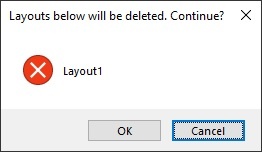
The confirmation dialog box with When you click the button, a window opens. This window confirms the deletion of the list of layouts to be deleted opens on clicking the button. Click OK to delete the layouts of or Cancel to abort cancel the operation.
To move the a layout up or down in the list, use the  and and
  buttons buttons, respectively.
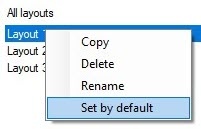
A layout You can also be deleted or renamed delete or rename a layout using the corresponding commands in the menu opened that you can open by right click on -clicking the layout name:
To scroll the layouts, you can use the  (start scrolling) and
  (stop scrolling) buttons or macros (see Examples of scripts with Cameras and Video surveillance monitor).
Overview
Content Tools