
Go to documentation repository


Page History
The system settings of the the Virdi Terminal Terminal are set up configured as follows:
- From the Security Level 1:1 (Verify) drop-down list (1), select the verification quality level from 1 to 9 if only one type of authentication is used. The default value is 4.
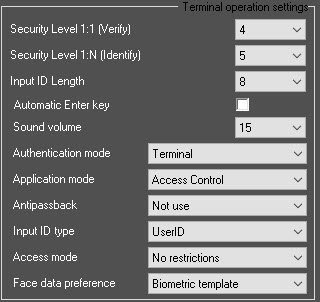
- From the Security Level 1:N (Identify) drop-down list (2), select the authentication quality level from 1 to 9 if several authentication types are used. The default value is 5.
From the Input ID Length drop-down list (2), select the user ID length : from 4 to 8symbols characters.
Note title Attention! To ensure the terminal operation with ACFA PSIM, it is necessary to select the select 8 value. Also, the Input ID Length should must be set to 8 in the terminal itself.
- Set the Automatic Enter key check box (4) to checkbox to enable the automatic key entry from the terminal keyboard (F1-F4 buttons).
- From the Sound volume drop-down list (5), select the terminal speaker volume level : from 0 to 20.
- From the Authentication mode drop-down list (6), select the mode of authentication and terminal operation:
- Server/Terminal - —the decisions are made by the Serverserver, and if it is not available, then by the terminal.
- Terminal/Server - —the decisions are made by the terminal, and if it is not available, then by the Serverserver.
- Server - —the decisions are made by the Serverserver.
- Terminal - the —the decisions are made by the terminal.
Offline mode - —the offline mode of the terminal.
Info title Note In the offline mode, the terminal cannot be managed from the ACFA PSIM Server server.
- From the Application mode drop-down list (7), select the terminal operating mode:
Access control - Сontrol—access point mode.
Note title Attention! To ensure the terminal operation with ACFA PSIM, it is necessary to select the Access controlСontrol operation mode.
- Time/Attendance - —working time tracking mode.
- Drinking Water - —breathalizers compatibility mode.
- From the Antipassback drop-down list (8), select the double-entry control mode:
- Not use - —not used.
- Access when disconnected - —allow entry if the connection with the Server server is lost.
- Prohibit when disconnected - prohibit entry —prohibit entry if the connection with the Server server is lost.
- From the Input ID type drop-down list (9), select the type of user identifiers:
- UserID type - —custom user identifiers.
- UniqueID - —unique user identifiers specified in the terminal.
- From the Access mode drop-down list (10), select the access mode provided by the terminal if there is no keyboard for entering numbers on the terminal:
- No restrictions - —no restrictions.
- Only fingers and password - —only fingerprints and password.
- From the Face data preference drop-down list, select the preferred data for biometric user authentication. If the required data isn't available, other data is used.
- Biometric template—the saved biometric template of the user is used.
- Person photo—the photo of the user's face from the Access Manager is used.
Info title Note Not all terminal models support the feature of selecting data for biometric user authorization.
- Click the Apply button (11) to apply the settings.
The operation Configuration of the system settings of the Virdi Terminal are set up Terminal is complete.
Overview
Content Tools