
Go to documentation repository


Page History
The debug mode allows you to conveniently add the elements of the OPC server elements, to activate the monitoring of the selected elements and to assign the rules.
To activate enable the debug mode, do the following:
- Enable the Axxon PSIM debug mode (see Selecting Enable and enabling configure the debug mode of Intellect softwareAxxon PSIM).
Set the 1 value for the Debug parameter (see Registry keys reference guide, for more information about working with the registry, see Working with Windows OS registry).
Info title Note If there is no Debug parameter, it is necessary to you must create it.
- Restart Axxon PSIM to apply the settings.
To add the elements of the OPC server elements in debug mode, do the following:
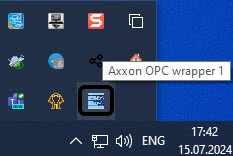
- Double left-click the AxxonSoft icon of the Axxon OPC wrapper module icon in the Windows notification tray.

- In the window that opens, click the Service button (1).

A window for connecting to the OPC server opens.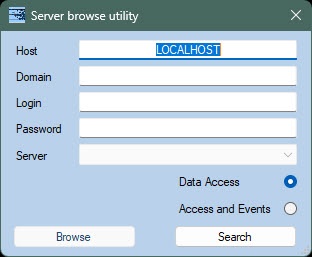
- In the window that opens, expand the tree of elements by left-clicking the OPC server and the device (2).connect to the OPC server in one of two ways.
- Manually: specify all field values to establish a connection to a locally installed OPC server.
- In the Domain field, specify the name of the domain to which belongs the user who has permission to search for OPC servers.
Info title Note If there is no domain in the system, or you need to select a user who doesn't belong to any domain, the Domain field must be left blank.
- In the Login and Password fields, specify login and password of the user who has permission to search for the server.
Note title Attention! If you don't specify authentication parameters, the search for the server is performed by the current system user.
- Select the OPC server standard by selecting the Data Access or Access and Events option.
- In the Domain field, specify the name of the domain to which belongs the user who has permission to search for OPC servers.
- Automatically: search for a locally installed OPC server by clicking the Search button.
Info title Note Correct configuration of DCOM is required to search and connect to remote OPC servers.
- Manually: specify all field values to establish a connection to a locally installed OPC server.
- Click the Browse button.
A window for adding OPC objects opens.
- Set the checkboxes next to the elements of the OPC server that you want to add to the hardware treeSet the checkboxes for the required OPC server elements (2).
Info title Note You can set the a checkbox for next to the OPC server or for the a device. In the first case, all elements of all devices of the OPC server devices will be checked, in are selected. In the second case, all elements of the only selected devices will be checkedare selected.
- Click Proceed (3)the Proceed button.
In the window that opens, set the checkboxes for next to the elements of the OPC server elements that should be added that you want to add to the equipment hardware tree (4).

The following settings can be applied to the selected elements of the OPC server elements:
If it is necessary to monitor the status of the elements of the OPC server elements status, set the the Monitoring checkbox (5).
Info title Note You can activate enable the monitoring of the status of the elements of the OPC server element states later (see Configure Configuring the monitoring of the elements of the OPC - server elements).
- If it is necessary to necessary to assign the Data Access rules for the OPC-server elementsthe elements of the OPC server, select the corresponding rule in the the Rule drop drop-down list (6) (see Configure Configuring rules for the elements of the OPC - server elements of the Data Access standard).
Info title Note You can select several elements of the OPC server elements at once using the hotkeyskeyboard shortcuts, for example:
"Ctrl" + "a" — selecting —select all elements.
"Shift" + left-click on the specified element — selecting element—select all elements starting from the currently selected one to the one specified with the mouse click.
"Shift" + keyboard arrows "down" or "up" — selecting —select the elements one by one going up or down from the currently selected one.
Click the Apply (7) button to add the elements of the OPC server elements to the equipment hardware tree.
As a result, the objects that correspond to the elements of the OPC server elements, will be created.
are created: a group of the AE servers objects—OPC servers of the Alarms & Events standard, DA servers—OPC servers of the Data Access standard.

Adding the elements of the OPC server Adding the OPC server elements in Debug mode is complete.
Overview
Content Tools