


Page History
| Section | |||||||||||||||||||||
|---|---|---|---|---|---|---|---|---|---|---|---|---|---|---|---|---|---|---|---|---|---|
|
General information
Each role has different access settings for users. To configure a cloud role, go to the System settings tab→ tab → Cloud rolespermissions.

...
Create and
...
configure a role
To create a role, do the following::
- Go to the System settings tab → Cloud permissions. Click the
- Click the
- Add a new role
 button.
 - In the Name
- the window that opens, in the Role name field, enter the name of the role.
 Set
Set - Click the Next button.
- In the window that opens, set the checkbox next to the required access permission. If necessary, you can click the Expand All
 button to view all permissions. You can apply the following permissions for
 - to a cloud roles
- role:
Permission Description The Devices tab Streaming: Manage Allows you to use the streaming and get the streaming address in the Devices tab → Streaming. Without this permission, the Streaming section isn't available Manage cloud cameras and bridges Allows you to manage cloud cameras and bridges (add, rename, delete, and so on). Without this permission, you can't change groups of usersmanage cloud cameras Domain creation Create Axxon PSIM domain Domain policies: EditAllows you to edit create an Axxon PSIM domain policies. Without this permission, you can't edit domain policies and usersthe Create Axxon PSIM domain button isn't displayed when you create a domain Create cloud domains Cloud permission: Edit UsersAllows you to create and delete users in the User permissions tab → Userscloud domains with the necessary parameters. Once you create a domain, you can add devices to it. Without this permission, the Create userAxxonNet domain button isn't displayed , and when you can't create/delete userscreate a domain Connect remote domains Allows you to bind a domain by token. Without this permission, the Bind button isn't displayed when you create a domain List settings Manage lists of faces Allows you to manage lists of faces that the user creates Allows you to manage domain roles (assign, edit, delete, and so on). Without this permission, you can't manage domain rolescreate and edit lists of faces Manage lists of license plates Cloud Permissions: ManageAllows you to manage cloud permissionslists of license plates that the user creates. Without this permission, you can't manage cloud permissionscreate and edit lists of license plates Configuration backups Backup: Download Allows you to download backups of domain configuration. Without this permission, you cannot download backups Backup: Restore Allows you to restore domain configuration from a backup. Without this permission, you cannot restore backups Backup: Manage Provides access to the Backup tab in the Domains tab and also allows you to manage backups
. Without this permission, you
can't move users between groupscannot manage backup settings and don't have access to the Backup tab
Reports View reports Domain policies: ViewAllows you to view domain policiesand edit reports. Without this permission, only the domain of the user's account is available to the user; other domain policies arenthe Reports tab isn't displayed Dashboards Dashboards: View Allows you to view dashboards. Without this permission, the Dashboards tab isn't displayed View Userspublic dashboards Allows you to view a user list in the cloudpublic dashboards. Without this permission, the Users tab in the User permissions section is inactive, and you can't access the user listAccess to functionspublic dashboards aren't displayed in the Dashboards tab Monitoring Monitoring: Edit Allows you to edit the Monitoring microservice: add new widgets to a dashboard, delete, rename, change color, size, and so on Monitoring: View Allows you to view the Monitoring microservice in the dashboard sidebar. Without this permission, the Monitoring microservice isn't displayed in the sidebar Working with dashboards Dashboards: Create Allows you to create dashboards. Without this permission, you cannot create dashboards. When you try to create a dashboard, you are redirected to the Dashboards tab Dashboards: Edit Allows you to edit the created dashboards. Without this permission, the Edit button (the pencil icon) isn't displayed, and you can't edit the created dashboards Edit Dashboards in Marketplace: EditExport Allows you to export dashboards. Without this permission, you can't export dashboards Dashboards: Import Import Allows you to import dashboards. Without this permission, you can't import dashboards Manage all Face listsDashboards: Share Allows you to manage face lists of users (creating, editing, removing). Without this permission, the Faces tab isn't displayedto share a link to the dashboard. Without this permission, the LPs tab Share button isn't displayedavailable User settings Change password Allows you to change the user password and displays the Authentication section in the user settings. Without this permission, the Streaming parameter isnyou can't availablechange the password Admin tools Cloud permission: Assign Allows you to share a link to the dashboardassign cloud roles to users. Without this permission, the Share button isnyou can't availableassign roles to users Cloud permission: Delete users Update quota for manual exportAllows you to change the quota for uploading filesVideo export from web-client to the clouddelete users from the system Edit public dashboards Allows you to export video to the cloud. If you disable this permission, the corresponding interface elements are hiddenchange the settings of public dashboards (name, data, schedule, and so on) Backup: Edit schedule Allows you to edit the schedule for backups . Without this permission, the Classifier isnyou can't displayededit the backup schedule Domain policies: Edit View DashboardsAllows you to view dashboardsedit domain policies. Without this permission, the Dashboards tab isnyou can't displayededit domain policies and users Cloud permission: Edit users View Dashboards in MarketplaceAllows you to
view dashboards create and delete users in the
marketplaceUser permissions tab → Users. Without this permission,
dashboards in the marketplace arenthe Create user button isn't displayed
in the Dashboards tab, and you can't create/delete users
Note title Attention! You cannot disable this permission for users with the Admin role.
Manage all lists of faces Allows you to manage lists of faces (create, edit, delete) Allows you to display the Monitoring microservice in the sidebar of dashboards. Without this permission, the Monitoring microservice Faces tab isn't displayed in the sidebarManage all lists of license plates View ReportsAllows you to view and edit reportsmanage lists of license plates (create, edit, delete). Without this permission, the Reports tab License plates tab isn't displayed View User RightsManage all video devices Allows you to view user rightsto manage all devices in the Devices tab Domain roles: Manage Provides access to configuring domain permissions in the System settings tab. Without this permission, you can't
view user rightsSystem setupconfigure domain permissions
Note title Attention! You cannot disable this permission for users with the Admin role.
Cloud permissions: Manage Provides access to configuring cloud permissions in the System settings tab. Without this permission, you can't configure cloud permissions
Note title Attention! You cannot disable this permission for users with the Admin role.
LDAP sources: Manage Allows you to manage LDAP catalogs License keys: Manage Allows you to manage license keys User groups: Manage Allows you to manage user groups, including moving users between groups in the User permissions tab → Cloud permissions
. Without this permission, you can't
manage cloud camerasmove users between groups
Force synchronization of users and roles with the domain Allows you to force synchronization of domain users and roles with the database Edit the quota for manual export Allows you to change the quota for uploading files Edit the Update upload quota Allows you to edit the quota for uploading files. The quota is fixed set for manual export. If the quota expires, you cannot upload files. When you delete files, disk space is freed up. When the administrator increases the quota, the upload becomes available. Without this permission, you can't edit the quota BackupVideo export from web client to the cloud Allows you to export video to the cloud. If you disable this permission, the corresponding interface elements are hidden Domain policies: View Provides access to a list of domains. Without this permission, the user can access only their account's domain; other domain policies aren't displayed Access to full audit Allows you to view the full audit. Without this permission, you cannot restore backupscan't view the full audit View user permissions Provides access to the User permissions tab
. Without this permission, you
cannot edit the backup schedulecan't access the tab
View users Backup: ManageAllows you to manage backupsview the list of users in the User permissions tab → Cloud permissions. Without this permission, the Cloud permissions section in the User permissions tab is inactive, you cannot manage backup settingsand you can't access the list of users - Click the APPLY
- Create
 button to save the changes.
Cloud permission: Assign
| Note | ||
|---|---|---|
| ||
You cannot disable this permission for users with the Administrator role. |
| Note | ||
|---|---|---|
| ||
You cannot disable this permission for users with the Administrator role. |
| Note | ||
|---|---|---|
| ||
You cannot disable this permission for users with the Administrator role. |
Allows you to change the settings of the dashboards in the marketplace (name, data, schedule, and so on)
Allows you to manage LP lists that the user creates. Without this permission, you can't create and edit LP lists
LDAP sources: Manage
License key: Manage
Creation and configuration of the a cloud role is complete.
...
Edit a role
To edit a role
...
:
...
- Select the required role from the list in the Cloud permissions tab.
- Change the settings or the name of the role.
- Click
...
- the Save
 button.
Role editing is complete.
...
Rank roles
The ranking system allows you to determine which roles the users can assign to each other at the registrationsigning up. The higher the rankingrank, the more features a user gets. To increase the rank of a role, click the Increase ranking click the Move rank up  button. To decrease the rank, click the Decrease ranking Move rank down
  button.
...
Disable a role
To disable a role, do the following:
- Click the Disable
-
 button next to the required role.
 - In the window that opens, click the Yes button.


As a result, the role is disabled.
...
Restore a role
To restore a role, do the following:
- Click the Restore
 button.
- In the window that opens, click the Yes button.
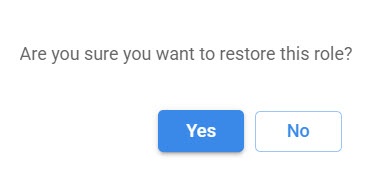
As a result, the role is restored.
...
Delete a role
| Note | ||
|---|---|---|
| ||
We recommend assigning new roles to users before you delete a role. Otherwise, all users are assigned the default Operator role. |
To delete a role, do the following:
- Click the Disable
- button next to the required role.
- In the window that opens, click the Yes button.
- Click the Delete
-
 button.
 - In the window that opens, click the Yes button
- button.

As a result, the selected role is deleted.