


Page History
| Tip |
|---|
When you add a new user to AxxonNet, you can select one of the roles:
...
| Role | Description |
|---|---|
admin | You can select if users and roles |
...
| in AxxonNet are synchronized with |
...
| Axxon One. The user who |
...
| links the |
...
| domain is added to the admin role and |
...
| is available in Axxon |
...
| One. Users |
...
| of the admin role in AxxonNet can perform any available actions with the |
...
| domain |
...
| operator | By default, |
...
| this role is limited to accessing the Web |
...
| -Client only. |
...
| Info | ||
|---|---|---|
| ||
If the operator role is selected, but there is no such role in the Axxon Next domain, then the operator role will be created in it without any configuration and the user will be added to it. It will be necessary to further configure this role in Axxon Next in order for the cameras to be displayed to user in Web client. |
| In Axxon One, you mustadditionally configure this role so that cameras are displayed for a user in the Web-Client | |
| VMS role | The role that was created earlier in Axxon One |
...
To add a user for working with
...
the domain via AxxonNet, do the following:
- On the Dashboard page Domains tab, click the
 icon in the Axxon domain.
- Click the
 button.
 - Select an AxxonNet user (1).
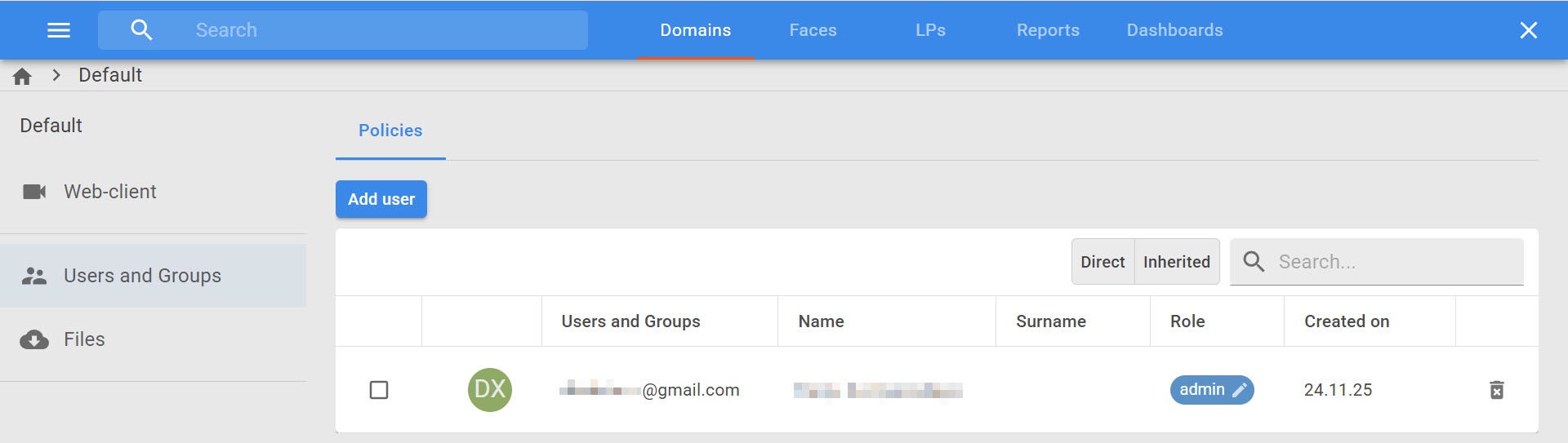
-
 button next to the corresponding domain and select the Users and Groups item.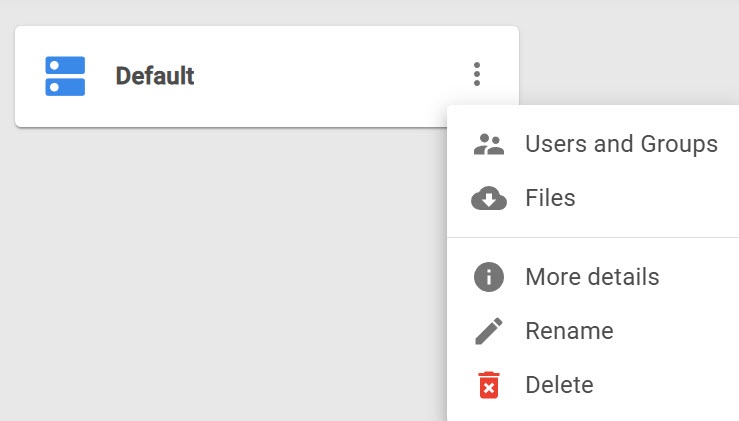
- Click the Add user button.
- In the Email field, enter the AxxonNet registered user or sign up a new user (see Registration, authorization, password recovery and change in AxxonNet).
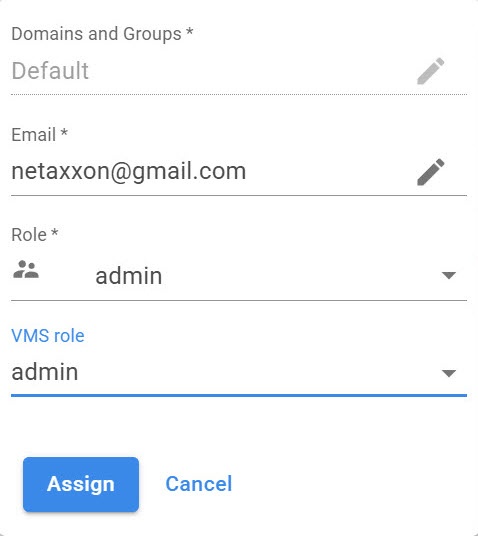
In the Role drop-down list, select the role to which In the Domain role drop-down list (2), select the role you want to add the user to: admin or operator.
- If necessary, select an you want to assign the already existing role in Axxon Next. To do this, set the Choose another VMS role checkbox (3) and from Axxon One, select one of the available roles in the VMS role drop-down list (4).
- Click the Assign button. To cancel adding a user to work with the domain via AxxonNet, click the Cancel button.
After the user is granted Adding a user to work with the domain via AxxonNet is complete. The user gets access to the Web-Client and reports. When you grant or change the access to the Axxon domain, he can use the Web client and AxxonData reportsthe user gets the corresponding notification by email.
| Note | ||
|---|---|---|
| ||
For correct operation of reports (see AxxonNet Reports), the user role has to must match the following conditions:
|
To change the user role, click the 
 button and select a new role. To delete the user, click
  .
.

...
| title | Note |
|---|
...
the  button.
| Info | ||
|---|---|---|
| ||
|