

Previous page Next page

Custom camera sorting is configured in the following way:
Go to the Client settings and select the manual video camera sorting type (see Configuring the AxxonNet iOS client interface). As a result, the Edit item will become available on the video cameras display screen.
Note
When the manual sorting is enabled, the
 button for controlling layouts and groups is hidden.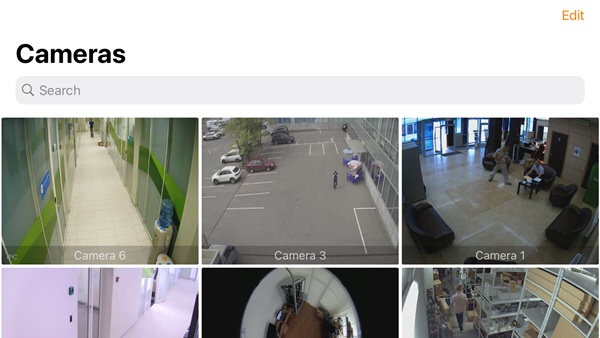
When selecting this item, the Sort screen will be opened.
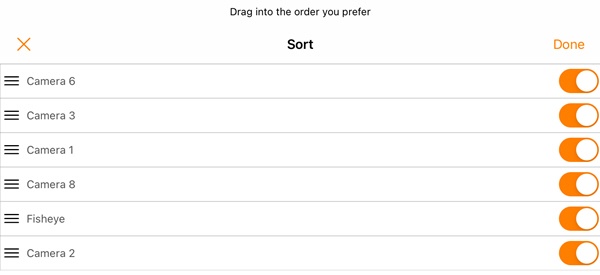
To hide/display the camera, click on the slider next to the corresponding camera (1).
To change the cameras order, click on the appropriate camera name, hold it down and drag it up or down in the cameras list.
To save the sorting, click the Done (2) button.
None
To cancel the changes and go back, click the
 button (3).
To reset the default camera sorting, enable the Clear manual sorting parameter in the app settings (see Configuring the debug information in the AxxonNet iOS mobile client).
Configuring the manual camera sorting has been completed.