
Go to documentation repository

Documentation for Face PSIM 1.0.1.
Previous page Next page

To configure a map, do the following:
- Go to the Map settings tab (1) on the settings panel of the Face recognition and search object.

- From the Control map drop-down list, select the necessary Map object (2).
- Set the checkboxes to display additional information on the map near the arrows that show the track of a person, in the case of face recognition:
- Set the Show name in track checkbox to display the name of a person (3).
- Set the Show department checkbox to display the department to which a person belongs (4).
- Set the Show similarity checkbox to display the percentage of similarity between the recognized face and the reference face (5).
- Set the Show start time checkbox to display the start time of a person’s movement in the FOV of one camera (6).
- Set the Show end time checkbox to display the end time of a person’s movement in the FOV of one camera (7).
- From the Title position drop-down list (8), select which part of an arrow will display the information specified in step 3.
- To edit the font, click the Font button (9). A standard Windows font settings window will open.
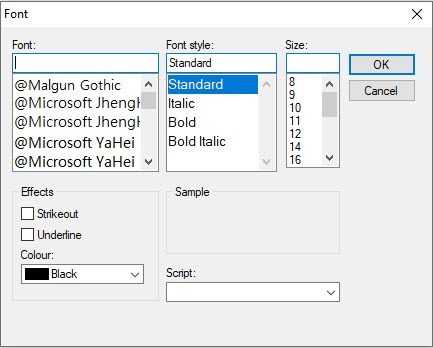
- Click the Apply button (10) to save the changes.
After you save the settings, the Show on map item will be enabled in the Face recognition and search interface window (see Displaying the camera that captured the face on the map and Viewing face search results).
Overview
Content Tools